Written by: Nuno Leiria, Founder & CEO @ Nilo
Key Takeaways for Building Roblox Content on iPad
- Roblox Studio remains unavailable on iPad in 2026, and Roblox has not announced native mobile creator tools.
- You can still create content for Roblox from an iPad by using remote desktop setups, community tools, or browser-based platforms.
- Remote desktop solutions give you full Studio access but depend on a powered-on home computer, strong internet, and can feel laggy.
- Browser-based creation with Nilo lets you create, clean up, rig, and export 3D assets directly in Safari without a desktop.
- Start building 3D assets on your iPad with Nilo’s open beta for free.
Why Roblox Studio Does Not Run on iPad
Roblox Studio does not run on iOS or iPadOS. Roblox Studio is not available on iOS or iPadOS. The minimum system requirements for Roblox Studio are Windows 10 or macOS 10.14, and those requirements apply only to desktop computers. Your iPad can run the Roblox player app, but the creation side, Roblox Studio, stays desktop-only.
This gap affects you directly. About 80% of Roblox users play on phones or tablets, yet the tools to build for that audience live on desktop machines that many aspiring builders like you cannot access all the time. A mobile-friendly workflow keeps you building after school, on the couch, or while traveling.
Start building Roblox-style assets on your iPad with Nilo’s open beta.
Roblox Studio Mobile Roadmap in 2026
That unavailability is not changing soon. Roblox’s March 2026 developer updates contain no roadmap announcements for tablet or mobile Studio compatibility. The March recap focuses on desktop and web creator tools, such as global search, a filterable Updates page, and platform release notes for Windows and Mac only.
There is no confirmed timeline for a native iPad version of Roblox Studio. Planning your workflow around a feature that has not been announced stalls your progress. Builders who keep shipping focus on tools that exist today.
Ways to Build Roblox Content from an iPad
Native iPad support for Roblox Studio is not here, so you need a setup that works right now. Three realistic options exist for building content that you can later use in Roblox from an iPad. Each option trades off speed, quality, and setup effort. The table below gives you a quick comparison before the step-by-step breakdowns.
| Option | Setup Time | Requires a PC/Mac? | Roblox-Ready Export? |
|---|---|---|---|
| Browser-Based Creation (Nilo) | Under 2 minutes | No | Yes, one-click FBX/GLB export |
| Remote Desktop | 15–30 minutes | Yes, must stay powered on | Yes, through desktop Roblox Studio |
| Community Tools | 5–15 minutes | No | Partial, depends on the tool |
All three options appear below. Retopology means cleaning up 3D mesh geometry so it meets performance limits. You will see that term across the workflows, so keep it in mind as you read.
Option 1: Remote Desktop Access to Your Home Computer
A remote desktop app streams your home PC or Mac screen to your iPad over the internet. You see and control your desktop as if you were sitting in front of it, so Roblox Studio runs there while you tap on your tablet.
- Leave your PC or Mac powered on before you leave home. Remote desktop cannot connect to a sleeping or powered-off machine, so this step is non‑negotiable.
- Install a remote desktop app on both devices. Popular options include Microsoft Remote Desktop and Parsec, both with free tiers. Install the app on your home computer and on your iPad, and pick one that supports touch-to-mouse input so your taps act like mouse clicks.
- Connect both devices to the same account and test the link at home first. Once both apps are installed, sign in with the same account, then confirm the connection works on your home Wi‑Fi before you try it from school or a café.
- Open Roblox Studio on your desktop through the remote session once the connection feels stable. Expect some input lag because your touch controls turn into mouse clicks over the internet, which can feel awkward for precise building.
- Use a Bluetooth keyboard and mouse with your iPad to make control easier. Pairing these accessories reduces friction and makes Roblox Studio feel closer to a normal desktop setup.
- Save your work frequently. Remote sessions can drop without warning, and any unsaved changes disappear. Get into the habit of saving after every major change.
- Check your internet speed on both ends. Aim for at least 4–8 Mbps upload on the host machine and download on the iPad. Slower speeds make 3D work choppy and frustrating.
Trade-offs: Remote desktop gives you full Roblox Studio access from your iPad, which keeps your workflow close to the official tools. It also ties your progress to a powered-on home computer and a strong connection. Input lag slows down detailed 3D work, and any connection drop ends your session. First-time setup usually takes 15–30 minutes.
Option 2: Community Web Tools for Specific Tasks
Several community-built tools run in mobile browsers or as lightweight web apps. These tools help you handle Roblox-adjacent tasks such as scripting, asset prep, or basic modeling without a full desktop install.
- Decide what you want to build today. Community tools usually specialize. Some focus on Lua scripting, others on simple mesh editing or asset organization. Pick your task first so you can choose the right tool.
- Search the Roblox DevForum and Discord communities for tools that are still maintained. Look for posts or messages that show updates within the last six months so you avoid abandoned projects.
- Open the tool in Safari or Chrome on your iPad. Most of these tools are web-based, so you tap a link and start using them without installing anything.
- Export your work in a standard format such as OBJ, FBX, or a Lua script file. These formats load into Roblox Studio later when you have desktop access.
- Store exported files in iCloud Drive or Google Drive so they stay synced across devices. When you reach a desktop, you can pull them straight into Roblox Studio.
- Test compatibility early before you invest hours. Import a small test file into Roblox Studio when you can and check for issues that the tool’s documentation mentions.
Trade-offs: Community tools are usually free and run in your browser, which keeps your setup light. They often cover only one part of your workflow and may break if the creator stops updating them. You still need Roblox Studio to finish and publish your game. Retopology and cleanup rarely happen automatically, so you may face extra work later.
Skip patchwork tools and try Nilo’s browser-based creation for free.
Option 3: Browser-Based Creation with Nilo on iPad
Nilo is a standalone, browser-based platform that lets you generate, clean up, rig, and export 3D assets you can use in Roblox, all without installing software. It runs in any modern browser, including Safari on iPad. You do not need a PC, a plugin, or a long setup. You just open a tab and start building.

Nilo’s real-time retopology automatically cleans up mesh geometry while you work, so you avoid long Blender sessions. The built-in level of detail system adjusts polygon counts on the fly to stay within Roblox’s 10K–20K triangle caps. One click exports FBX or GLB files that you can import into Roblox Studio later.
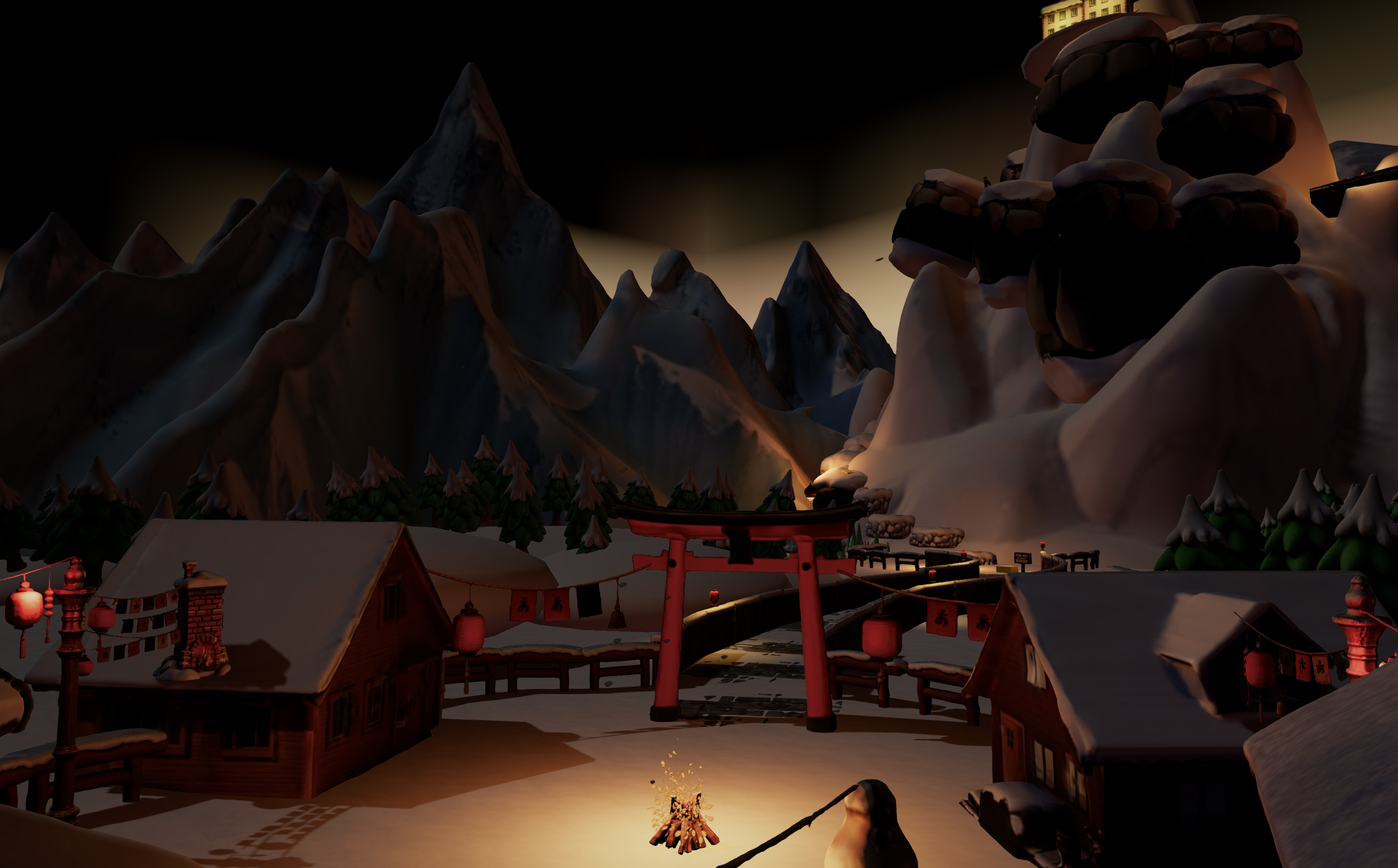
- Open play.nilo.io in Safari on your iPad. You can explore without downloading anything. Sign up for the open beta when you want to save projects.
- Type a text prompt or upload a sketch to generate a 3D model. Describe what you want, such as a sword, a character, or a prop, and Nilo creates it in seconds.
- Use the LOD slider to control your triangle count. Drag the slider until the count fits Roblox’s limits, and let Nilo handle the geometry cleanup.
- Rig your character with one click if you are working on a humanoid or creature. Nilo adds a skeleton and lets you create animations from a text prompt, so you can type what you want the character to do.
- Playtest your asset inside your Nilo world before you export anything. Share a link with friends so they can join, build, and play with you in the same browser session.
- Click Export and download your file for Roblox. Import it into Roblox Studio on any desktop when you have access, or keep iterating inside Nilo.
Note: Full game publishing directly from Nilo is in development. Today, Nilo stands out as a fast path from idea to assets you can use in Roblox, all without touching a desktop. Builder satisfaction is high. In Nilo’s February 2026 survey, 93% said they would recommend Nilo to a friend, and 82% rated their experience as “Awesome” or “Good.” One builder said, “I do not have to spend hours on 3D modeling the simplest things, now I can use Nilo and do it in 15 seconds.”
Fixing Common Problems in Your iPad Workflow
Export errors when importing into Roblox Studio: If your FBX or GLB file throws an error on import, the most likely cause is a polygon count above Roblox’s limit or a rig component that did not transfer cleanly. Start by checking the triangle count, because Roblox caps assets at 10K–20K triangles depending on asset type, and anything above that fails. If your count is too high, use Nilo’s LOD slider to reduce it before you export again. If the triangle count looks fine and the error continues, the rig is probably the issue, so re-apply the one-click rig in Nilo and re-export instead of editing the file by hand.
Optimization problems such as laggy or high-poly assets: Early signs include slow frame rates when you place the asset in a scene or warnings about triangle limits in Roblox Studio. These problems usually come from an AI-generated mesh that was not cleaned up before export. In Nilo, the LOD system handles this cleanup. If you skipped that step, go back, adjust the slider, and export again.
Remote desktop lag that makes 3D work painful: If your remote session feels too slow for precise building, test your upload speed on the host machine and your download speed on the iPad. Anything below 4 Mbps on either side causes noticeable lag. A wired connection on the host and strong Wi‑Fi on the iPad help. If lag still ruins your flow, browser-based creation removes the connection dependency.
Community tool exports not loading in Roblox Studio: This usually means a format mismatch or an unsupported mesh feature. Export in OBJ or FBX format when you can, then check the tool’s documentation for Roblox compatibility notes before you spend hours on a build.
Avoid many of these export headaches by building directly in Nilo’s browser-based beta.
Frequently Asked Questions
Will Roblox Studio ever come to iPad?
There is no confirmed timeline as of June 2026. Roblox’s recent developer updates focus on desktop and web creator tools. If you wait for an unannounced feature, your projects stay stuck. Builders who ship work now use the options already available.
Do I need any prior 3D modeling experience to use Nilo on iPad?
No. Nilo is built so that if you can describe what you want in text, a sketch, or a reference image, the platform can generate, rig, and clean it up for you. You do not need Blender or any other modeling software. Nilo introduces concepts like polygons and mesh topology through the interface while you build, so you learn by doing.
How satisfied are builders who use Nilo?
The February 2026 survey results mentioned earlier show strong builder satisfaction. Most users reported working up to 20 times faster on 3D assets compared to their previous tools.
Can I use Nilo assets in Roblox Studio once I get desktop access?
Yes. Nilo exports to FBX, OBJ, STL, and GLB, which Roblox Studio accepts. The LOD system keeps your assets within Roblox’s polygon limits before export, so you avoid extra cleanup on desktop. Store your exported files in iCloud Drive or Google Drive, and they will be ready to import when you open Roblox Studio.
Is Nilo free to use?
Yes. Nilo is currently in open beta with a free tier that includes 1,000 Nilo Bits per month, which you use for AI generation, export, and creation. Many core building features do not use Bits at all. You can sign up and start building at play.nilo.io without spending money.
Start Building Roblox-Style Worlds on Your iPad
You do not need a desktop to start creating assets for Roblox in 2026. Remote desktop setups give you full Roblox Studio access if you have a home machine and a stable connection. Community tools help with focused tasks such as scripting or simple asset prep. Nilo removes the desktop requirement entirely. You open a browser tab on your iPad, generate a 3D asset, clean it up, rig it, and export it for Roblox Studio, all without installing software or touching Blender.
Builders who stay in creative flow do not wait for perfect tools. Your iPad is enough to start building today.
Try Nilo’s open beta and start building and playing in your browser for free.