Written by: Nuno Leiria, Founder & CEO @ Nilo
Key Takeaways
-
Roblox Studio does not run natively on Chromebook and has no official ChromeOS support as of June 2026.
-
Workarounds like remote desktop, Linux via Crostini and Wine, and cloud PCs add lag, cost, or setup headaches that break your creative flow.
-
Most Chromebooks lack the hardware needed for GPU-heavy 3D work that Roblox Studio expects.
-
Browser-native tools like Nilo run fully in Chrome using WebAssembly and WebGPU, so you can create Roblox-ready assets without installs.
-
Join Nilo’s open beta and start building 3D assets for Roblox directly in your browser without workarounds.
Why Roblox Studio Won’t Install on Your Chromebook
Roblox Studio’s official requirements list Windows 10 (minimum) and macOS 10.14 (minimum) as supported. Older Windows and macOS versions are no longer supported, and ChromeOS, Linux, and iOS are unsupported. This is not a temporary gap. As of June 2026, there is no official Roblox Studio support for ChromeOS, and the Roblox DevForum has feature requests asking for it.
The hardware reality makes things even harder. Roblox Studio requires Windows 10/11 or macOS 10.14+ (macOS 14+ recommended), with a minimum of 3 GB RAM (8 GB recommended) and no specific CPU speed or dedicated video card listed. This matters because most Chromebooks are built for lightweight browser tasks, not GPU-intensive 3D development. Even if you manage to launch Studio through a workaround, your Chromebook hardware may not keep up with rendering and physics calculations.
You can spot the problem early. The installer will not launch, the Chrome Web Store has no Studio listing, and the Android version of Roblox that does run on ChromeOS is only the player app, not Roblox Studio.
Remote Desktop Workarounds from Chromebook to Windows
Remote desktop tools like Splashtop or AnyDesk let you connect your Chromebook to a Windows PC running Roblox Studio somewhere else. Splashtop supports ChromeOS and delivers HD-quality streaming, but a stable, high-speed internet connection on both devices is required to keep latency low, and network and connectivity problems can still degrade quality and increase latency even with adaptive streaming.
You notice this method failing when your mouse clicks register a half-second late, viewport rotation feels sluggish, and placing parts turns into a guessing game. The likely cause is round-trip latency. Every input travels from your Chromebook to the remote machine and back before you see the result. For 3D building, where precise clicks and camera movement matter constantly, even 50–100 ms of lag feels annoying. Remote desktop performance depends on network conditions and host machine capabilities regardless of the software you choose.
The practical trade-offs stay the same. You need a second Windows PC or you pay for one, you rely on a fast home network, and you are always one dropped connection away from losing your session. This feels like a workaround, not a stable workflow.
Running Roblox Studio with Linux and Wine on ChromeOS
ChromeOS includes a Linux development environment called Crostini that some builders use to run Wine. Wine is a compatibility layer that translates Windows application calls so they run on non-Windows systems. You then try to run Roblox Studio inside that stack. DevForum users describe this as an unofficial workaround, not a supported method.
The performance picture looks rough even on strong hardware. On a high-end desktop with a Ryzen 7 9800X3D and Radeon RX 9070 XT, Vinegar, a Wine-based compatibility layer, can cause project load times to hang for up to 5 minutes while loading decals, models, and plugins.
Script execution slows over time and can trigger “Script timeout: exhausted allowed execution time” errors, which forces a restart roughly every 30 minutes. On a Chromebook with integrated graphics, you should expect worse behavior.
By default, ChromeOS Linux apps rely on CPU rendering. GPU hardware acceleration can be enabled via the #crostini-gpu-support flag on supported devices, which directly affects 3D performance. Linux app support is also not available on all Chromebooks, and work or school-managed devices may block Linux entirely.
You see this setup failing when Studio takes several minutes to open, assets load slowly or not at all, and the viewport stutters. Wine overhead combines with missing or limited GPU acceleration inside the Linux sandbox. A small memory leak can make performance degrade during longer sessions.
The practical trade-off is simple. You spend more time tweaking flags, testing configs, and restarting frozen sessions than actually building your game.
Cloud PCs for Roblox Studio: Cost and Lag
Cloud PC services such as AWS WorkSpaces or similar Windows-in-the-cloud options give you a remote Windows machine you access through your browser. This setup solves the hardware problem because the cloud PC has strong specs. It introduces two new problems instead: cost and latency.
Cloud Windows desktops are priced as monthly or hourly subscriptions. If you just want to create casually after school, a recurring cloud PC bill stacks up quickly. Latency still matters because your inputs travel over the internet to a data center and back. The same input lag issues that affect remote desktop also appear here. The further you are from the data center, the worse the delay feels.
You can tell this is failing when the session feels slightly off compared to local software, 3D viewport navigation feels floaty, and the monthly cost starts to feel hard to justify for a hobby. The likely cause is the basic physics of data traveling over a network. No cloud PC service removes round-trip time completely.
The practical trade-off stays clear. You pay ongoing subscription costs for a workaround that still does not feel like native software.
Skip the cloud PC costs and start building in your browser
All three workarounds share the same core flaw. They try to force desktop software onto hardware and an operating system that were not designed for it. A better path is to use tools that live in the browser from day one.
Browser-Native 3D Creation That Actually Works on Chromebook
When you compare tools for Roblox asset creation on Chromebook, focus on four things. Check installation requirements, hardware demands, how hard the scripting or technical barrier feels at the start, and export quality for Roblox’s strict limits. Roblox caps assets at 20,000 triangles, with each triangle acting as the basic polygon unit that makes up a 3D mesh.
Here is how the main options line up against those criteria.
Roblox Studio requires installation on Windows or macOS, expects a capable GPU, has a steep scripting learning curve, and exports natively to Roblox. It still will not run on ChromeOS.
Blender is a powerful open-source 3D modeling tool that requires installation, takes months to learn, and has no Roblox-specific optimization built in. It is not browser-based and is not designed for fast iteration when you just want to test ideas.
Unity is a professional game engine that requires installation and significant technical knowledge. It targets full game development and not specifically aspiring builders creating Roblox assets.
Rosebud AI runs in the browser and feels AI-native, but focuses on code generation instead of 3D asset creation tuned for Roblox limits.
PlayCanvas is a browser-based game engine aimed at professional developers and teams. It does not offer a dedicated Roblox asset export workflow.
Nilo stands out for Chromebook builders because it runs entirely in the browser using WebAssembly and WebGPU. WebAssembly lets high-performance code run inside a browser tab, similar to how Figma brought pro design tools to the web. WebGPU brings near-native 3D performance to the browser. Nilo is a browser-based 3D creation platform that lets you generate 3D characters, weapons, and props in seconds by sketching or prompting, and it tunes polycount so models work directly in Roblox Studio without extra cleanup.

Nilo’s LOD, or level of detail, system automatically reduces a mesh’s triangle count to meet platform limits and handles this cap for you. You can rig and animate with one click, and AI-generated animations let you go from a text prompt to a fully rigged, export-ready asset without opening Blender. Exports come out as FBX, OBJ, STL, or glTF, all formats Roblox Studio accepts.
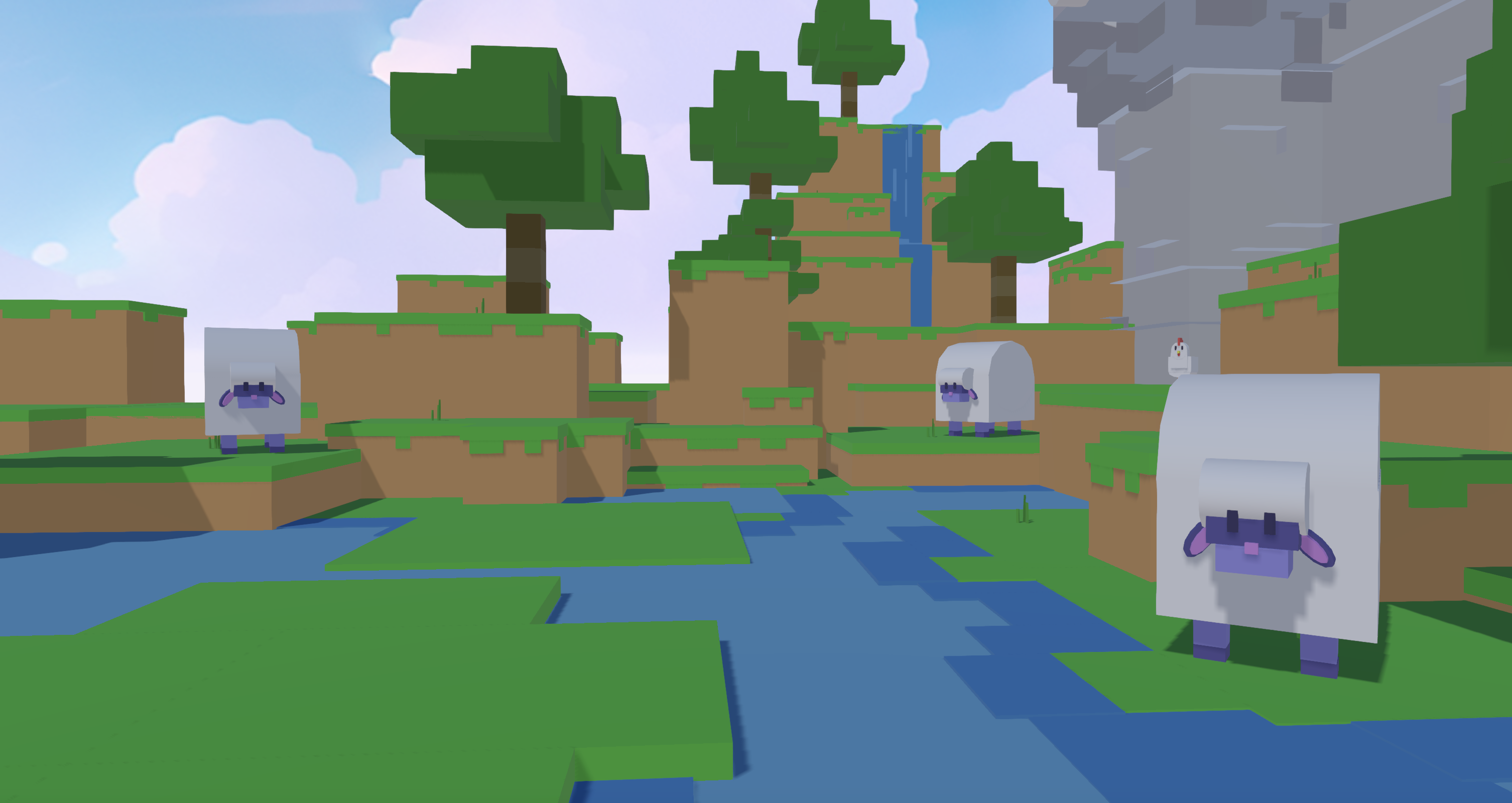
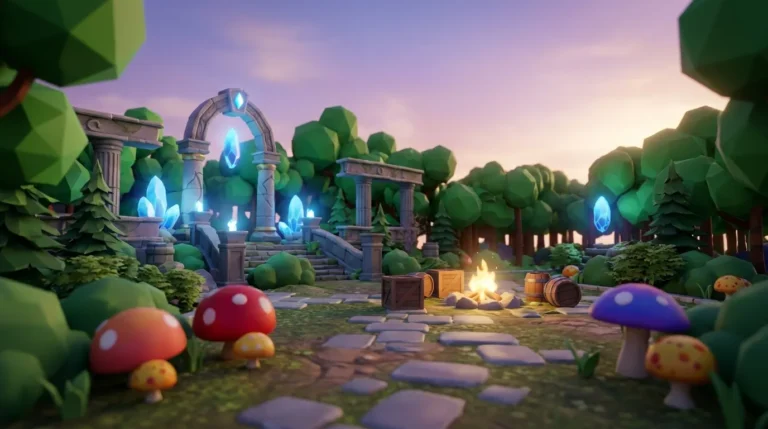
In Nilo’s February 2026 Survey, builders described the speed difference clearly. One builder said, “I do not have to spend hours on 3D modeling the simplest things, now I can use Nilo and do it in 15 seconds.” Another builder noted, “You can work 20 times faster than you usually work on models.”
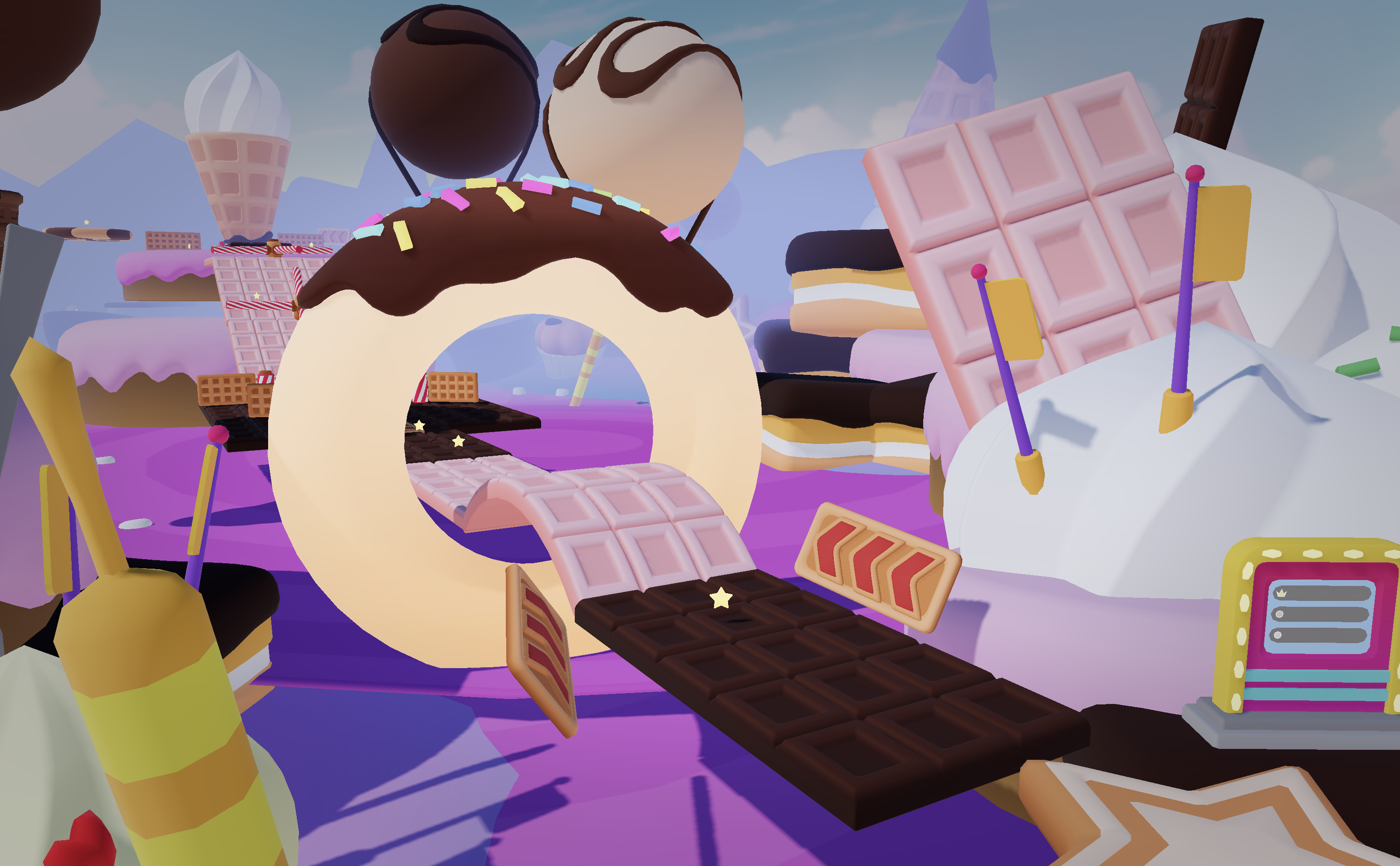
If You Want to Build on Chromebook, Skip Roblox Studio
The workarounds above share one problem. They try to force a Windows-only desktop application onto hardware it was never designed for. Every hour you spend configuring Linux, troubleshooting Wine, or managing a cloud PC subscription is an hour you do not spend building.
Nilo’s workflow on Chromebook stays simple. Open Chrome, go to Nilo, type or sketch what you want to create, adjust the LOD slider to hit Roblox’s polygon limit, rig with one click, and export. You avoid installs, remote connections, and monthly cloud PC bills. The same survey found that 93% of builders would recommend Nilo to a friend and 82% rated their experience as “Awesome” or “Good,” which backs up those speed claims with satisfaction data.
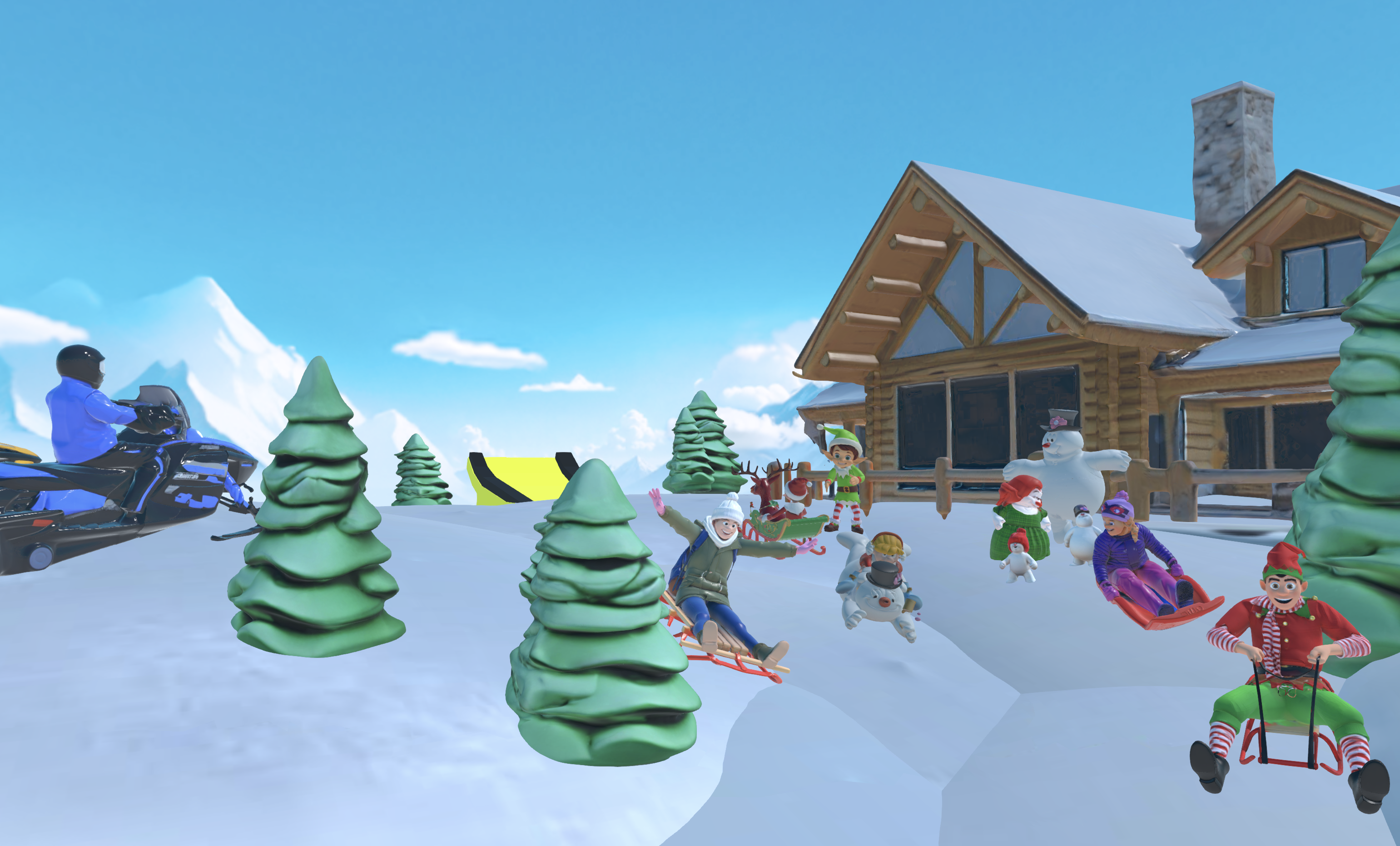
One builder summed it up like this: “There are no limits on what you can create — just type, draw or add in an image and you can generate, rig, customise and place a fully 3D model within minutes.”
Success Checklist for Chromebook Roblox Builders
-
Asset exports stay under Roblox’s 20,000-triangle limit without manual cleanup.
-
Playable browser preview before exporting so you can test your asset in a live 3D world.
-
Ability to iterate, change, regenerate, and adjust without leaving Chrome.
-
Export in FBX, GLB, or STL format that works with Roblox Studio.
-
No installation, no remote connection, and no cloud PC subscription required.
Try Nilo’s open beta and see why builders rate it “Awesome”
Frequently Asked Questions
Will Roblox ever officially support ChromeOS for Roblox Studio?
Roblox has not committed to a timeline for ChromeOS support. The DevForum requests mentioned earlier show that the community is asking for it, but there is no official release date as of June 2026. Until official support arrives, any method of running Roblox Studio on a Chromebook remains an unofficial workaround with no guaranteed stability or performance.
What export formats does Nilo support, and are they compatible with Roblox Studio?
Nilo exports to FBX, OBJ, STL, and glTF, also written as .glb. All of these are standard 3D formats that Roblox Studio can import. FBX is the most common choice for rigged characters and animated models. GLB is a compact binary version of glTF and works well for static props. STL is useful for simple geometry. When you export from Nilo, the LOD system has already reduced your mesh to meet Roblox’s polygon limits, so the file imports cleanly without manual retopology, which is the process of rebuilding a mesh’s geometry to reduce triangle count.
Do I need a powerful Chromebook to use Nilo?
No. Nilo runs entirely in the browser, with no installation, no GPU driver setup, and no strict minimum hardware spec beyond a modern browser tab. It works on desktop and mobile browsers. The heavy computation for physics, rendering, and AI generation runs on Nilo’s infrastructure, not on your device. This gives you a clear advantage over every workaround, because the hardware limitation of your Chromebook does not cap what you can create.
Can I use Nilo just for asset creation and still finish my game in Roblox Studio?
Yes. Nilo does not lock you in. You can use it purely as an asset creation pipeline. Generate a character or prop, tune it, rig it, export it, and then import it into Roblox Studio on a Windows or Mac machine, or ask a teammate to handle the Studio work. Many builders already use Nilo this way. They create the 3D assets in Nilo, then bring them into Roblox Studio for scripting and game logic. Nilo also exports to Unity, Unreal Engine, Blender, and VRChat, so your assets stay portable across platforms.
How is Nilo different from other browser-based 3D tools like Rosebud AI or PlayCanvas?
Rosebud AI focuses on generating games from text prompts, or vibe coding, where you create by just talking or texting to the AI. It does not offer a dedicated Roblox asset export workflow with automatic polygon optimization. PlayCanvas is a browser-based game engine aimed at professional developers, not aspiring builders creating Roblox-ready assets.
Nilo stands out because it combines AI-powered 3D generation, a real-time LOD system for Roblox’s polygon limits, one-click rigging, and direct export to Roblox-compatible formats in one browser tab, with no install required. The focus stays on the asset creation workflow that Chromebook builders like you need.
Conclusion: A Practical Path for Chromebook Roblox Creators
Roblox Studio will not run on Chromebook in 2026, not natively and not reliably through any workaround. Remote desktop adds latency. Linux and Wine add instability and setup time. Cloud PCs add cost. None of these options fix the core problem, which is that you want to build, not troubleshoot.
If your goal is to create 3D assets for Roblox and you are on a Chromebook, the practical path is a browser-native tool that handles generation, optimization, rigging, and export without leaning on your hardware. Nilo is built for that workflow and fits directly into how you already use your Chromebook.