Written by: Nuno Leiria, Founder & CEO @ Nilo
Key Takeaways for Importing Blender Models into Roblox
- Export your 3D model as an FBX file, keep triangle counts under 20K, and center the pivot in Blender before you import.
- Set Blender scene units to Metric, use centimeters with a 0.01 scale, and enable Embed Textures during FBX export to avoid scale and texture problems in Roblox Studio.
- Follow the six-step import workflow in Roblox Studio, including enabling scene position and uploading textures only after you publish the place.
- Fix common import issues like invisible meshes, wrong scale, or missing textures by recalculating normals, correcting units, and re-exporting with the right settings.
- Try Nilo’s automatic retopology to skip manual cleanup and configuration. Nilo delivers Roblox-ready models in seconds.
What You Need Before Importing from Blender
Roblox Studio accepts three file formats for custom 3D meshes: FBX, OBJ, and glTF. FBX usually works best because it carries rig data, bone influences, and embedded textures in a single file. OBJ and glTF handle static props well but drop skinning information.
Roblox enforces a hard polygon cap, typically 10,000 to 20,000 triangles per mesh, to keep games running smoothly across all devices. If you exceed that limit, Roblox either rejects the model or auto-decimates it in ways that can destroy your geometry. That is why knowing the cap before you start modeling saves a lot of rework, because you can design within the limit instead of rebuilding a mesh that is too dense.
Your goal stays simple. You have a model in Blender or another 3D tool, and you want it to appear correctly scaled, textured, and collidable inside a Roblox experience.
Traditional Blender-to-Roblox Import Workflow
Step 1 — Set scene units in Blender. Open Blender’s Scene Properties panel. Set Unit System to Metric, Unit Length to Centimeters, and Unit Scale to 0.01. If you skip this step, your model arrives in Studio at completely wrong dimensions.
Step 2 — Apply transforms. Select your mesh, press Ctrl+A, and apply Location, Rotation, and Scale. Enable Apply Transform in the FBX exporter to bake world-space transforms into the mesh data. This prevents rotated or skewed geometry on import.
Step 3 — Configure FBX export settings. Go to File → Export → FBX. Set Transform Scale to 0.01, Path Mode to Copy, and enable Embed Textures. In the Armature section, disable Add Leaf Bones, because extra leaf bones cause rig errors in Studio. Disable Bake Animation unless your file actually contains keyframe data.
Step 4 — Import into Roblox Studio. In Studio, go to Home → Import 3D (or File → Import 3D) and select your .fbx file. Enable “Insert using scene position” in the import settings to preserve part alignment. If you leave this off, multi-part models scatter across the workspace.
Step 5 — Upload and assign textures. Textures baked from Blender materials must be uploaded as images in Studio after you publish the place to Roblox, because the texture property menu only allows file selection once the game is published. You end up in a publish, upload, and republish loop for every texture change.
Step 6 — Verify collision and pivot. Select the imported MeshPart in Studio and check its collision fidelity setting. Confirm the pivot point sits where you expect, at the base for props or at the root joint for characters. Adjust it manually if the model was not origin-centered in Blender before export.
These six steps work, but they demand careful attention at every stage. A single missed setting often sends you back to Blender for another export cycle.
Common Import Errors and How You Fix Them
| Symptom | Likely Cause | Quick Fix |
|---|---|---|
| Model is invisible after import | Normals are flipped or mesh has zero-thickness faces | Recalculate normals in Blender (Mesh → Normals → Recalculate Outside), then re-export |
| Model appears at wrong scale (giant or tiny) | Scene units or FBX Transform Scale not set to 0.01 | Apply the correct unit and scale settings in Blender before re-exporting |
| Textures missing after import | Embed Textures not enabled, or textures uploaded before publishing | Re-export with Path Mode set to Copy and Embed Textures on, then upload textures after publishing |
| Pivot offset, model rotates around wrong point | Object origin not centered before export | In Blender, set origin to geometry or to the desired pivot point, then re-export |
| Collision mask or colors lost on export | Collision mesh not assigned, or vertex colors not baked to texture | Assign a custom collision mesh in Blender or adjust collision fidelity in Studio’s MeshPart properties |
These fixes work, but they share a pattern. Every solution forces you to leave Roblox Studio, return to Blender, adjust a setting, re-export, and re-import. That loop is where the real cost shows up.
Why Traditional Import Steps Disrupt Your Creative Flow
Each step in the Blender-to-Roblox pipeline creates a context switch. You leave your creative idea, open a settings panel, fix a number, re-export, re-import, and then check the result. A single asset can easily take 30 minutes or more. A full game’s worth of props can stretch into days.
Manual retopology, which means rebuilding a mesh’s polygon structure to meet Roblox’s performance caps, usually becomes the biggest time sink. AI-generated models from tools like Meshy often arrive with dense, uneven geometry that needs heavy cleanup before it passes Roblox’s import checks. That cleanup demands Blender skills that many aspiring builders like you are still learning.
In Nilo’s February 2026 Survey, 93% of builders said they would recommend Nilo to a friend. One builder described the problem directly: “Picture yourself, frustrated because you spent the last 5 hours 3D modeling a shipping container. All I have to do is open Nilo and do it in 20 seconds.”
How Nilo Changes the Export Experience
Nilo is a browser-based AI creation platform built for Roblox builders like you. Its main difference lies in real-time retopology. The platform automatically rebuilds mesh topology to produce clean geometry that meets Roblox’s polygon caps without manual cleanup in Blender.
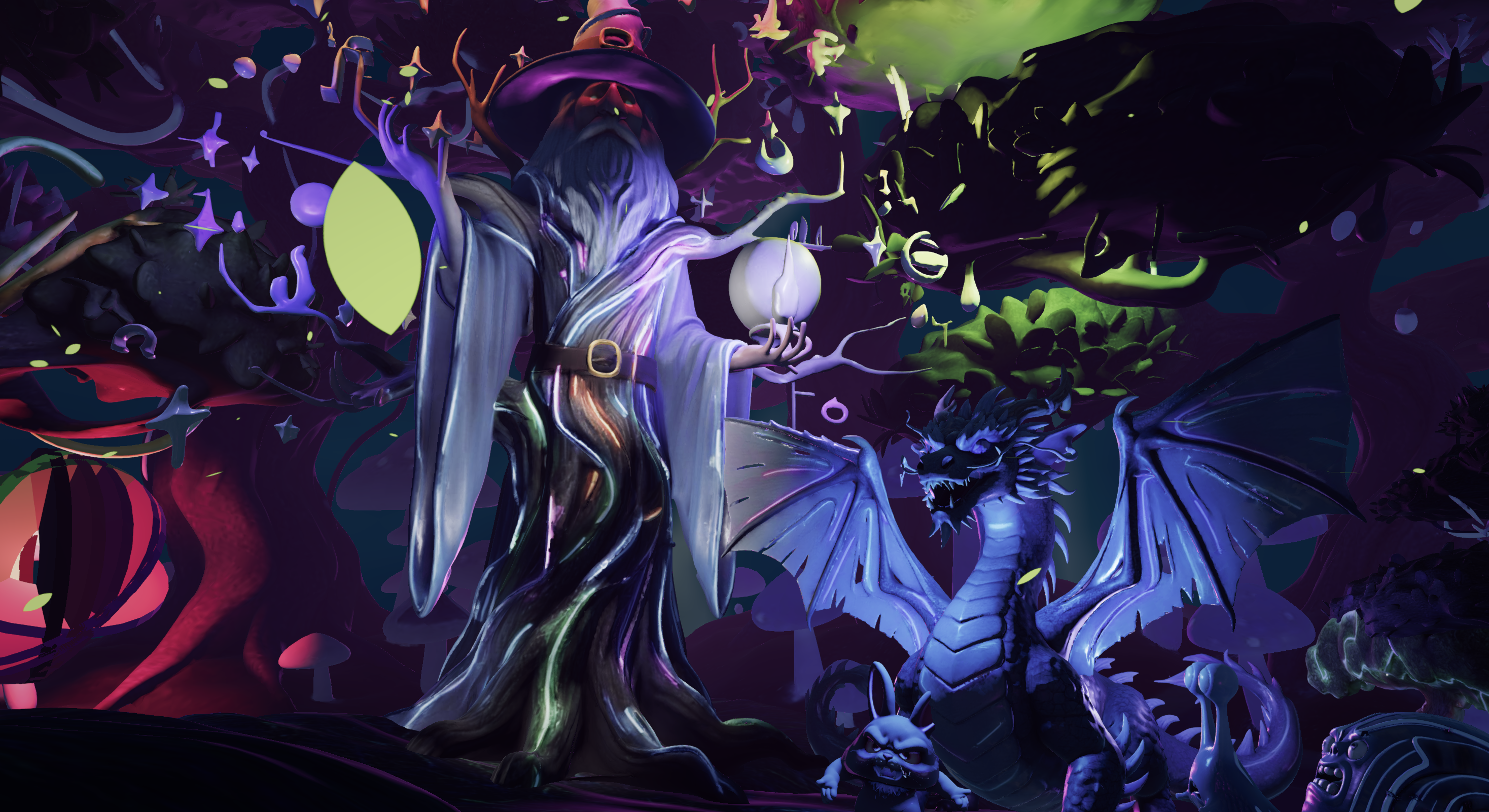
Models you generate or import in Nilo start out Roblox-ready. You get clean topology, controlled polycounts, and textures that transfer correctly. You skip Blender cleanup, unit-scale configuration, and the publish, upload, and republish texture loop. You stay in creative flow from idea to export.
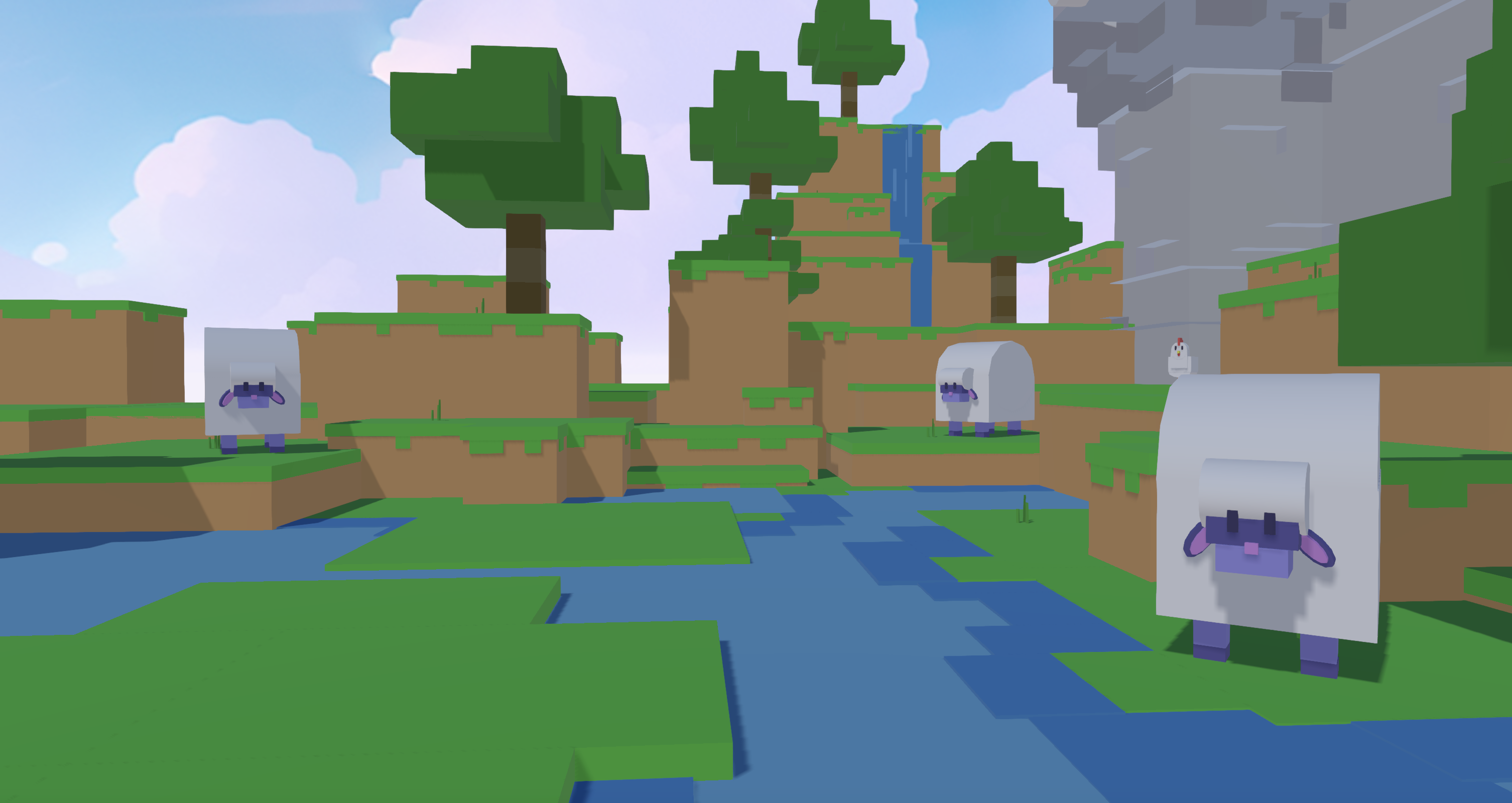
Nilo’s model-agnostic AI layer pulls from multiple 3D generation providers, including Meshy, Tripo, and others, behind a single interface. You get strong output without jumping between tools. Another survey respondent reported: “You can work 20 times faster than you usually work on models.”
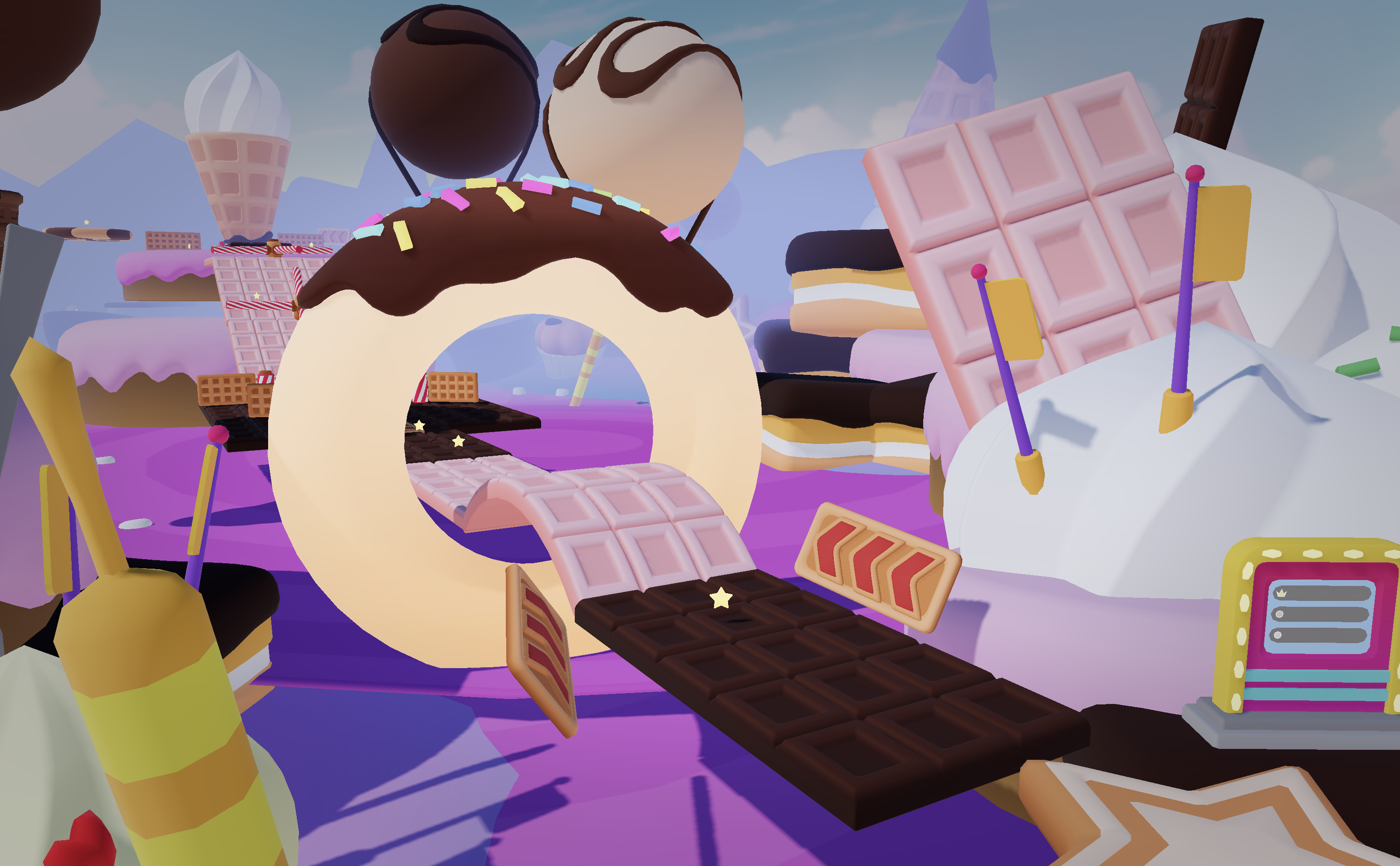
Quick Start: Exporting a Nilo Model to Roblox Studio
The export path in Nilo takes three steps.
- Generate or import your asset. Type a text prompt, upload a sketch, or drop in a reference image. Nilo generates a 3D model in seconds using its AI generation pipeline.
- Adjust the LOD slider. The LOD, or level of detail, slider reduces polygon count while keeping the model’s shape. You can dial in the triangle count for Roblox’s 10K to 20K cap, and Nilo handles the retopology as you move the slider.
- Click Export → FBX. Nilo adjusts polycount so models work directly in Roblox Studio and other platforms without extra steps. Download the file and import it into Studio using the standard Import 3D tool.
Scale, textures, and pivot points are handled automatically. You do not touch unit settings, and you do not worry about leaf bones.
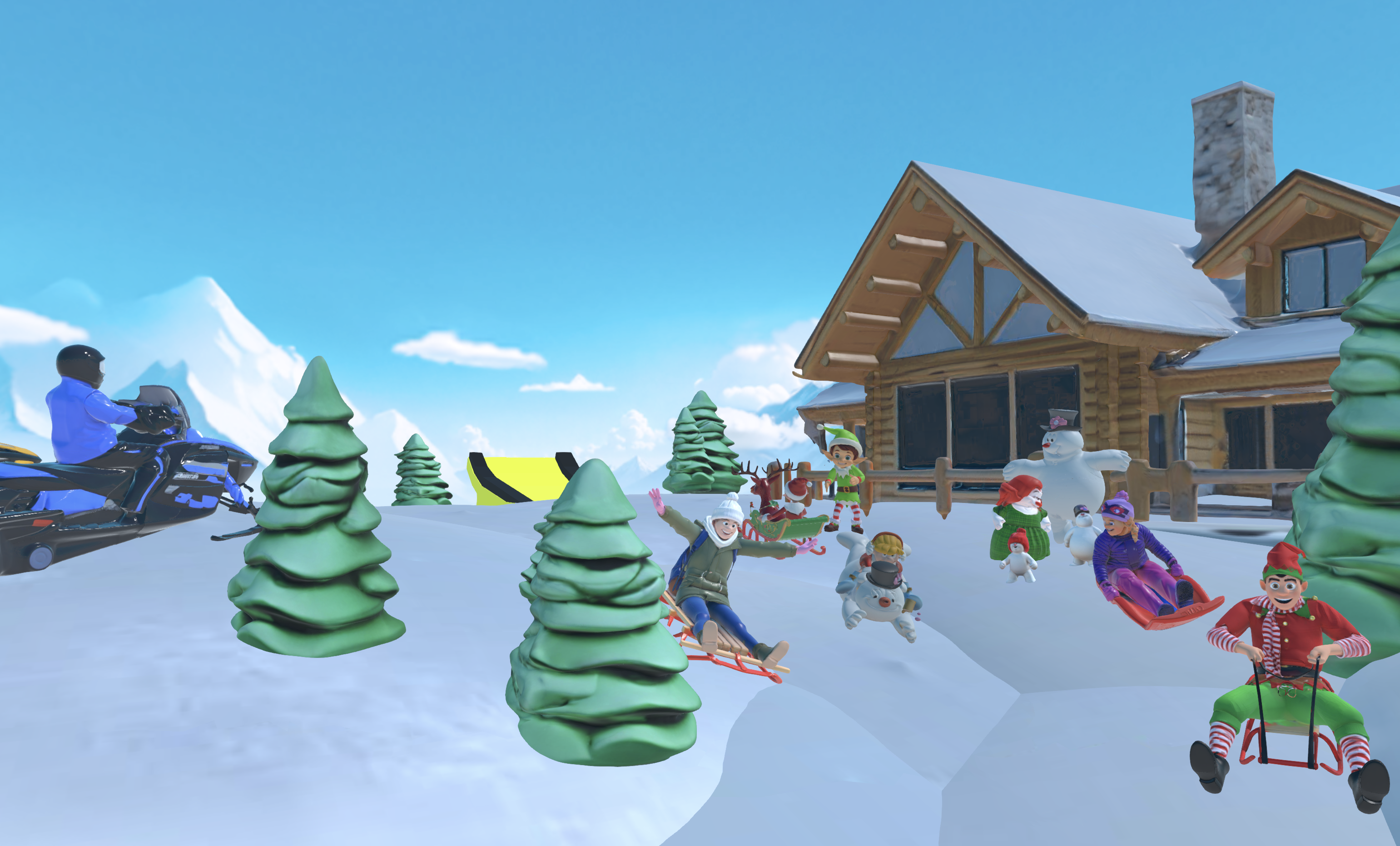
How to Check If Your Import Worked
After you import your model, whether from the traditional workflow or from Nilo, confirm these points inside Roblox Studio.
- The model appears at the correct scale relative to a standard Roblox character, which stands about 5 to 6 studs tall for a humanoid.
- Textures display correctly on all surfaces without missing, black, or stretched areas.
- The collision boundary matches the visible geometry. Run a playtest and walk around the object to confirm.
- The pivot point sits at the expected location, such as the base of a prop or the root joint of a character.
- Triangle count stays within Roblox’s performance limits, which you can see in Studio’s performance stats.
FAQ: Blender, Roblox, and Nilo
What file formats does Roblox Studio accept for custom model imports?
Roblox Studio accepts FBX, OBJ, and glTF files for custom 3D mesh imports. FBX usually works best because it supports rig data, bone influences, and embedded textures in a single file. OBJ and glTF work for static props but do not carry skinning or animation data. If you import a rigged character or an animated prop, use FBX.
What is the polygon limit for models in Roblox Studio?
Roblox enforces a cap of roughly 10,000 to 20,000 triangles per mesh. Models above this limit may be rejected during import or auto-decimated in ways that distort your geometry. Keeping your triangle count within this range also helps the model run smoothly on mobile devices, which is where many Roblox players are. Nilo’s LOD slider helps you hit this target without manually retopologizing your mesh in Blender.
Does Nilo work on mobile, or do I need a desktop computer?
Nilo runs entirely in the browser, with no installation, no downloads, and no high-performance hardware required. It works on both desktop and mobile browsers. You can generate, adjust, and export assets from any device, then import the resulting file into Roblox Studio on your desktop. This keeps Nilo accessible whether you are on a PC or on a tablet.
Can I use Nilo if I already know Blender?
Yes. Nilo exports to FBX, OBJ, STL, and glTF, which Blender reads natively. If you want to generate an asset quickly in Nilo and then refine it further in Blender before importing to Roblox Studio, that workflow works well. Nilo does not lock you in. Builders already use it as the generation and optimization step in a larger pipeline, then continue in Blender or import directly to Studio depending on the asset.
Is Nilo free to use?
Nilo is currently in open beta and free to use. The Starter tier includes 1,000 Nilo Bits per month, which are the credits that power AI generation, export, and creation features. Many core building features use no Bits at all. You can also earn more Bits through Nilo Rewards by referring friends and building within the community. You can start without spending money.
Join Nilo’s open beta to start building and playing for free.