Written by: Nuno Leiria, Founder & CEO @ Nilo
Key Takeaways
- Full Roblox Studio lighting tools stay on desktop, so you rely on lighter options like Studio Lite on your phone.
- Studio Lite lets you add PointLights, SpotLights, and SurfaceLights with a simple touch interface, but you cannot change global Lighting or post-processing effects.
- Phone hardware limits and missing advanced tools mean complex lighting still needs a desktop workflow or extra tools.
- Browser-based platforms remove the desktop barrier and let you create, refine, and export assets directly from your phone.
- Nilo offers a browser-based AI creation platform that lets Roblox builders like you generate, rig, and export game-ready assets on mobile, without installing heavy software. Try Nilo in your browser and start building for free.
What You Can And Cannot Do With Roblox Studio On Mobile
Full Roblox Studio is a desktop application that runs on Windows and macOS, which means it is not available as a native mobile app. Roblox does not offer any mobile version of Roblox Studio or a simplified creation tool for phones and tablets, so the full Studio stays desktop-only.
Because of that, you cannot place parts, move objects, make full edits, or control advanced lighting directly inside the real Studio on your phone.
What you do not get on mobile is the complete lighting toolkit. Properties like shadows, color correction, bloom, and atmospheric effects that live under the Lighting service stay locked away from any mobile interface. The Future lighting technology, which gives the most realistic look, hurts performance on lower-end or mobile devices, so it is not a practical option on phones anyway.
Before you dive into the mobile workflow, it helps to see how lighting works on desktop Studio, then you can understand what changes when you switch to your phone.
How Lighting Works In Roblox Studio On Desktop
On desktop, you add a light as a child of a part in the Explorer panel, then tweak its settings in the Properties window. You move quickly with a keyboard and mouse, and you see every option in one place.
The same basic idea carries over to mobile. You still attach lights to parts and adjust properties. The difference comes from the touch-first interface and the smaller feature set in Studio Lite.
Studio Lite gives you a simplified toolbar, tap-to-select controls, pinch gestures to move around, and a condensed properties panel. The steps below walk you through exactly how to add a light on your phone.
Studio Lite Lighting Tutorial: 5 Steps On Your Phone
- Open your world in Studio Lite. Open the Roblox app on your phone, go to Create, and pick the experience you want to edit. Tap the Edit button to enter Studio Lite.
- Pick the part you want to light. Tap any part in your world to select it. Lights in Roblox act as child objects, so they live inside a part and shine from that spot. Choose something that makes sense as a light source, like a lamp post or a ceiling tile.
- Add a light object. With your part selected, tap the + (Insert) button in the properties panel. Scroll the list and pick PointLight to shine in all directions, SpotLight to shine in a cone, or SurfaceLight to shine from one face of the part.
- Set Brightness and Range. Tap the light object in the Explorer to open its properties. Use Brightness to control how strong the light feels. Values between 1 and 5 usually work for most scenes. Use Range to set how far the light reaches. For a SpotLight, you can also change the Angle to make the cone wider or tighter.
- Test in Play mode. Tap Play to jump into a live preview. Walk around your world and see how the light looks while you move. Leave Play mode, go back to Edit, and keep tweaking until the scene matches what you have in mind.
This is the full Studio Lite lighting workflow on mobile. It works well as a starting point if you only have your phone with you.
When you feel Studio Lite holding you back, you can start creating assets in Nilo’s browser-based platform and bring richer models into your Roblox worlds.
Mobile Lighting Limits You Will Hit In Studio Lite
Studio Lite helps you begin, but it has real limits you should know before you spend hours on a lighting setup.
- No Lighting service controls. The global Lighting object, where you set ambient color, brightness, time of day, fog, and technology mode, is not editable in Studio Lite. Your world’s overall mood stays locked to the defaults from when the experience was created.
- No post-processing effects. Bloom, blur, color correction, and depth of field live as children of the Lighting service and stay desktop-only. You cannot reach them from the mobile interface.
- Performance caps on phones. Even if advanced lighting were available, older phones struggle with real-time shadow calculations. To work around these hardware limits, developers bake fake shadows and ambient occlusion maps into textures using a secondary UV channel. This trick fakes advanced lighting without the heavy performance cost, but that workflow needs desktop tools.
- No SurfaceAppearance editing. You cannot apply or edit PBR textures that react to light in Studio Lite, so you miss out on more realistic materials.
- Preview differences across devices. What you see in Studio Lite’s preview can look different from desktop Studio or the final published game, because each device renders at a different quality level.
These limits are part of how a mobile-first tool stays simple and fast. If your lighting ideas go beyond basic PointLights and SpotLights, you need another path alongside Studio Lite.
Create Roblox Assets In Your Browser On Any Device
Most heavy creation tools, like Roblox Studio, Blender, or Unity, are built for desktop. They expect strong local hardware, full file system access, and keyboard and mouse input, which phones handle very differently.
A browser-based 3D engine flips that setup. When the tool runs in your browser using WebAssembly and WebGPU, it can run on any device with a modern browser, including your phone. You skip downloads, installs, and desktop requirements.
Nilo stands out in this space because it focuses on Roblox builders like you. Everything runs in your browser with a simple loop: generate → refine → rig → light → export. You can follow that loop on your phone right now.

Here is how that workflow shows up in real features:
- Craft your model. Start from a sketch, an image, a text prompt, or a mix of all three. Shape the details, then drop the model into your scene. You can do this without opening Blender.
- Clean up, rig, and animate. Use the level of detail (LOD) slider to control polycount, which helps you stay inside Roblox’s usual 10K–20K triangle caps. Then rig with one click and create animations from a short text description.
- Export and upload. Export models and skins with a single click, then bring them into Roblox Studio. Nilo exports FBX, OBJ, STL, and glTF formats, all of which work with Roblox Studio.
Survey data from February 2026 shows strong builder satisfaction, with most users saying Nilo makes their creative process feel much easier than traditional tools.
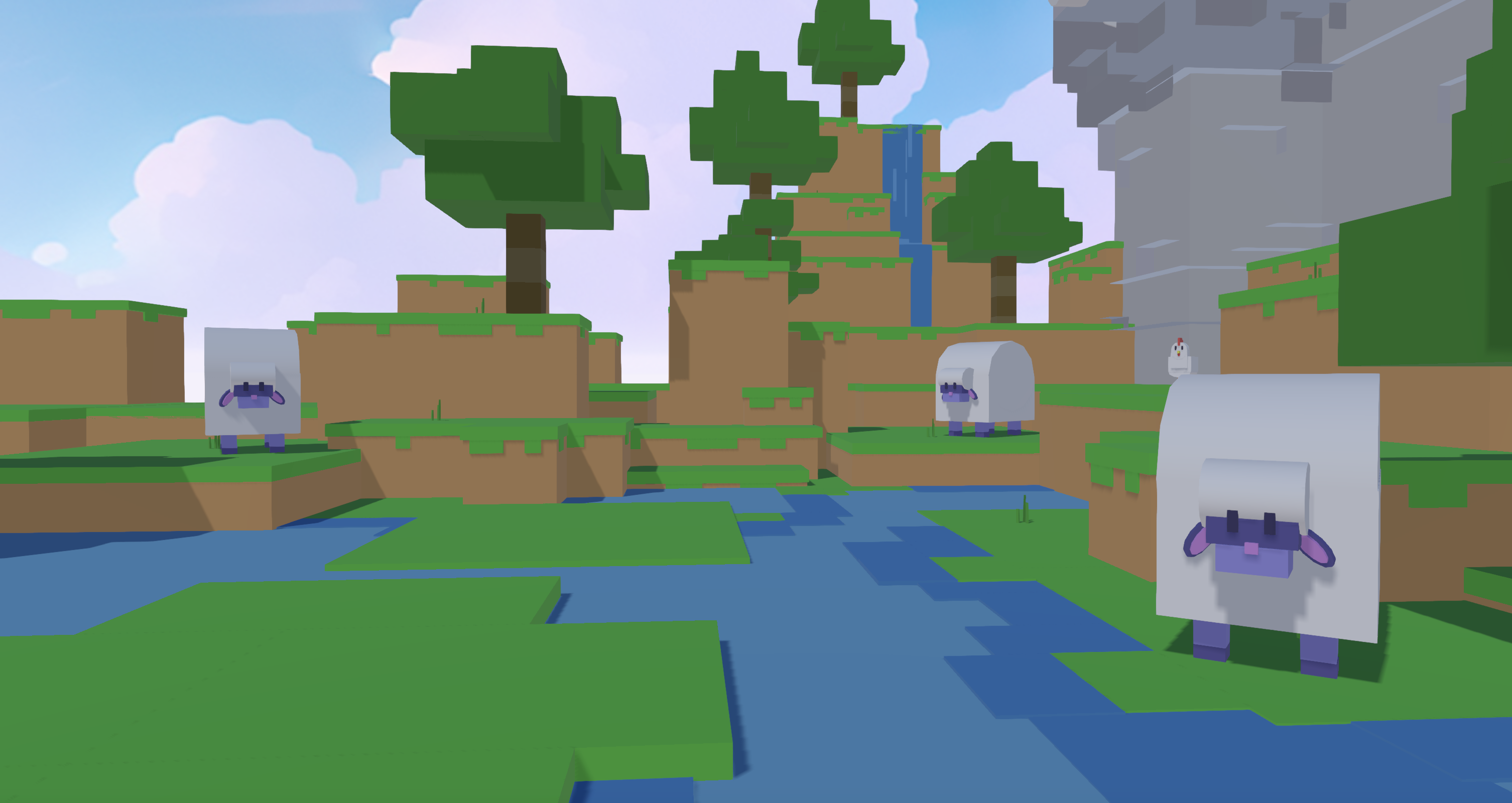
Nilo is not a full game creation and publishing platform yet. Instead, it focuses on helping you generate, refine, rig, and export game-ready 3D assets while you stay in creative flow. That focus fits well when Studio Lite hits its ceiling on your phone.

Try Nilo’s asset workflow on your phone today.
FAQ: Lighting On Mobile And Using Nilo
How long does it take to add a light in Studio Lite on mobile?
Once you know the steps, adding a light usually takes under two minutes. You select a part, insert a PointLight or SpotLight, set Brightness and Range, then test in Play mode. The time grows when you manage many lights in a big scene, because the mobile interface moves slower than desktop Studio. Plan around 10 to 20 minutes for a basic multi-light setup in a medium world.
Do I need building experience to use Studio Lite lighting?
You can start with no building experience at all. If you can tap a part and read a properties panel, you can add a light. Concepts like Brightness, Range, and Angle stay simple. The harder part is understanding why lights look different on different devices, which comes from rendering differences between mobile and desktop hardware.
What export formats does Nilo support for Roblox?
Nilo exports FBX, OBJ, STL, and glTF files, and all of them work with Roblox Studio. FBX is usually the best pick for rigged characters and animated models. OBJ and glTF fit static props and environments. Every export passes through Nilo’s LOD system, which adjusts polygon counts to match Roblox’s performance caps before you download the file.
Will Nilo run well on an older phone?
Nilo runs in the browser using WebAssembly and WebGPU, with a WebGL fallback for devices that do not support WebGPU yet. This setup helps it run across many types of hardware. When you test your own phone, watch for smooth camera movement in the 3D view, quick responses when you generate assets, and stable frame rates while you preview. Older phones may load slower or show lower visual quality, but the core steps of generate, refine, and export still work.
How should I choose between Studio Lite and a browser tool like Nilo?
Use Studio Lite when you want quick edits to an existing Roblox experience on your phone, like moving parts, changing a PointLight’s brightness, or testing a layout. Use Nilo when you want to create new 3D assets, design characters or props from scratch, or build something that goes beyond Studio Lite’s limited tools. The two workflows fit together well. Many aspiring builders or already builders like you use Studio Lite for in-world tweaks and Nilo for asset creation, then import Nilo exports into Roblox Studio.
Conclusion: Start Building Roblox Lighting From Your Phone
Full Roblox Studio lighting stays on desktop, and Studio Lite gives you a solid mobile starting point with PointLights, SpotLights, and basic property edits. That setup works for simple scenes, but it reaches its limit quickly. When your ideas go further than Studio Lite allows, a browser-based workflow removes the desktop requirement and lets you keep building from your phone.
You do not need to wait until you get access to a computer. You can generate, refine, rig, and export Roblox-ready assets from your phone right now. Start building Roblox assets from your phone.