Written by: Nuno Leiria, Founder & CEO @ Nilo
Key Takeaways for Faster Roblox Props
-
Traditional Roblox prop creation forces you to switch between Meshy, Blender, and Roblox Studio, wasting 30+ minutes per asset on manual retopology and cleanup.
-
A browser-based workflow like Nilo replaces that fragmented pipeline with a single 7-step automated process that covers generation, retopology, rigging, animation, scripting, playtesting, and export.
-
Real-time LOD controls and one-click rigging remove the need for Blender while keeping props within Roblox’s 10K–21K triangle limits.
-
Vibe coding and instant sharing let you script behaviors and playtest with friends without downloads or deep technical knowledge.
-
Skip the technical grind and spend your time designing worlds, then start building in Nilo’s open beta for free.
If you build in Roblox, you already know the pain. You generate a prop in Meshy, download it, open Blender, spend 30 minutes fixing the topology, export an FBX, import it into Roblox Studio, hit a polycount error, and go back to square one. That loop kills momentum, and it kills the fun.
Use this complete 7-step Roblox prop workflow automation pipeline to skip that daisy-chain entirely:
-
Set up a browser-based workspace
-
Generate your prop with a text prompt
-
Apply real-time retopology and LOD controls
-
Rig and animate with one click
-
Vibe code prop behavior and placement
-
Playtest with friends via a shared link
-
Export directly to Roblox Studio
Who This Roblox Prop Workflow Is For
This guide is for you if you already create in Roblox, whether you are assembling your first custom map or shipping polished environments for commissions, and you feel tired of the tool-switching grind.
Before you jump in, keep a few key terms in mind:
Mesh — the 3D geometry that makes up a prop, built from vertices, edges, and faces. Topology — how those faces are arranged; clean topology means fewer triangles, better performance, and no visual artifacts. Retopology — the process of rebuilding a mesh with cleaner, lower-count geometry, usually done manually in Blender but automatable in tools like Nilo. LOD (Level of Detail) — a system that automatically reduces polygon count at distance, critical for meeting Roblox caps at 10K-20K polygons. Rigging — adding a skeleton to a mesh so it can be animated. Export format — the file type your prop is saved as; Roblox accepts FBX, OBJ, and GLTF formats for 3D models. Browser-based workflow — a creation pipeline that runs entirely in your web browser with no downloads, no installations, and no high-performance hardware required.
You do not need Blender experience. You do not need scripting knowledge. You need a browser and an idea. The following sections walk through each of the 7 steps so you know what inputs you need, how long each step takes, and what trade-offs to watch.
Step-by-Step Process
Step 1: Set Up a Browser-Based Roblox Workspace
Input needed: A browser (Chrome or Edge with WebGPU support recommended). Time: Under 2 minutes. Trade-off: Browser-based tools give you zero setup friction and instant sharing, but you lose offline access.
Open Nilo in your browser. No download, no install, no account verification loop. Nilo runs on a custom game engine built with C++ physics compiled to WebAssembly and accelerated with WebGPU, the same browser technology shift that let Figma replace desktop design software. This architecture is why your workspace loads almost instantly without a long installation wait. Once it loads, you see a radial menu for object creation and an inspector panel for detailed property editing, both tuned for speed. Because physics calculations run in real time, everything you place feels interactive and dynamic by default, with collisions, gravity, and feedback live from the moment you open the editor.
Step 2: Text-to-Prop Generation with Natural Language Prompts
Input needed: A text description, sketch, or reference image. Time: Seconds to under a minute. Trade-off: Short prompts return quick, rough results, while detailed prompts give you more precise output, so plan to iterate instead of over-writing your first prompt.
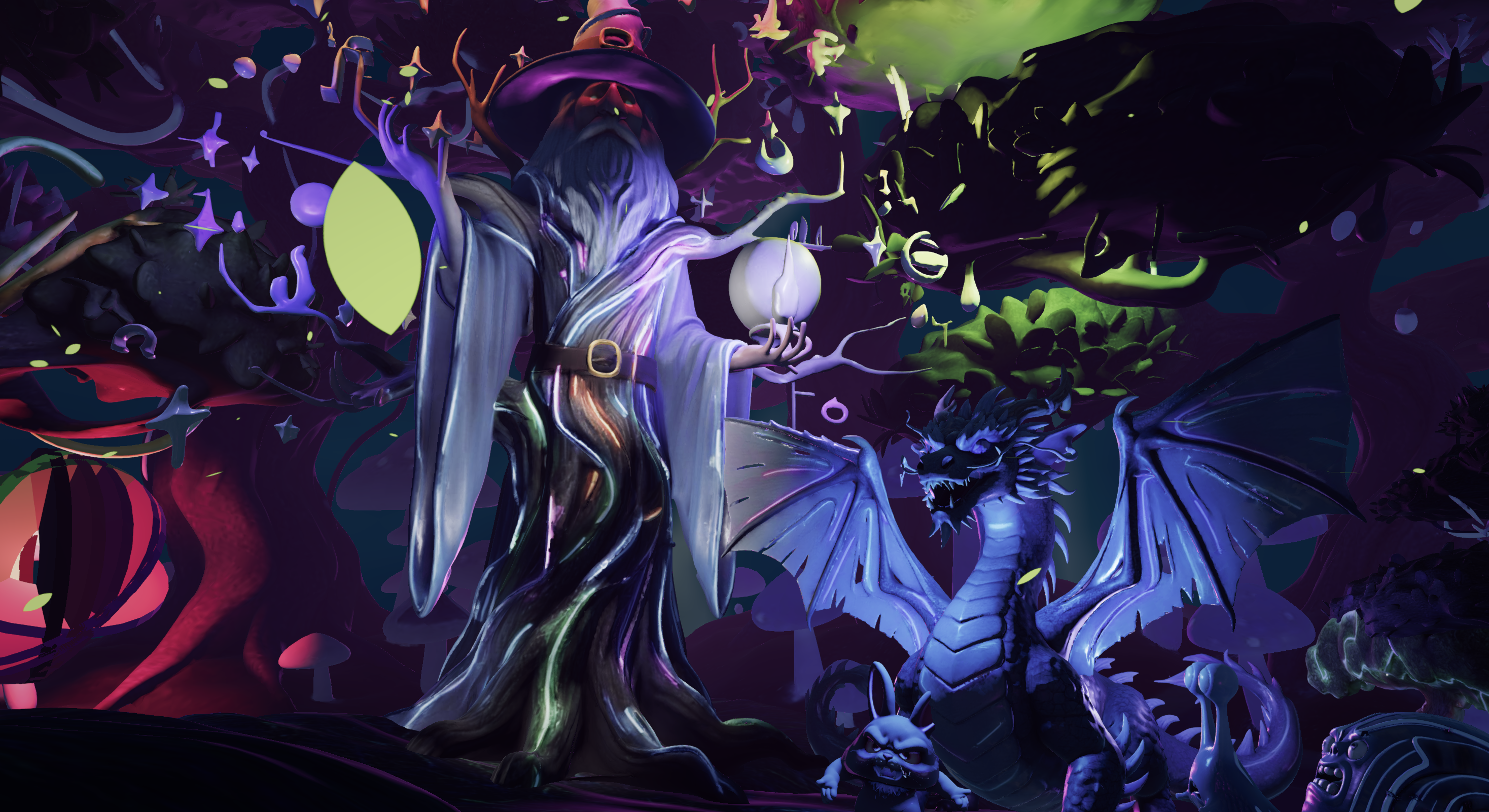
Type what you want, such as “a weathered wooden crate with iron hinges” or “a sci-fi energy core with glowing panels,” and Nilo generates a 3D prop in seconds. You can also sketch in 2D and drag the result into 3D, or upload a reference image if that feels easier. Nilo’s model-agnostic AI layer, which connects providers including Meshy, Tripo, Cartwheel, and Nano Banana behind one interface, keeps you on one screen while it picks the right model for the job. As one builder put it in Nilo’s February 2026 survey: “I do not have to spend hours on 3D modeling the simplest things, now I can use Nilo and do it in 15 seconds.”
Step 3: Real-Time Retopology and LOD Controls
Input needed: Your generated mesh. Time: Real-time, with no waiting. Trade-off: Strong LOD reduction speeds up export and improves performance but can soften fine surface detail, so use the slider to match the prop’s role in your scene.
This step is where the old workflow breaks down and the automated workflow shines. Instead of exporting a bloated mesh to Blender and manually decimating it to hit Roblox’s triangle budget, you drag a slider. Nilo’s real-time LOD system adjusts polygon count on the fly and simplifies mesh topology automatically. No more retopology hell and no Blender cleanup. The system is calibrated for Roblox’s performance requirements, so your prop stays within the 10,000–21,000 triangle caps without you counting a single face. Nilo stands out if you want to avoid the manual cleanup loop described in the introduction, because the work that used to require a separate application now happens in seconds with one control.
Step 4: One-Click Rigging and Text-to-Animation
Input needed: Your optimized mesh and a text description of the animation you want. Time: Rigging in one click, animation generation in seconds. Trade-off: One-click rigging covers most props and characters, while very custom rigs may still need extra adjustment.
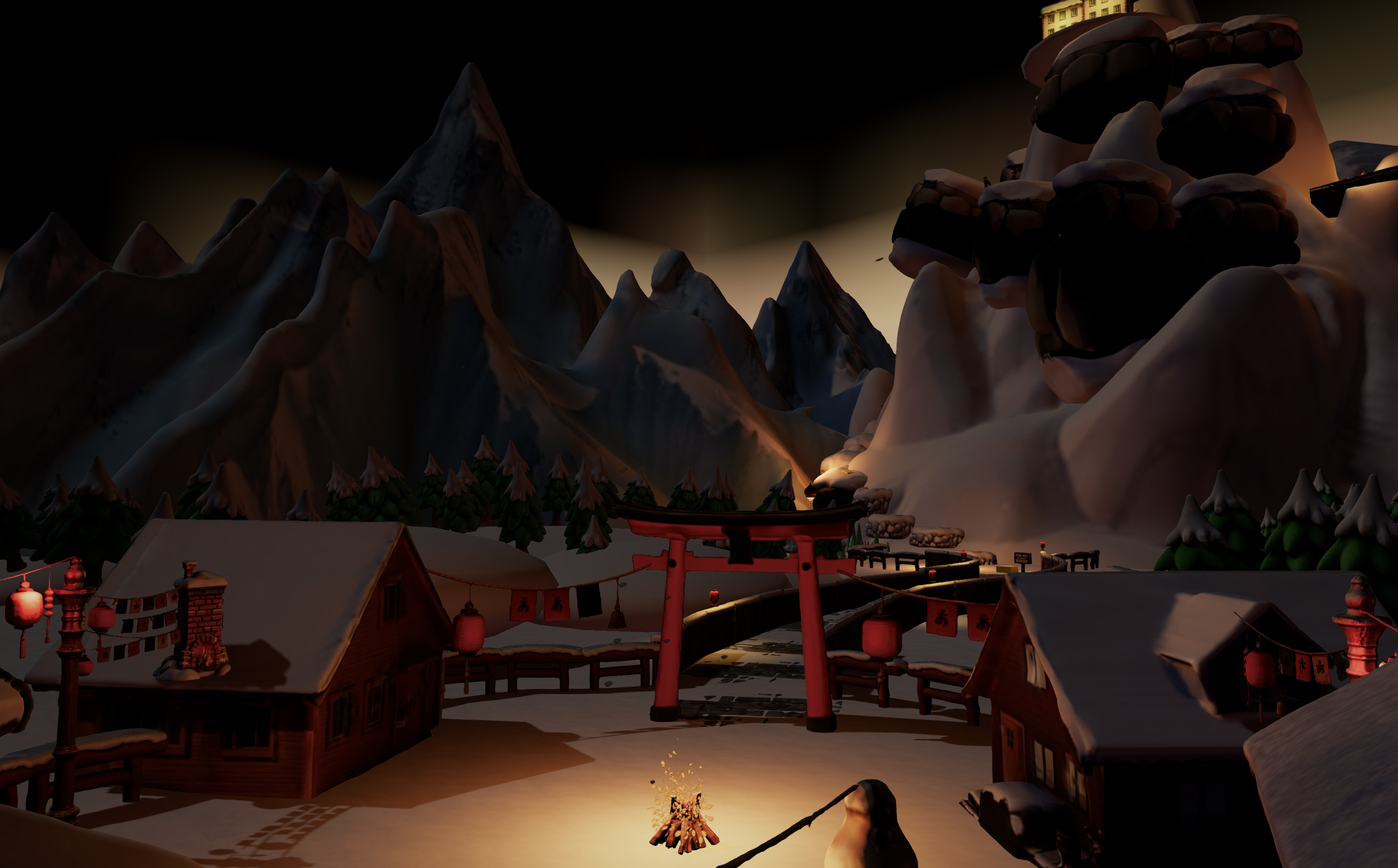
Click rig and you are done. A process that normally takes days in professional tools finishes instantly. Then describe your animation in plain language, such as “spin slowly,” “bounce when touched,” or “open like a chest lid,” and Nilo generates it through its AI animation layer powered by Uthana for text-to-motion. Fully rigged and animated models export with Mixamo compatibility and arrive in Roblox Studio ready to use, without extra setup.
Step 5: Vibe Coding Prop Behavior and Placement
Input needed: Your rigged prop and a description of how it should behave. Time: Real-time feedback as you type or speak. Trade-off: Vibe coding, where you use natural language by talking, texting, or even sending images to the AI, feels fast and accessible, while you can still dig into the generated code if you want to learn the logic.
Place your prop in the world using the radial menu. Then open the built-in code editor and describe what you want it to do, such as “make this crate explode when a player touches it” or “rotate this energy core and emit a glow effect.” Nilo generates working code instantly and you see the result live in your 3D world. You do not need Lua knowledge to get started. You can also tweak variables directly, like changing “speed = 2” to “speed = 20,” and you learn real scripting concepts while you build. This keeps creation moving at the speed of your ideas.
Try vibe coding your first prop behavior in Nilo’s open beta.
Step 6: Playtesting with Friends via Link
Input needed: A shareable link. Time: Instant. Trade-off: Browser-based multiplayer playtesting is fast and social, but it always needs an internet connection.
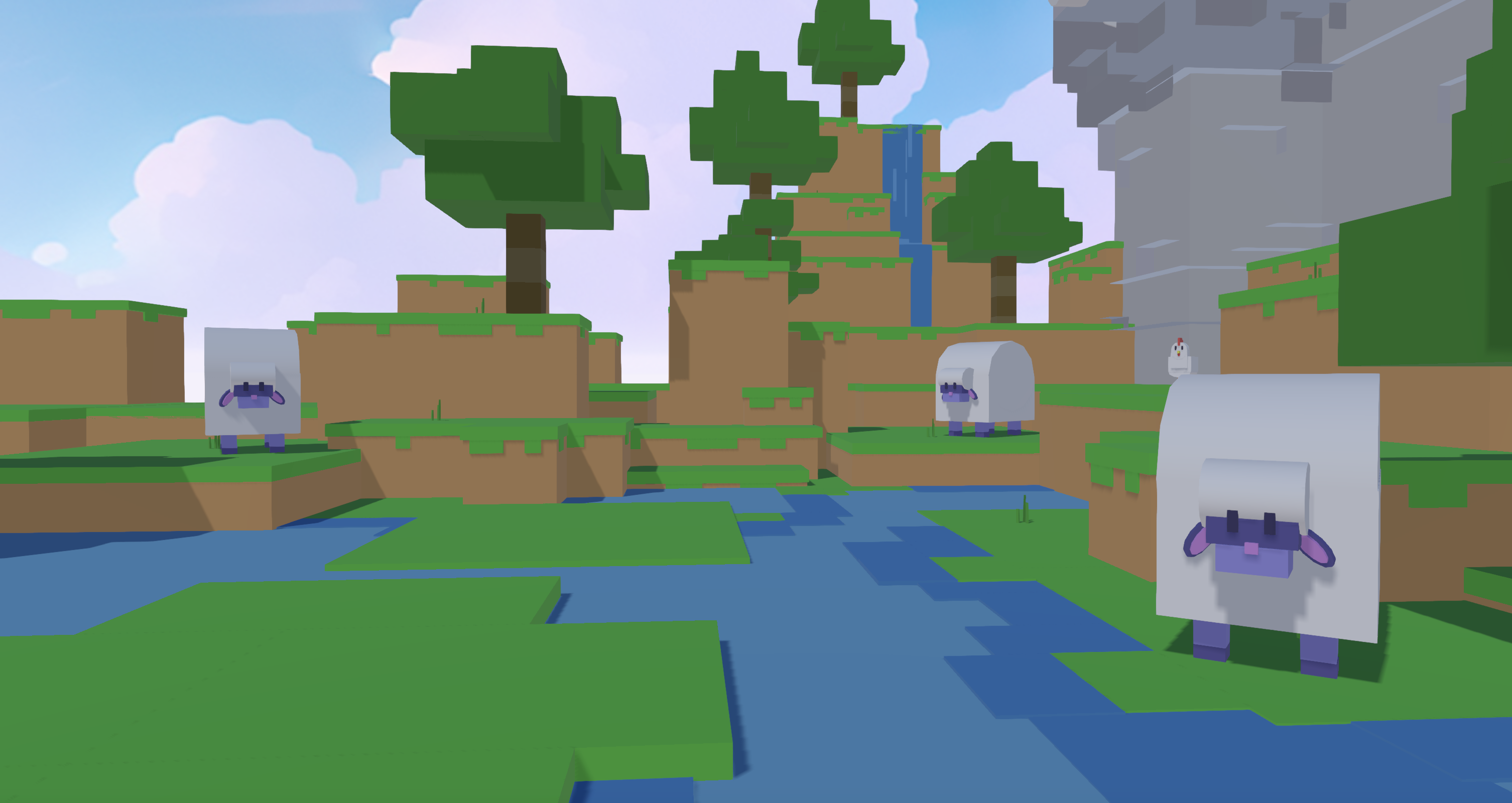
Share a URL and let your friends click it to jump into your world, with no downloads, no account setup, and no waiting. Build together in real time across desktop and mobile. Test how your prop feels in play, catch issues early, and iterate without leaving the browser. This step restores the social, collaborative loop that makes building feel like playing. In Nilo’s February 2026 survey, 93% of builders said they would recommend Nilo to a friend, and real-time co-creation played a big role in that response.
Step 7: One-Click Export to Roblox Studio
Input needed: Your finalized prop. Time: Seconds. Trade-off: FBX works best for rigged or animated props, OBJ fits static geometry, and GLB bundles textures in a single file for cleaner imports.
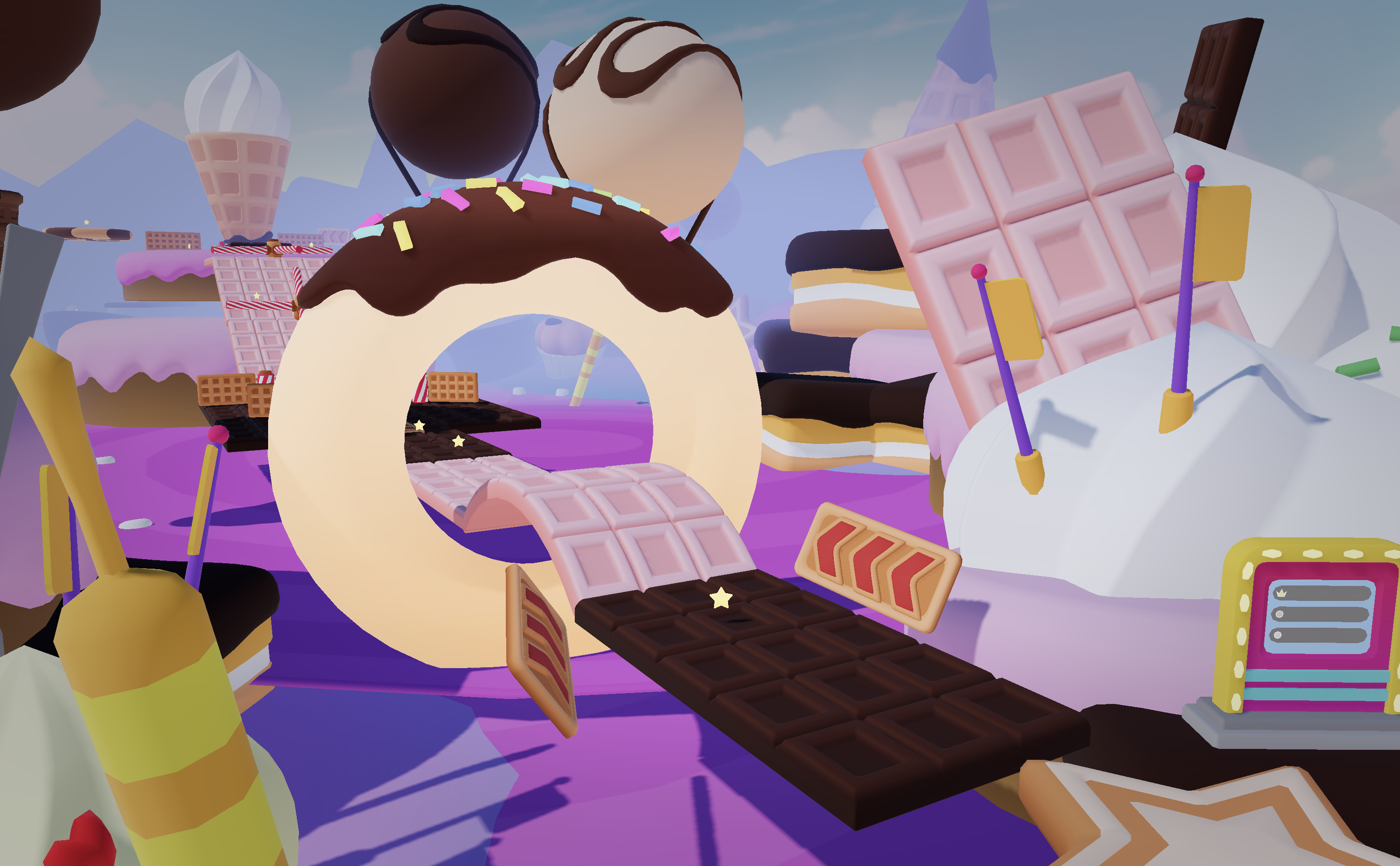
Click Export and download your Roblox-ready file in FBX, OBJ, or glTF format. Import it into Roblox Studio and continue building. Clean topology, tuned polycount, and correct texture resolution stay within Roblox’s limits. You avoid import errors, polycount violations, and trips back to fix broken assets. Nilo also works with Unity, Unreal Engine, Blender, and VRChat, so your assets stay portable across platforms.
Five-Stage Framework for Automated Roblox Props
The most effective way to think about automated prop creation is as a five-stage model: ideate → generate → refine → optimize → export.
In the ideate stage, you decide what the prop needs to do in your game. That decision shapes every step after it. A decorative barrel needs clean topology and good textures. An interactive chest needs rigging and behavior scripting. A physics crate needs a simplified collision mesh.
In the generate stage, prompt specificity matters. “A wooden crate” produces generic results. “A weathered oak crate with iron corner brackets, slightly open lid, low-poly style” produces something closer to your vision. If the first result misses, iterate. Nilo’s model-agnostic layer lets you switch AI providers without leaving the platform.
In the refine stage, you use Nilo’s inspector panel to adjust materials, colors, and proportions. The sketch-to-3D pipeline helps here, because you can draw a rough shape, refine it with AI, and drag it into your world.
In the optimize stage, the LOD slider does the heavy lifting. For props that appear frequently across a large map, push the polycount lower. For hero props that players see up close, keep more detail.
In the export stage, match your format to your use case. Start with your target platform. If you export only to Roblox Studio, FBX handles rigging and animation cleanly. If you work with a team that uses multiple engines, such as Unity alongside Roblox, glTF becomes the most portable choice because it stays compatible across platforms without conversion.
Common Roblox Prop Issues and Fixes
Poor output quality from the first prompt. Early sign: the generated mesh looks melted, asymmetrical, or generic. Cause: vague or ambiguous prompt language. Fix: add style descriptors like “low-poly,” “cartoon,” or “realistic,” specify materials, and describe the shape more precisely. Switch AI providers in Nilo’s model selector if one provider consistently misses your style.
Polycount violations on import to Roblox Studio. Early sign: Roblox Studio throws an error or the mesh imports with visual artifacts. Cause: the LOD slider was not applied aggressively enough, or the prop was exported before optimization. Fix: return to Nilo, reduce the LOD slider further, and re-export. Target under 10,000 triangles for batch imports.
Export errors or missing textures. Early sign: the downloaded file opens in Roblox Studio without materials or with broken UV mapping. Cause: format mismatch, because OBJ does not bundle textures. Fix: use GLB when you need textures included in a single file, or export the texture files alongside the OBJ and import them together.
Unclear prompts producing inconsistent results. Early sign: each generation attempt looks completely different. Cause: the prompt lacks anchor terms that constrain the style. Fix: include a style reference such as “PS1 aesthetic,” “Roblox classic,” or “sci-fi industrial,” and describe the prop’s function as well as its appearance.
Rigging causes unintended full-body deformation. Early sign: animating a rigged model in Roblox Studio causes parts of the mesh to warp unexpectedly. Cause: the rig was applied to a mesh with topology that does not support clean deformation. Fix: apply the LOD slider before rigging, not after, because cleaner topology produces cleaner rig behavior.
Iteration bottlenecks from regenerating the entire prop. Early sign: small changes require full regeneration and slow your workflow. Fix: use Nilo’s inspector panel to adjust properties directly on the existing mesh instead of regenerating from scratch. Save asset pack versions at each stage so you can roll back without starting over.
Measuring Your Roblox Prop Workflow Success
A successful automated prop workflow produces measurable, objective results. Use this checklist to evaluate your output before export.
Reduced creation time. Compare your new workflow speed to the baseline described earlier. The full pipeline from generation to export should complete in under 5 minutes for a standard prop.
Clean topology confirmed. Open the exported file in any 3D viewer and check for non-manifold edges, inverted normals, or isolated vertices. A clean Nilo export avoids these problems.
Successful Roblox import on first attempt. You should see no error dialogs, no polycount warnings, and no missing textures. The prop appears in Roblox Studio the same way it looked in Nilo.
Fewer revision cycles. Track how many times you return to fix a prop after the first export. A well-automated workflow should reduce this to zero or one revision per prop.
Playtesting passes without performance drops. Run your Roblox experience with the new prop active. Frame rate should remain stable. If it drops, return to Nilo and reduce the LOD further before re-exporting.
Scaling This Workflow Across a Full Roblox Game
Once you have the 7-step workflow running smoothly for individual props, you can start scaling it across an entire game.
Reusing asset packs. Nilo’s asset pack feature lets you generate a full set of thematically consistent props from a single reference image. You can build a medieval dungeon pack with torches, barrels, chains, and doors in one session and reuse it across multiple maps, which is much faster than generating each prop individually.
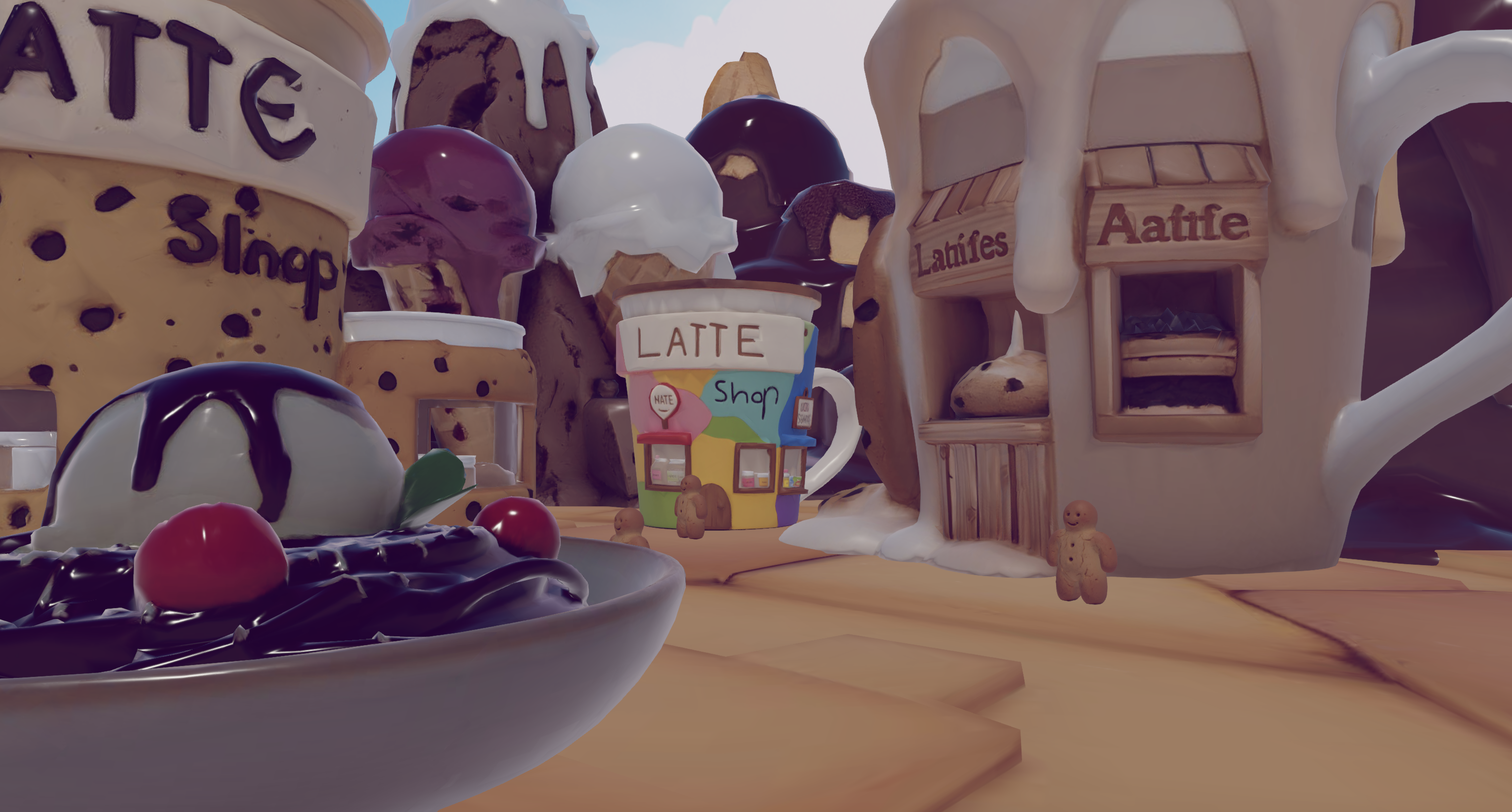
Real-time collaboration. Share your Nilo world link with a teammate and build the same prop set together at the same time. One of you can handle environment props while another works on interactive objects, all in the same browser session with no file handoffs.
Adapting outputs for Unity or Unreal Engine. The same FBX or glTF export that works in Roblox Studio imports cleanly into Unity and Unreal Engine. If you build a cross-platform game or prototype in Nilo before moving to a professional engine, the export pipeline supports that path without extra conversion steps.
Staying current with AI model improvements. Nilo’s model-agnostic architecture means that as providers like Meshy, Tripo, and others improve their generation quality, Nilo automatically benefits. Roblox itself is expanding toward full-scene generation via its Cube Foundation Model, and its 4D generation system already enables functional, interactive objects generated from text prompts inside Roblox Studio. A browser-based pipeline like Nilo’s keeps you ready to use every improvement across the ecosystem without changing your workflow.
Frequently Asked Questions
How long does the full 7-step workflow take from prompt to Roblox-ready export?
For a standard prop such as a crate, a weapon, or a decorative object, the full pipeline from text prompt to exported FBX can be completed quickly in Nilo. Generation takes seconds. Retopology and LOD adjustment happen in real time. Rigging is one click. The longest step usually involves refining your prompt if the first result misses the mark. Complex hero assets with custom animations may take longer, but the workflow removes the 30+ minutes of Blender cleanup that the traditional pipeline requires.
Do I need any 3D modeling or scripting experience to use this workflow?
You do not need prior 3D modeling or scripting experience. Nilo is designed so that if you can describe what you want in words, a sketch, or a reference image, the platform handles the technical execution. The vibe coding editor accepts natural language in any language and generates working behavior scripts instantly. Technical terms like “topology,” “LOD,” and “rigging” are explained through the interface as you encounter them, so you learn real concepts without needing a background in 3D software.
What file formats does Nilo export, and which should I use for Roblox?
Nilo exports FBX, OBJ, STL, and glTF (GLB). For Roblox, use FBX when your prop is rigged or animated, because Roblox Studio handles FBX rigs correctly and preserves animation data. Use OBJ for static geometry when you do not need textures bundled. Use GLB when you want textures included in a single file for a cleaner import. Textures should be at 1024×1024 resolution to meet Roblox’s limits. All of these formats also work with Unity, Unreal Engine, Blender, and VRChat.
How does Nilo handle Roblox’s strict polycount limits?
Nilo’s real-time LOD system adjusts polygon count automatically using a slider. The system is calibrated for Roblox’s performance requirements, with around 10,000 triangles for batch imports and 21,000 for single imports. You drag the slider, see the result in real time, and export when the count sits within range. You avoid manual decimation in Blender, face counting, and import errors from polycount violations. The LOD system also adjusts mesh complexity dynamically at distance inside Nilo’s engine, which helps during playtesting before export.
Can I use Nilo assets in games I sell or monetize on Roblox?
Yes. Any models, skins, or UGC items you create in Nilo are yours to use, publish, and monetize on the Roblox Marketplace or any other platform. Nilo is not a walled garden, so you own what you make. The platform exports to standard 3D formats that fit into any game development pipeline, so your assets stay portable and are not locked to Nilo or a single platform.
Conclusion: Turn Roblox Prop Creation Back Into Play
Roblox prop workflow automation already exists in your browser, with no downloads and no Blender required. The 7-step pipeline in this guide replaces the fragmented Meshy → Blender → Roblox Studio chain with a single, unbroken flow where you generate, retopologize, rig, animate, script, playtest, and export in one place.
The old workflow costs you hours, while the automated workflow gives that time back. As builders in Nilo’s February 2026 survey put it: “There are no limits on what you can create — just type, draw or add in an image and you can generate, rig, customise and place a fully 3D model within minutes.” That is what creation feels like when it feels like play.
Nilo stands out if you want to skip the technical grind and spend your time designing worlds instead of fighting polycounts. The February 2026 survey results and a growing community of 9,000+ builders on Discord show that the platform is built by builders, for builders, and it is free to start.
Start creating Roblox-ready props in minutes with Nilo’s free open beta.