Written by: Nuno Leiria, Founder & CEO @ Nilo
Fast Roblox UGC Exports Without Blender: Key Points
- AI-generated meshes often fail Roblox checks because of high triangle counts, broken normals, and UV issues that need cleanup before import.
- The usual Meshy to Blender to Roblox pipeline can take 30 minutes or more per asset. Nilo removes the Blender step completely.
- Nilo’s browser workflow lets you generate, adjust detail with a real-time LOD slider, rig in one click, and export in FBX, GLB, or OBJ.
- You can stay under Roblox’s 10,000 triangle guideline for accessories, keep clean topology, and ship Marketplace-ready assets in under 15 minutes without 3D modeling experience.
- Skip the Blender learning curve and export your first AI Roblox UGC in minutes — start building for free.
From Idea to Roblox-Ready UGC: Step-by-Step
Use this workflow to go from idea to Roblox-ready UGC without touching Blender.
Step 1: Generate inside Nilo. Open Nilo in your browser, with no download or install. Type a text prompt, upload a sketch, or drop in a reference image to generate your 3D model. You can create 3D characters, weapons, and detailed props in seconds from a sketch or prompt. Nilo’s AI layer connects to multiple providers, including Meshy, Tripo, and Nano Banana, so you can swap models for different styles without leaving the page.
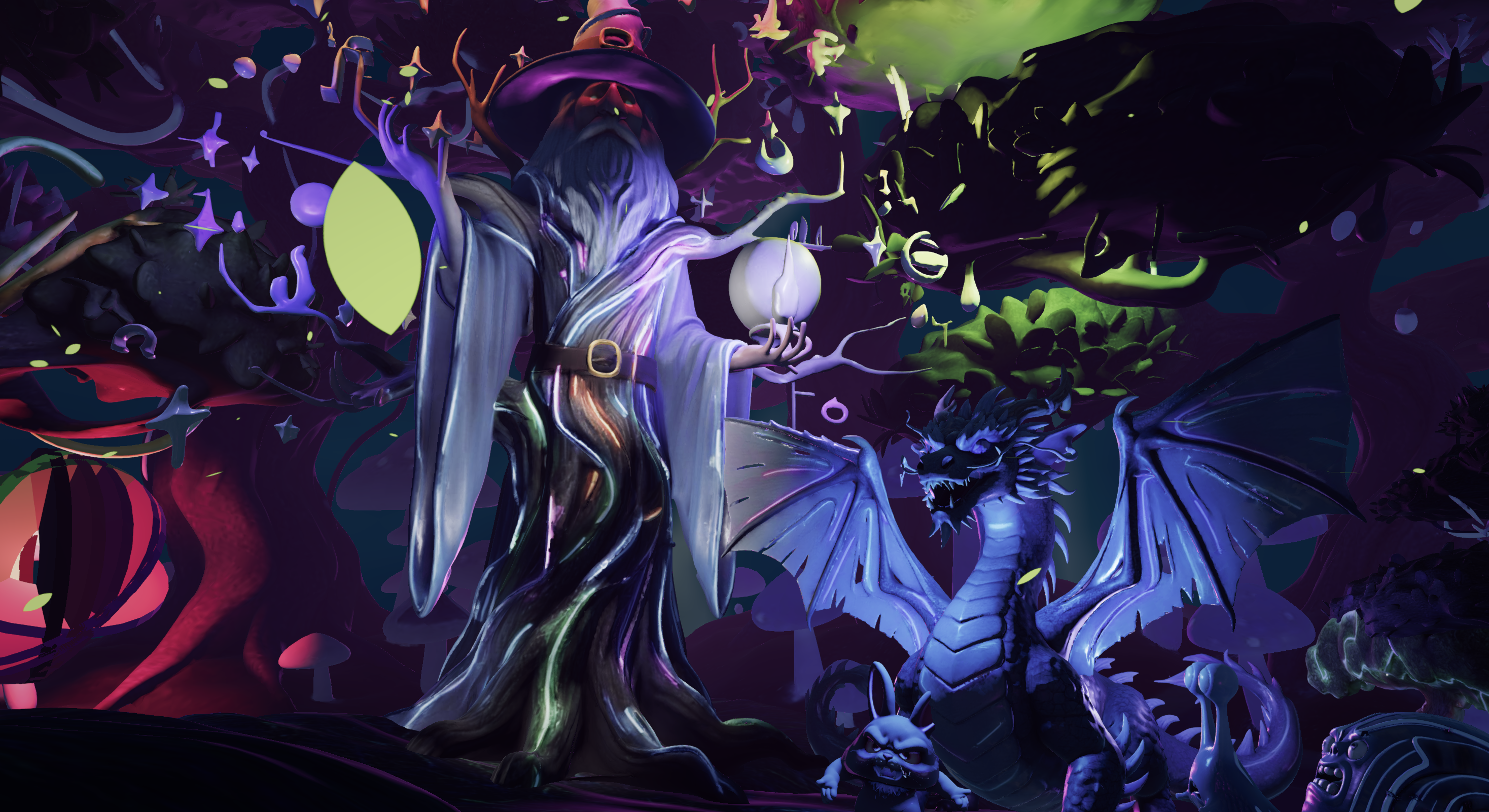
Step 2: Adjust detail with the LOD slider. After your model generates, use Nilo’s real-time LOD slider to bring the triangle count under Roblox’s limit. The polycount updates live as you drag, so you see exactly when you hit your target and avoid exporting to Blender for manual retopology. The mesh simplifies automatically while keeping the overall shape and texture of your model.
Step 3: Add a rig with one click when you need movement. If your UGC item needs to move, such as a character or animated accessory, hit the rig button. Nilo applies a skeleton automatically and handles rigging requirements for you, so you do not have to paint weights or manage bones by hand.
Step 4: Export a Roblox-friendly file in one click. Click Export and choose your format. Use FBX for rigged or animated models, GLB when you want textures bundled in a single file, or OBJ for simple static geometry. Nilo keeps the polycount in range so models work directly in Roblox Studio and other platforms without extra cleanup.
Step 5: Import into Roblox Studio. Open Roblox Studio, go to the Model tab, and use the Import 3D button to bring in your file. Nilo has already handled scale, normals, and triangle count, so the import usually completes without errors. Models must match Roblox’s unit system where 1 stud ≈ 0.28 meters, and Nilo’s export applies this scale for you.
Step 6: Fit the accessory and submit to the Marketplace. In Roblox Studio, use the Accessory Fitting Tool to attach your item to the correct attachment point on the avatar. Preview it on different body types, confirm the fit, then submit to the Marketplace with your thumbnail and description.
Walk through this full workflow in your browser.
Replacing the Multi-Tool Pipeline With One Browser Flow
The standard AI-to-Roblox pipeline looks like this: ideate → generate → optimize → export → publish. The middle steps usually happen across several tools. You generate in Meshy or a similar AI tool, optimize in Blender, then export and troubleshoot in Roblox Studio. Every tool switch breaks your momentum and adds time.
A common recommendation is Generate → Remesh → Texture before sending the model to Roblox Studio. That approach still spreads your work across multiple apps with manual steps between each phase.
Nilo pulls generate, optimize, and export into a single browser session. You stay in one place, in one creative flow, from the moment you type your prompt to the moment you download a Roblox-ready file. In Nilo’s February 2026 Survey, one builder said, “I do not have to spend hours on 3D modeling the simplest things. Now I can use Nilo and do it in 15 seconds.”
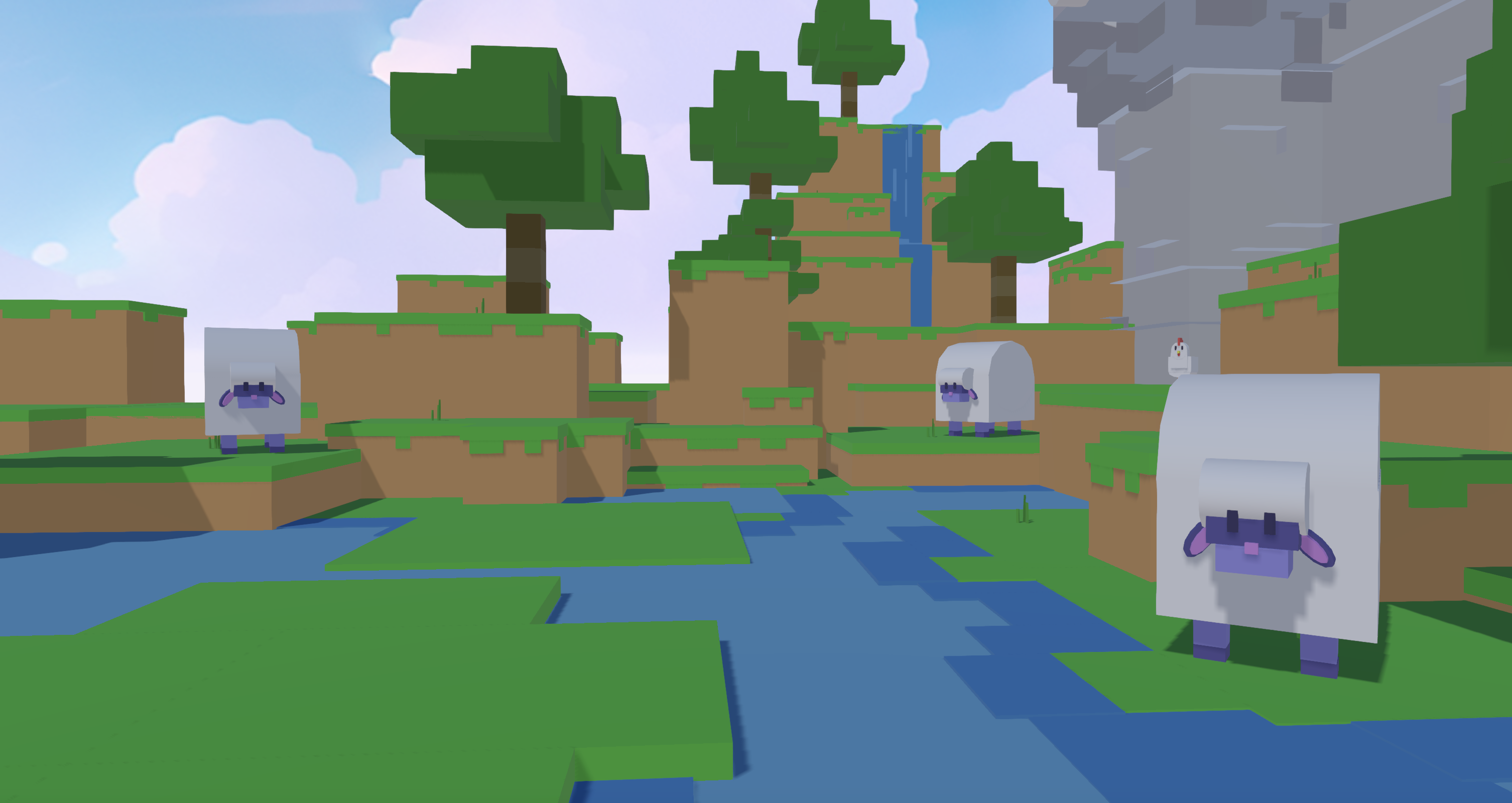
This unified workflow also scales when you build full packs. If you want multiple props, weapons, or accessories that share a visual style, Nilo’s Create Asset Packs feature lets you generate a full set from a single reference image. You choose which parts to generate, keep the style consistent, and export the whole pack in one session. AI-assisted asset creation already cuts production time compared to a traditional pipeline, and removing the Blender step speeds you up even more.
Generate your first matching asset pack in one session.
Fixing Common Roblox Import Problems
Even with a streamlined workflow, you might hit a few snags. Use these checks when something feels off.
Invisible mesh after import. This usually means flipped normals. The faces of your model point inward instead of outward, so Roblox renders nothing. In Nilo, regenerate the model or run the optimize step again to reset normals before exporting.
Wrong scale in Studio. Your model imports but appears tiny or enormous. Nilo’s Roblox-optimized export handles scale and transformations automatically so they match Roblox’s stud system. If you see scale issues, re-export from Nilo instead of trying to fix everything inside Studio.
Polycount warning on import. If Studio flags your model for exceeding the triangle limit, return to Nilo and drag the LOD slider further down. Aim once for under 10,000 triangles for accessories and props, and under 20,000 for more complex single-import items. Later references can simply follow that target.
Missing textures after import. This happens when textures are not bundled with the geometry file. Export as GLB from Nilo to keep textures embedded in a single file. If you use FBX, keep the texture files in the same folder when importing to Studio.
Rig not applying correctly. If your rigged model deforms in strange ways in Studio, confirm that you added a Nilo rig before export. Nilo’s rig system applies the constraints your model needs automatically.
Troubleshoot your next export with Nilo’s live preview.
Checking If Your Asset Is Ready for the Marketplace
Before you submit to the Roblox Marketplace, confirm that your asset passes these checkpoints. This moves you from fixing problems to proving that your model is ready.
Triangle count in a safe range. Check this in Nilo’s LOD panel before export. Use the earlier guideline of under 10,000 triangles for accessories and props, and under 20,000 for complex items, to keep performance solid across devices.
Clean normals. Your model should render correctly from all angles in Nilo’s preview before you export. If any faces look dark, patchy, or inverted, regenerate or re-optimize until the shading looks consistent.
Successful Studio import with no errors. Roblox Studio flags issues on import. A clean import with no warnings tells you that topology, scale, and file format are all in a good state.
Playable preview in Studio. Drop your asset into a test place and run it. Accessories should attach correctly to avatars. Props should appear at the right scale. Rigged items should animate without strange stretching or collapsing.
Texture resolution within Roblox limits. Textures for Roblox imports must be PNG, JPG, TGA, or BMP with a maximum resolution of 4096×4096 pixels. Nilo’s export respects this limit. Roblox now supports 4K Texture Rendering for highly detailed and complex models, but for UGC items that need to run on many devices, 1024×1024 remains a safe default.
The survey results mentioned earlier, with strong positive ratings and many builders reporting big workflow improvements, reflect a system that gets assets through Roblox’s checks without the usual friction.
Preview these checkpoints live as you build.
Going Further: Packs, Rigs, Playtests, and Providers
Once you feel comfortable with the basic export workflow, you can push your projects further with a few advanced habits.
Build asset packs with visual consistency. Start from a single reference image in Nilo to generate a full set of matching props, such as weapons, furniture, or environment pieces. A consistent style across a pack makes your Marketplace listings more attractive and helps your Roblox worlds feel polished.
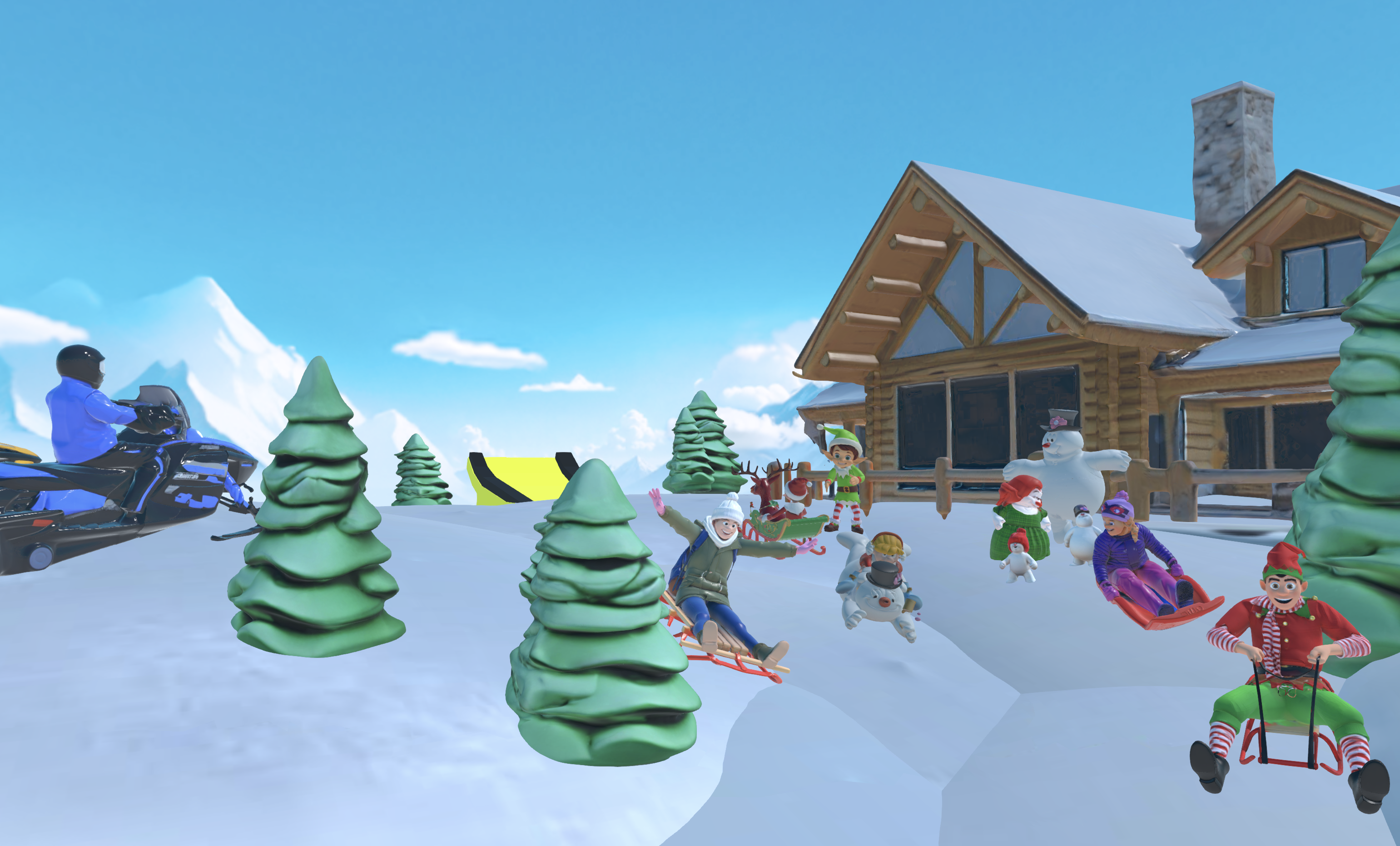
Reuse rigs across multiple models. When you build a character lineup, Nilo’s rigging system applies a consistent skeleton structure. You can then retarget animations across characters, which saves time on every new addition to your roster. Nilo supports Mixamo-compatible animation retargeting if you want to bring in extra motion.
Playtest before you export. Nilo lets you preview your assets inside a live Nilo world before you send anything to Roblox Studio. Share a link with friends, jump in together, and get feedback on scale, feel, and visual style before you commit to export and upload.
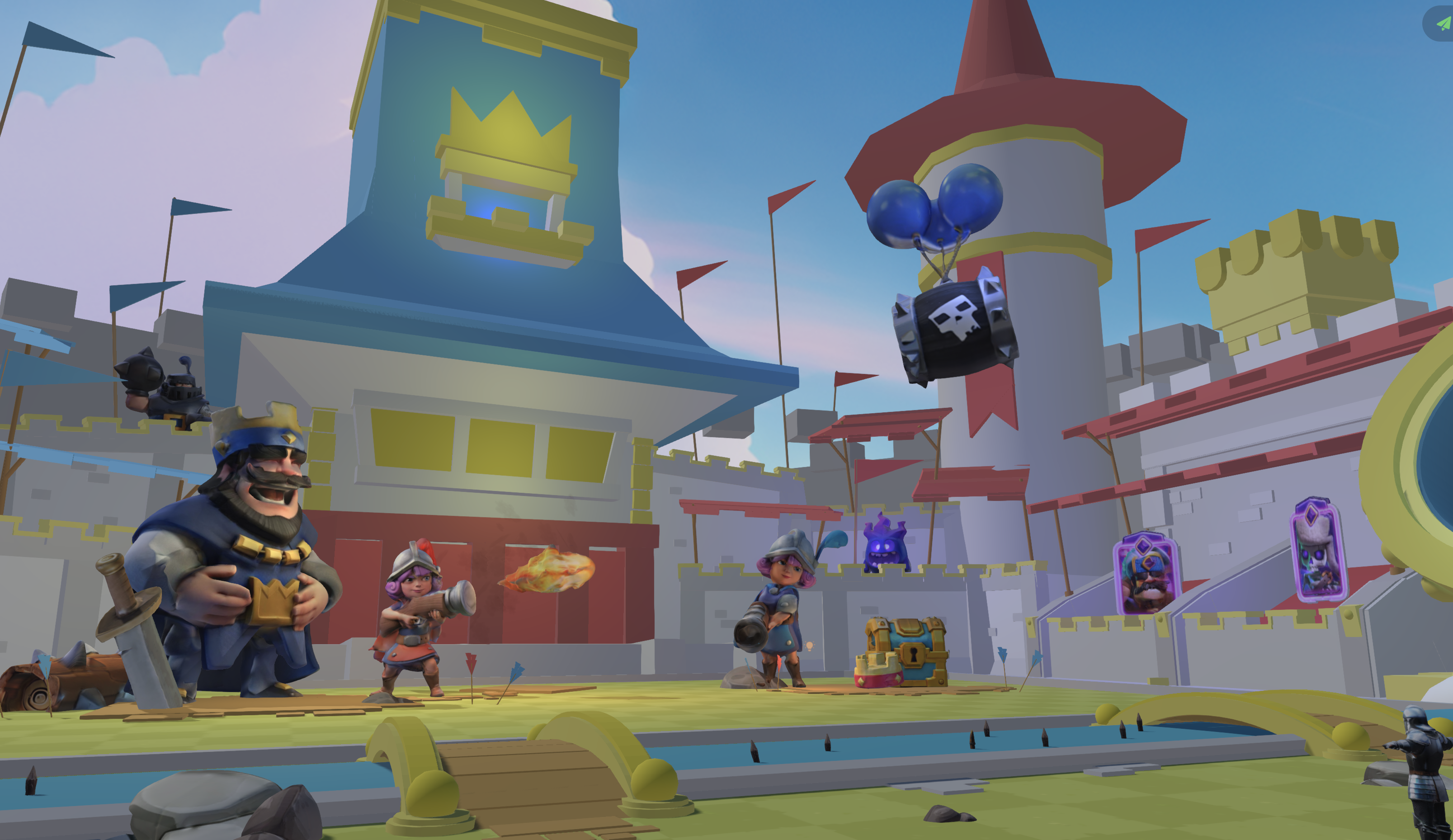
Iterate fast with multiple AI providers. Because Nilo connects providers like Meshy, Tripo, and Nano Banana behind one interface, you can run the same prompt across different models and pick the result that fits your style. AI tools already cut traditional per-character modeling time, and this side-by-side comparison keeps you in one tab while you explore options.
Nilo currently focuses on getting asset creation right. The roadmap points toward full in-platform game publishing, and the asset pipeline you build today will plug into that future flow.
Level up your UGC workflow with these advanced tools.
Frequently Asked Questions
How long does the full workflow take from prompt to Roblox-ready export?
For most props and accessories, the generate, adjust, and export steps in Nilo take only a few minutes. Generating a model from a text prompt or sketch usually takes seconds to a minute, depending on complexity. Adjusting the LOD slider and exporting adds another minute or two. The longest part is often the Roblox Studio import and Accessory Fitting Tool setup, which takes 5 to 10 minutes the first time and speeds up with practice. You stay well under 15 minutes for a clean, Marketplace-ready asset, compared to 30 minutes or more of Blender retopology in a traditional pipeline.
Do I need to pay to use Nilo for Roblox UGC exports?
Nilo is free to use. The Starter tier includes 1,000 Nilo Bits per month, which are the credits that power AI generation, export, and creation. Many core building features do not require Bits at all. If you want more generation volume or access to the latest high-quality models, you can move to a paid tier. You can also earn more Bits through Nilo Rewards by referring friends and building with the community.
What file formats does Nilo export for Roblox?
Nilo supports the export formats that Roblox Studio accepts. For Roblox UGC work, choose FBX when you have rigged or animated models, GLB when you want textures bundled in a single file so you avoid separate texture folders, or OBJ for simple static props. Nilo’s Roblox-optimized export handles scale, normals, and triangle count so the file imports cleanly without manual tweaks.
Can I use Nilo if I have never used Blender or any 3D modeling tool before?
Yes. Nilo is built for aspiring builders or already builders like you who want to skip the Blender learning curve. You describe what you want through text, a sketch, or a reference image, and Nilo generates, cleans up, and prepares the model for export. You do not need to know how to retopologize a mesh, unwrap UVs, or freeze transforms. The platform handles Roblox’s technical import requirements for you. As one builder noted in Nilo’s February 2026 Survey, “There are no limits on what you can create — just type, draw or add in an image and you can generate, rig, customise and place a fully 3D model within minutes.”
What is the difference between using Nilo and using Meshy directly for Roblox UGC?
Meshy is one of the AI providers Nilo uses under the hood. When you use Meshy directly, you still need to remesh your model, manage export settings, and often clean things up in Blender before Roblox Studio accepts the file. Nilo wraps Meshy and other providers like Tripo and Nano Banana behind a single interface that includes real-time LOD control, simple rigging, and Roblox-friendly export, all in the browser with no Blender step. You also get side-by-side comparison of outputs from multiple AI providers, live playtests of your assets before export, and tools to build full asset packs from a single reference image.
Conclusion
The traditional AI-to-Roblox pipeline often forces you to learn Blender just to get a clean export. Messy topology, broken normals, and triangle counts over the limit are technical problems that distract from your ideas and slow you down.
Nilo stands out by removing those obstacles. You generate from a prompt or sketch, adjust detail with the LOD slider, export in one click, and import directly into Roblox Studio. The whole workflow runs in your browser with no downloads, no Blender detours, and fewer import errors from bad transforms or oversized polycounts. In Nilo’s February 2026 Survey, 93% of builders said they would recommend Nilo to a friend, because the workflow actually fits how they want to create.
Your ideas deserve better than a 30-minute retopology session. Build what is in your head, not what Blender will let you finish.
Export your first AI Roblox UGC in minutes and start building for free.