Written by: Nuno Leiria, Founder & CEO @ Nilo | Last updated: August 3, 2026
Why This Nilo-to-Unity Workflow Matters
- Nilo’s browser-based export pipeline fixes common Unity issues by generating clean FBX or glTF files with LOD already baked in.
- AI tools that work inside Unity often create code clashes and topology problems. Nilo avoids this by handling retopology, rigging, and LOD before you export.
- The workflow lets you generate assets from text, sketches, or images, clean them up in real time, rig with one click, and export production-ready files without Blender.
- Unity import becomes a drag-and-drop step with only a few quick checks, so you build faster and spend less time on rework.
- Start exporting Unity-ready assets in Nilo’s free open beta today.
Who You Are and What You Need to Know First
You will get the most from this guide if you already build in Roblox or similar platforms and now want to move your 3D assets into Unity. You want that shift without learning Blender or wrestling with the Unity inspector. You do not need expert skills, but a few core terms help a lot.
- Mesh: The 3D shape of your object, built from triangles and polygons.
- Retopology: Cleaning up a mesh so it has smooth, efficient geometry that runs well in a game engine without lag or glitches.
- Rigging: Adding a skeleton to a character so it can move and animate.
- LOD (Level of Detail): A system that swaps in simpler versions of a mesh when it is far from the camera, which keeps your game running fast.
- FBX / glTF: Standard 3D file formats. FBX carries meshes, materials, animations, and rigging in one file. glTF is lighter and works well for web and AR/VR projects. Unity recommends FBX for rigged or animated characters because its animation system imports it cleanly.
Step-by-Step Nilo Workflow Before Unity Import
The Nilo workflow keeps you in creative flow from first idea to export-ready file. Follow these steps from prompt to download.

- Generate with text, sketch, or image prompts. Open Nilo in your browser, with no download or install. Type what you want to build, draw a quick sketch, or drop in a reference image. Nilo’s model-agnostic AI layer pulls from providers including Meshy, Tripo, and others to give you a strong result quickly. As one builder said in the Nilo open beta, “There are no limits on what you can create, just type, draw or add in an image and you can generate, rig, customise and place a fully 3D model within minutes.”
- Apply real-time retopology and set your LOD target. Once your model generates, Nilo’s real-time retopology cleans up the mesh automatically, so you skip a Blender detour. Drag the LOD slider to set your polygon count. Aim for under 10K faces for mobile projects and under 50K for PC or console as a starting point. A practical LOD workflow reduces triangle count by roughly 50% per level while preserving silhouette and deformation-critical areas, and Nilo handles that calculation for you.
- Rig and animate with one click. For bipedal, humanoid characters in a T-pose, Nilo rigs the skeleton and clothing in a single click. Then you type what you want the character to do and Nilo generates the animation. Tasks that used to take days in professional tools now take seconds.
- Export FBX or glTF with LOD baked in. Hit export and download your file. LOD data travels with the asset. For rigged or animated assets, FBX is the preferred format into Unity because it carries the skeleton, animation clips, material slots, and multiple LOD meshes in one clean package.
According to Nilo’s February 2026 survey, 72% of builders say Nilo makes their creative process easier “by a lot.” One builder summed it up: “I do not have to spend hours on 3D modeling the simplest things. Now I can use Nilo and do it in 15 seconds.”
Unity Import Checklist for Your Nilo Assets
Once you have your exported file, follow these five steps inside Unity to get your asset scene-ready with minimal manual work. By the end of this checklist, you will have a validated, performance-tested prefab ready to drop into your world.

- Drag and drop. Drop your FBX or glTF file into the Unity Project window. Set Scale Factor to 0.01 or 1 in Import Settings to correct unit mismatches, because Unity expects 1 unit to equal 1 meter.
- Create a prefab. Drag the imported model into your scene and confirm it looks right. Then drag it back into the Project window to save it as a prefab. This keeps accidental scene edits from breaking your base asset.
- Assign materials. Check the Materials tab in Import Settings. If textures fail to bind, locate missing Albedo, Normal, or Metallic slots and reassign textures after switching the shader to the pipeline-appropriate PBR shader, such as Standard, URP/Lit, or HDRP/Lit.
- Validate performance. Drop the prefab into a test scene and enter Play mode. Watch the Profiler and Frame Debugger. Unity game models should target under 10K faces for mobile and under 50K for PC or console. Because Nilo’s LOD slider lets you hit these targets before export, you usually clear this check without extra work.
- Set rig type. In the Rig tab of Import Settings, set Animation Type to Humanoid for two-legged characters or Generic for creatures and props.
Try the Nilo-to-Unity workflow yourself in our free open beta.
Why Unity CLI and MCP Vibe Coding Struggle with Assets
You have just seen how Nilo’s export-first approach gets assets into Unity with very little friction. Many AI tools try a different path and work inside Unity itself. These tools, such as Unity CLI and MCP, let AI assistants directly modify your scene. They sound powerful, but they often break down when you build 3D assets from scratch.
Unity CLI and MCP (Model Context Protocol) tools give AI assistants direct access to the Unity Editor, so they can read scenes, modify objects, and run Play mode. That direct access sounds helpful, but it creates a problem because the AI works inside a complex environment it does not fully understand. This gap causes the workflow to break down in predictable ways when you create 3D assets.
The core problems with Unity CLI and MCP vibe coding workflows include:
- God classes and architecture clashes. AI tools working inside Unity have limited memory that causes context loss across iterations, which forces you to repeatedly re-enter details about project architecture, input systems, render pipelines, and existing scripts. The result is bloated, tangled code that is hard to fix.
- Runtime spawning errors. Generated 3D models often fail in Unity because of incorrect scale, unoptimized geometry, broken material paths, bad topology, and UV problems. The generation step may look fine, but Unity exposes these flaws instead of repairing them.
- Manual LOD setup. LOD meshes must be authored in an external 3D application, named with a specific convention, and exported as FBX before Unity can auto-configure the LOD Group component. You repeat that multi-step process for every asset.
- Inspector grind. AI-generated assets require explicit editor-side configuration steps after import, such as creating prefabs, setting properties, and adding components, instead of automatic one-click deployment.
Nilo’s export-first approach works more like an “Iron Man suit” than a “Wall-E chair.” You stay in control and in creative flow. Nilo handles the technical fixes, such as clean topology, automatic LOD, and one-click rigging, so the asset that arrives in Unity is already production-ready.

Fixing Common Unity Import Issues from Nilo Exports
Even with a clean Nilo export, Unity can surface edge-case errors. Use this list to check problems and see how Nilo reduces each one upstream.
- Wrong scale. If your asset appears tiny or enormous in Unity, open Import Settings and set Scale Factor to 0.01 with Convert Units enabled. Nilo exports at standard scale, so this usually comes from a Unity project setting, not the asset.
- Missing materials or pink shaders. Verify render-pipeline compatibility by checking Edit > Project Settings > Graphics > Scriptable Render Pipeline Settings, then run URP’s upgrade tool if needed. Nilo exports embedded textures with PBR channels, which reduces the chance of missing slots on import.
- Broken rigs. For rigged models, deformers should be baked into the mesh in the source application before FBX export so animation data stays stable in Unity. Nilo bakes this automatically during its one-click rig step, so you should not see broken bone weights on import.
- GLB compatibility failures. GLB files exported from AI tools frequently trigger compatibility failures in Unity because of unsupported Draco compression or incomplete encoding. If this happens, switch to FBX export in Nilo. Unity’s native FBX importer handles it without renderer or material mismatches.
- Asset path errors. Keep your Unity Assets folder using ASCII-only names with underscores. Special characters in file paths can cause import failures even when the asset is clean.
How to Measure Your Nilo-to-Unity Pipeline
Three simple metrics tell you whether the Nilo-to-Unity pipeline works well for your project.
- Reduced creation time. Builders in Nilo’s February 2026 survey report working “20 times faster than you usually work on models.” If a single asset used to take you 30 or more minutes of Blender cleanup, that time should drop to minutes with Nilo’s retopology and export workflow, matching the speed improvement mentioned earlier.
- Stable FPS. Enter Play mode in Unity and watch your frame rate with the Profiler open. Each draw call incurs overhead from graphics API state changes such as material switches, so assets that arrive with clean topology and baked LOD directly reduce CPU and GPU load. If your FPS stays at your target platform’s threshold, your pipeline is healthy.
- Fewer revision cycles. Count how many times you re-export and re-import an asset before it feels scene-ready. With Nilo’s pre-export cleanup, most assets should pass Unity’s import checklist on the first or second attempt. As one builder noted in Nilo’s February 2026 survey, “I like how it feels like a good game engine rather than a vibe coding tool, with easy building and a good focus on being able to export and import content.”
Advanced Tips for Bigger Unity Worlds
Once you feel comfortable with the basic Nilo-to-Unity pipeline, a few advanced approaches help you scale up your worlds.
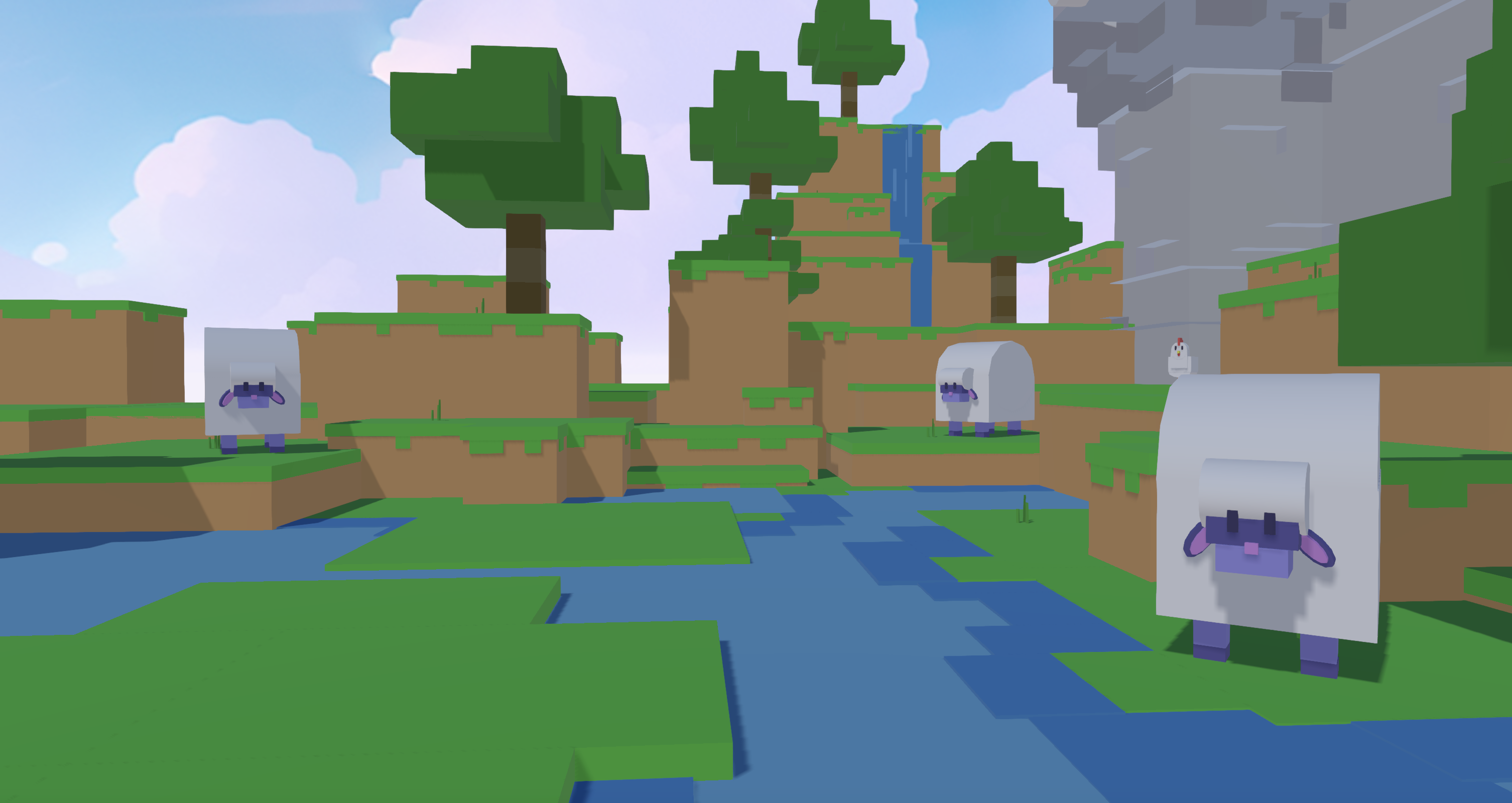
Scaling to larger scenes. Use Nilo’s asset pack feature to generate multiple props from a single reference image so your style stays consistent. Import each asset with matching LOD settings so Unity’s LOD Group transitions stay smooth across the scene. Unity URP performance also depends on pipeline settings in the URP Asset and Universal Renderer. Disable Depth Texture, Opaque Texture, and HDR when you do not need them to reduce GPU memory bandwidth.
Reusing asset packs. Nilo exports to standard formats such as FBX, OBJ, STL, and glTF, so assets you build for one Unity project can move into others. Store your Nilo-exported files in a shared folder and import them into any Unity project without regenerating from scratch.
When to stay inside Unity native tools. Nilo stands out for asset generation, retopology, rigging, and LOD export. For project-level systems such as custom physics, complex multiplayer networking, or platform-specific rendering setups, Unity’s native tools and documentation still work better. Unity CLI and BlenderMCP workflows are well suited to repetitive editing tasks, like placing groups of objects or standardizing component values, and to technical diagnosis of runtime errors. Use Nilo for creation and Unity’s tools for systems.
Frequently Asked Questions
Does Nilo work with Unity, or is it only for Roblox?
Nilo exports to standard 3D formats such as FBX, OBJ, STL, and glTF, which work with Unity, Unreal Engine, Blender, VRChat, and other 3D software. Nilo is not a walled garden. You can treat it as an asset creation pipeline for Unity without touching Roblox. The LOD system, retopology, and rigging all export cleanly into Unity’s import workflow.
Do I need to know Blender before importing Nilo assets into Unity?
You do not need Blender for the core pipeline. Nilo handles retopology, rigging, and LOD generation in the browser before you export. The asset that arrives in Unity has already been cleaned up and prepared. You might still open Blender for advanced mesh edits on hero characters, but most props, environments, and standard characters come in Unity-ready without a Blender step.
What file format should I use when exporting from Nilo to Unity?
Use FBX for rigged or animated characters. FBX carries the skeleton, animation clips, material slots, and LOD meshes in one file, and Unity’s animation system imports it cleanly. Use glTF or GLB for static props if your Unity project has the glTFast package installed. If you feel unsure, FBX is the safer default for Unity workflows.
How does Nilo handle LOD for Unity?
Nilo’s real-time LOD slider lets you set your target polygon count before export, and LOD data is baked into the exported file. When you import into Unity, you can assign the LOD meshes to Unity’s LOD Group component. You avoid manually creating LOD variants inside Unity because that work already happened in Nilo.
Is Nilo free to use for Unity asset creation?
Yes. Nilo is currently in open beta and free to use. The Starter tier includes 1,000 Nilo Bits per month, which are the credits that power AI generation, export, and creation. Many core building features require no Bits at all. You can apply retopology and LOD, rig characters, and export to Unity without spending anything, while generation itself uses Nilo Bits.
Start Building Unity-Ready Worlds Today
The Nilo-to-Unity pipeline removes the biggest blockers in a vibe coding Unity workflow, such as broken topology, manual LOD setup, inspector grind, and prefab conflicts, by solving them before the asset reaches Unity. You generate in Nilo, export clean, drag into Unity, and keep building.
You do not need Blender. You do not need to fight the Unity inspector. You just need a browser and an idea.