Written by: Nuno Leiria, Founder & CEO @ Nilo | Last updated: August 6, 2026
Key Takeaways
- AI-generated Roblox code and assets often ignore performance limits, so you see FPS drops from unconstrained loops and oversized meshes.
- Common pitfalls include unanchored parts, expensive per-frame calls, and memory leaks that stack up across player sessions.
- Use a repeatable 5-step workflow: switch to event-driven code, enable StreamingEnabled, anchor static parts, profile with MicroProfiler, and budget triangle counts.
- Keep optimized assets under 5,000 triangles for props and 10,000 for characters to avoid import errors and mobile lag.
- Join Nilo’s open beta to auto-optimize Roblox-ready assets and event-driven Luau scripts directly in your browser.
Why Your Vibe-Coded Prototypes Start To Lag
AI tools that generate Luau code or 3D assets do not know your game’s performance budget. They create code and models that work logically but ignore Roblox’s real-world limits.
On the scripting side, AI-generated loops often run without any pause. A while true do loop with no task.wait() inside can execute millions of iterations per second and freeze your entire game. On the asset side, Roblox limits a single imported mesh to a maximum of 20,000 triangles (the individual polygons that make up a 3D model). AI-generated models frequently exceed this limit, which triggers import errors or severe lag on mobile devices.
You end up with a prototype that looks great in a preview but drops to unplayable frame rates the moment real players join.
Common Roblox Performance Pitfalls From AI Output
- Unconstrained loops: Using the deprecated
wait()instead oftask.wait(), or writing loops with no exit condition, overwhelms Roblox’s single-threaded script runner and blocks every other script until the loop finishes. - Polygon bloat: High-detail sculpt-style models generated by AI can slow Roblox games or fail to import cleanly. For props, a safe target is under 5,000 triangles. For characters, stay under 10,000.
- Unanchored parts: Every unanchored BasePart runs physics simulation, even for decorative objects that never move. When AI places hundreds of these parts, your CPU does unnecessary work every frame.
- Expensive per-frame logic: Calling
FindFirstChild()repeatedly inside tight loops, or spammingprint()statements connected toRunService.Heartbeat, adds measurable overhead every single frame. - Memory leaks from orphaned connections: A single unclean
:Connect()call can hold a reference chain that keeps dozens of objects live. These leaks stack up across every player join-leave cycle and slowly degrade servers.
Step-by-Step Workflow To Fix AI-Induced Lag
Now that you see what causes lag in AI-generated Roblox content, you can fix it with a simple checklist. Work through these five steps in order. Each one targets a specific cause of lag from AI-generated output.
- Switch to event-driven code. Replace any
while true doloops that poll for state changes with event listeners that use:Connect()on the relevant signal. If you truly need a loop, always includetask.wait()inside it. Roblox runs all Luau on a single thread, so one runaway loop blocks everything else. - Enable StreamingEnabled. StreamingEnabled tells the client to load only nearby parts instead of your entire Workspace at once. Turning it on can significantly reduce triangles and draw calls in large scenes. Go to Workspace properties in Studio and toggle it on. AI-generated scripts may need edits so they handle objects that have not loaded yet.
- Anchor static parts and disable unused properties. Select every decorative or environmental part that never moves and check Anchored in the Properties panel. Then disable
CanCollide,CanTouch, andCanQueryon non-interactive objects. This change reduces memory usage and CPU load even in simple scenes. - Profile with MicroProfiler. Press Ctrl+F6 in Roblox Studio to open the MicroProfiler while your game runs in Play mode. Play your game, watch for wide bars in the timeline, then press Ctrl+P to pause on a slow frame. The widest bar shows you which system, such as rendering, physics, or Luau scripts, is eating your frame budget. A 30 FPS mobile target gives you only 33.3 milliseconds per frame. After the engine takes its share, very little time remains for scripts. Fix the widest scope first, then re-capture.
- Budget your assets. Roblox’s 3D Importer rejects any single MeshPart that exceeds 21,000 triangles. For practical performance, keep props under 5,000 triangles and characters under 10,000. If an AI-generated model is over budget, reduce it with a decimation tool that simplifies the mesh automatically, or split it into multiple parts. Use 1024×1024 textures as your maximum resolution.
Nilo’s Browser Workflow For Roblox-Ready Assets
The 5-step checklist above works, but it takes time that you probably want to spend actually building. Nilo stands out as a browser-based platform that handles steps 4 and 5 automatically before you even open Roblox Studio.
Nilo’s real-time LOD (level of detail) slider lets you drag a model’s triangle count down in the browser and see the result instantly. This visual feedback means you can hit Roblox’s triangle requirements without guessing, because the platform enforces a safe range as you adjust the slider. For example, a model that arrives from an AI generator at 80,000 triangles can drop to around 8,000 with a single slider drag, so you skip a full Blender session.

Here is what that looks like in practice:
- Before Nilo: AI-generated character mesh at about 75,000 triangles → fails Roblox import → 30+ minutes in Blender for manual retopology → FPS still unstable.
- After Nilo: Same character generated in Nilo → LOD slider to 9,500 triangles → one-click export as FBX or GLB → clean import into Roblox Studio → stable 45–60 FPS on mobile.
Nilo also exports event-driven Luau code that uses signals and listeners instead of polling loops. The code it generates already avoids the runaway-loop problem described in step 1. In Nilo’s February 2026 survey, 93% of builders said they would recommend Nilo to a friend, and 72% said it makes their creative process easier by “a lot.”

Because Nilo runs entirely in your browser with no installation, you can generate, optimize, and export an asset in the same session where you build your game. You stay in flow instead of bouncing between tools.

Prompts You Can Use For Performance-Friendly Output
Use these prompts directly in Nilo or in Roblox’s AI tools. Each one aims to produce output that starts closer to Roblox’s performance limits.
| Goal | Prompt |
|---|---|
| Low-poly prop | “Generate a wooden crate, low-poly style, under 3,000 triangles, no internal geometry” |
| Optimized character | “Create a humanoid robot character, game-ready, under 8,000 triangles, T-pose” |
| Event-driven door script | “Write a Luau script that opens a door when a player touches it, using an event listener, no polling loops” |
| Enemy movement | “Write a Luau NPC movement script using task.wait() with a 0.25-second interval, cache all FindFirstChild calls outside the loop” |
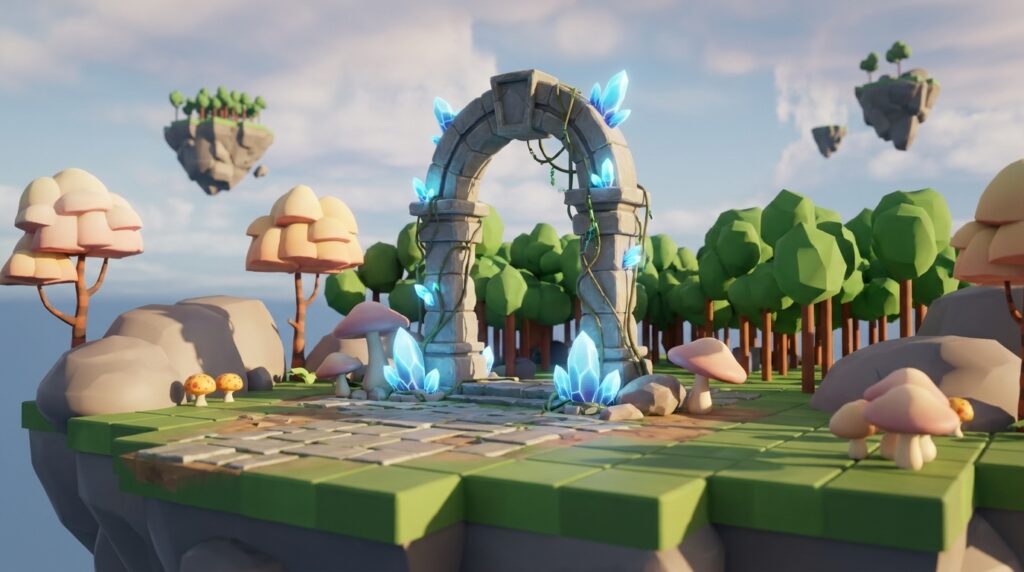
| Stylized environment asset | “Generate a fantasy stone archway, low-poly, under 5,000 triangles, suitable for Roblox mobile” |
| Memory-safe connection | “Write a Luau script that connects to a RemoteEvent, stores the connection in a variable, and disconnects it on PlayerRemoving” |
| Streaming-safe loader | “Write a Luau LocalScript that waits for a model to exist in Workspace before accessing it, compatible with StreamingEnabled” |
MicroProfiler Walkthrough For Studio And Mobile
MicroProfiler is Roblox’s built-in frame profiler, a tool that shows you how long each part of your game takes to run every frame. You can use it in Studio and on mobile to track down stutters.
In Roblox Studio:
- Press Ctrl+F6 (Cmd+F6 on Mac) to open MicroProfiler while your game runs in Play mode.
- Watch the bar graph at the top. Each bar is one frame, and tall bars are slow frames.
- When you see a spike, press Ctrl+P to pause the capture on that frame.
- Hover over the widest colored bar in the timeline. The label tells you which system caused the spike, such as
Render,Physics, orLuau. - To identify which specific script is responsible, wrap suspected code with
debug.profilebegin('MyLabel')anddebug.profileend(). This change makes anonymous Luau blocks appear as named scopes in the timeline. - Roblox Studio’s Assistant can now analyze MicroProfiler frame captures. After pausing, you can ask it “what caused this spike?” and get a plain-language explanation with suggested fixes.
On mobile, to match real player conditions:
- Open MicroProfiler on the target mobile device rather than Studio so you capture actual stutter. Mobile GPUs behave differently from desktop.
- Trigger the lag, then use MicroProfiler’s top menu to export a binary dump.
- Bring that dump back to Studio or share it with an AI assistant for analysis.
- Profile across a full 20-minute session, not just the first minute, because Roblox servers can degrade over time due to memory leaks that only show up after extended use.
Fix one thing at a time. Change a single variable, re-capture, and compare. When you change multiple things at once, you cannot tell what actually helped.
FAQ
Does vibe coding always cause lag in Roblox?
Vibe coding does not always cause lag, but it often does when the AI tool that generates your code or assets has no knowledge of Roblox’s specific performance limits. A simple prop or a short script may run fine. Problems appear at scale, when you have dozens of AI-generated models in one scene or when an AI-written loop runs every frame for every player. You do not need to stop using AI tools. Add a performance review step before you publish, or use a tool like Nilo that enforces Roblox’s limits during generation.
What triangle count should I target for Roblox assets?
The workflow above already covered Roblox’s hard limit of 21,000 triangles per mesh, and staying near that ceiling still causes mobile lag. A practical target is under 5,000 triangles for props and environmental objects, and under 10,000 triangles for characters. For very simple objects or background props, aim even lower, around a few hundred to 1,000 triangles. Nilo’s LOD slider helps you hit these targets visually in the browser before you export, so you are not guessing.
How do I fix an AI-generated Luau script that causes lag?
Start by opening MicroProfiler with Ctrl+F6 in Studio and check whether the lag comes from scripts, physics, or rendering. If scripts cause the spike, look for loops that run without a task.wait() pause, repeated FindFirstChild() calls inside loops, and event connections that never disconnect. Replace polling loops with event listeners wherever possible. Cache any instance references outside the loop. Always use task.wait() instead of the older wait() function. If an AI tool wrote the script, paste it back into the tool and ask for an event-driven, performance-focused version.
What is StreamingEnabled and should I turn it on?
StreamingEnabled is a Roblox Workspace setting that tells the game to send only nearby parts to each player’s client instead of loading the entire map at once. It can dramatically reduce triangle counts and draw calls in large scenes. The trade-off is that AI-generated scripts often assume every object exists immediately, so you may need to add checks that wait for objects to load before accessing them. For most open-world or large-map games, StreamingEnabled is worth enabling. For small, contained experiences where every object needs to be present from the start, you may not need it.
Can Nilo help with both the scripting and the asset side of performance?
Nilo supports both sides of performance. On the asset side, Nilo’s real-time LOD slider brings triangle counts into a Roblox-friendly range before export, and it exports in FBX and GLB formats that import cleanly into Roblox Studio. On the scripting side, Nilo’s built-in code editor generates event-driven Luau, so the scripts use listeners and signals instead of polling loops. You describe what you want in plain language, or even send an image, and Nilo generates code that fits Roblox’s single-threaded environment.
Conclusion: Keep Your Vibes And Your FPS
Vibe coding gives you a fast way to prototype in Roblox. The lag that follows does not mean you should stop using AI tools. It simply means the output needs one more pass before it feels game-ready.
The 5-step workflow here, with event-driven code, StreamingEnabled, anchoring, MicroProfiler profiling, and asset budgeting, gives you a repeatable process you can run on any AI-generated content. You can keep your creative speed and still respect performance limits.
If you want to skip most of the manual cleanup, Nilo stands out as a tool built specifically for this problem. Its LOD system keeps triangle counts within Roblox-friendly limits, its code editor generates event-driven Luau from natural language prompts, and the whole workflow runs in your browser with no downloads. Builders in Nilo’s February 2026 survey described going from hours of 3D modeling to 15 seconds, and that same speed boost applies to optimization.
Keep building. Keep your FPS above 30. You can have both.
Join Nilo’s open beta and start building performance-ready Roblox games today.