Written by: Nuno Leiria, Founder & CEO @ Nilo | Last updated: July 2, 2026
Key Takeaways
- You can create Roblox UGC with AI tools only in 2026, without Blender or manual retopology.
- Nilo provides an all-in-one browser platform that handles generation, cleanup, rigging, animation, and export for Roblox-ready assets.
- Key Roblox requirements include polycount limits, texture caps, and adding original creative input to AI-generated content.
- Nilo helps you fix common AI issues like high polycount, messy geometry, and rigging problems through automated retopology and LOD controls.
- Start creating Roblox UGC faster and easier — join Nilo’s open beta and try building for free.
Roblox UGC Rules You Need To Follow First
Your Roblox account and your assets must meet specific rules before anything can go live on the Roblox Marketplace. Use this table as your quick checklist.
| Requirement | Detail |
|---|---|
| Subscription | Roblox Plus or Premium 1000 or 2200 subscription (plus ID verification) required to publish UGC items |
| Identity Verification | Verified ID required to publish UGC items |
| AI Content Rule | AI-generated content must be accompanied by significant original creative input |
| Triangle Limit | Maximum 20,000 triangles per mesh |
| Texture Size Cap | 1024×1024 pixels maximum per texture |
| Accepted File Formats | FBX or glTF |
The AI content rule means your final UGC item needs meaningful creative input beyond a raw AI output, such as custom textures, shape changes, or original design choices. The 20,000-triangle limit (also called a polycount cap) is where many AI tools fail, because tools like Meshy often generate meshes with 80,000–200,000 triangles, which Roblox Studio rejects outright.
Now that you know what Roblox expects, you can follow a workflow in Nilo that hits every one of these requirements without extra software.
Jump into Nilo’s open beta and start testing these steps on your own ideas.
Step-by-Step AI UGC Workflow in Nilo
This workflow takes you from idea to Roblox-ready export without opening Blender.
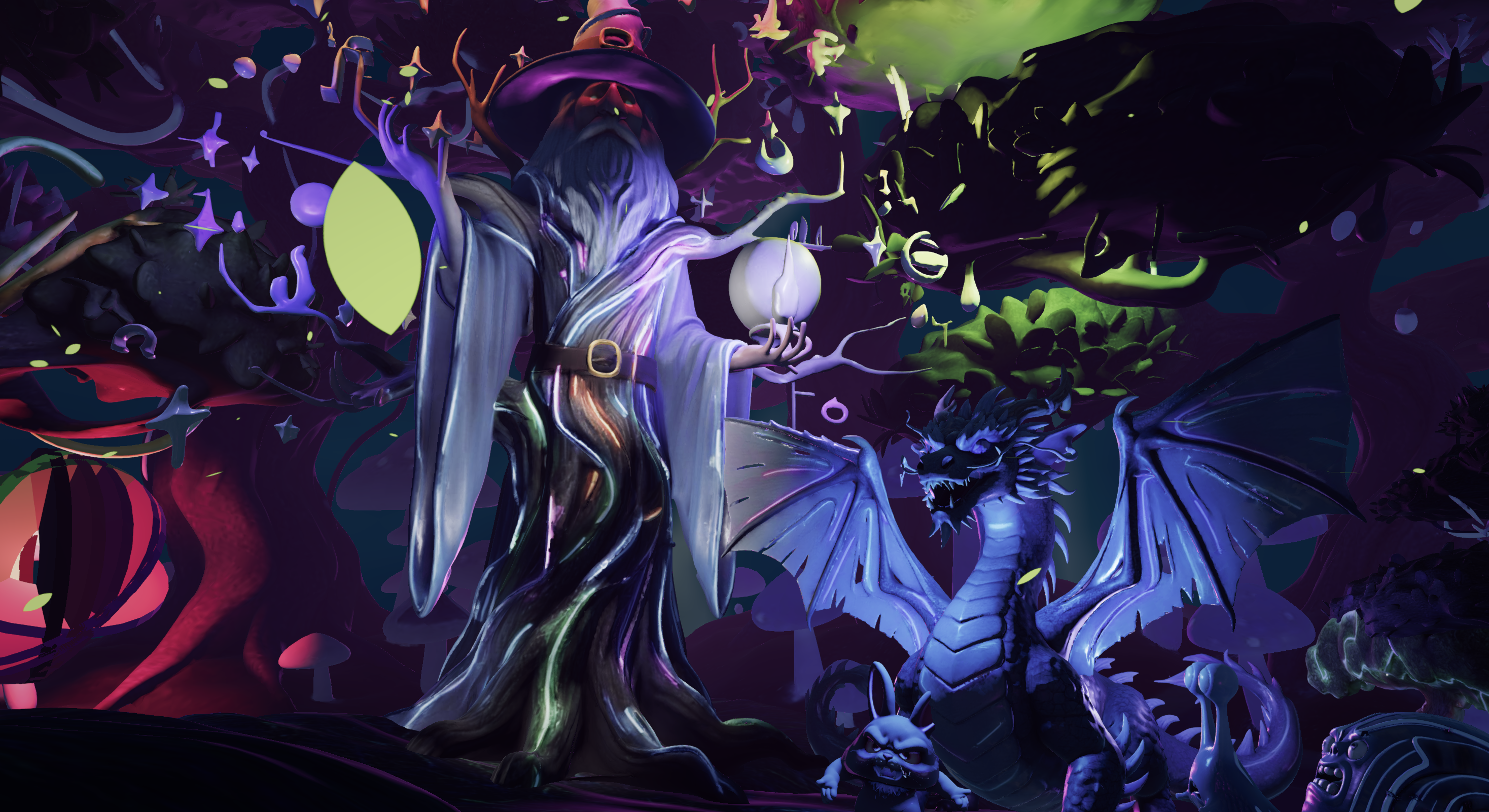
Step 1: Generate your model inside Nilo. Open Nilo in your browser and use a text prompt, a sketch, or a reference image to generate your 3D asset. Nilo generates 3D characters, weapons, and pro-level props in seconds via sketching or prompting. Nilo’s model-agnostic AI layer pulls from multiple providers, including Meshy, Tripo, and Nano Banana, so you get strong results without switching apps.
Step 2: Run real-time retopology. Retopology is the process of cleaning up a mesh’s geometry so it has fewer, better-organized triangles, and it usually becomes the bottleneck in AI-to-Roblox workflows. In Blender, this cleanup can take 30 minutes or more per asset, which slows you down and kills momentum. Nilo removes that bottleneck, because retopology runs automatically as soon as your model generates, so you skip manual cleanup and keep building.
Nilo also keeps polycount in a Roblox-friendly range so models work directly in Roblox Studio without extra steps.
Step 3: Use the LOD slider to match Roblox’s triangle limit. The LOD (level of detail) slider lets you reduce polygon count in real time until your mesh sits under Roblox’s cap. You see the triangle count update live, so you avoid guessing and avoid rejected uploads.
Step 4: Rig with one click. Rigging adds a skeleton to your model so it can move. In professional tools, rigging a character can take hours and often requires experience. In Nilo, you click once, get a clean rig, and your model becomes ready for animation right away.
Step 5: Add animation with a text prompt. Type what you want your character to do, such as “walk forward,” “wave,” or “idle breathing,” and Nilo generates the animation. You skip keyframes, timelines, and complex animation curves.
Step 6: Validate and export. Check your triangle count and texture size in Nilo’s export panel, then export as FBX or glTF. Your file becomes Roblox-ready in a few seconds.
Step 7: Import into Roblox Studio. Drag your exported file into Roblox Studio. Because Nilo already handled cleanup and limits, it imports cleanly, with no errors and no manual fixes.

Try this full pipeline yourself in Nilo’s open beta and see how fast you can ship your first item.
Common AI Problems and How Nilo Helps You Fix Them
Many AI tools create cool-looking previews that break once you reach Roblox Studio, but you can avoid that with the right checks.
Problem: Polycount overruns. A raw AI mesh from many tools often lands at 80,000–200,000 triangles, which is far above Roblox’s limit. Roblox Studio then rejects the import completely. Nilo’s real-time retopology and LOD slider bring the count down automatically, and you can dial it to the exact level you want.
Problem: Geometric defects. AI meshes often have melted surfaces, floating pieces, or weird asymmetry that looks fine in a thumbnail but breaks in-engine. Nilo’s retopology pass cleans the underlying mesh structure, giving you clean topology and removing artifacts so what you see in Nilo matches what Roblox shows.
Problem: Texture size violations. Many AI tools output textures at 2048×2048 or higher, while Roblox caps textures at 1024×1024. Nilo’s export settings handle this for you, so you do not need to resize images in Photoshop before every upload.
Problem: Bad rigging or no rigging. Exporting an unrigged mesh to Roblox means it cannot animate at all. Exporting a badly rigged mesh causes full-body distortion when animations play. Nilo’s one-click rigging creates clean rig components that work correctly in Roblox Studio.
As one aspiring builder shared in Nilo’s February 2026 survey, “I do not have to spend hours on 3D modeling the simplest things. Now I can use Nilo and do it in 15 seconds.”
Join the open beta and try fixing one of your existing AI models inside Nilo.
Fixing Roblox Studio Import Errors
Roblox Studio can still throw errors even when your export looks clean, so you should know what to adjust.
FBX vs. glTF: Both formats work with Roblox Studio. FBX is more established and usually handles rigged characters reliably. glTF is newer and often works well for static props. If one format causes an import error, switch to the other and try again.
“Mesh exceeds polygon limit” error: Your triangle count still sits above Roblox’s cap. Go back to Nilo, pull the LOD slider down further, confirm the new count, and re-export.
Pivot or position errors (hat or accessory floating off the head): This is a common Roblox rigging issue. In Nilo, confirm that your model’s origin point is set correctly before export. For accessories, match the attachment point to Roblox’s standard attachment positions.
Missing colors or collision masks after import: This can happen when the export loses material data. In Nilo’s export panel, confirm that texture maps are embedded in the file instead of exported as separate files. Roblox Studio usually handles embedded textures more reliably.
Animation causes full-body deformation: This usually means the rig hierarchy does not match what Roblox expects. Nilo’s one-click rigging uses Roblox’s standard skeleton, so this error stays rare, but if it appears, re-rig inside Nilo and export again.
Monetizing Your UGC and Growing From Your First Upload
Once your asset passes Roblox’s upload checks, you can list it on the Roblox Marketplace and earn Robux when other players buy it. Roblox pays out over $1 billion annually to creators, with payouts growing more than 30 percent year over year, so there is real money on the table.

Before you submit, run through this checklist:
- Triangle count is under 20,000
- Texture is 1024×1024 or smaller
- File is exported as FBX or glTF
- Your account has Roblox Plus or Premium 1000 or 2200
- Your identity is verified on Roblox
- Your item meets the AI content guidelines and includes your own creative input
After your first successful upload, the workflow speeds up a lot. Builders in Nilo’s community report working around 20 times faster on models compared to traditional tools. You can use that speed to build asset packs, test new styles, and grow your Marketplace catalog over time.
Frequently Asked Questions
Can you make Roblox UGC just for yourself?
Yes. You do not need to publish to the Roblox Marketplace to use UGC items. You can create assets in Nilo, export them, and import them into your own Roblox games or experiences without listing them publicly. The Roblox Plus or Premium subscription and identity verification requirements only apply when you want to sell items on the Marketplace.
Is AI allowed in Roblox UGC?
Yes, with conditions. Roblox permits AI-generated content in UGC submissions, but it must include significant original creative input from you. Nilo’s workflow supports this by giving you real creative control over the generated mesh, textures, and rigging.
What are Roblox’s AI content guidelines for UGC?
Roblox permits AI-generated content in UGC submissions as long as creators add meaningful original creative input. You should modify the AI-generated mesh, apply custom textures, adjust proportions, or add original design elements before submitting. Using Nilo’s sketch-to-3D pipeline, texture editing, and shape refinement tools helps you meet this requirement naturally.
What is the triangle limit for Roblox UGC?
Roblox enforces a 20,000-triangle limit per mesh for UGC items. Triangles, also called polygons, are the individual faces that make up a 3D model, and more triangles mean more detail and more processing load. Many AI tools generate meshes far above this limit. Nilo’s LOD slider lets you reduce the triangle count in real time until your model fits Roblox’s requirements.
Do you need Blender to make Roblox UGC with AI?
No. Blender is a powerful open-source 3D modeling tool, but it takes months to learn and is not required for Roblox UGC creation when you use Nilo. Nilo handles retopology, rigging, animation, and export entirely in the browser. You can go from a text prompt or sketch to a Roblox-ready FBX or glTF file without opening Blender.
What file formats does Roblox Studio accept for UGC imports?
Roblox Studio accepts FBX and glTF formats for 3D asset imports. Both formats are supported by Nilo’s one-click export. FBX usually works best for rigged characters and animated models, while glTF works well for static props and environments.
Conclusion
Creating Roblox UGC using only AI is fully achievable in 2026, and the real challenge comes from the tool chain, not your ideas. The older workflow that moves from Meshy to Blender to Roblox Studio slows you down and forces you to spend hours on retopology and polycount fixes. Nilo stands out by removing those friction points so you can generate in the browser, clean up topology automatically, match Roblox’s triangle and texture limits, rig and animate with one click, and export a Roblox-ready file in seconds. You avoid Blender grind, constant tool-switching, and retopology headaches.
Join Nilo’s open beta and start turning your ideas into Roblox-ready UGC today.