Written by: Nuno Leiria, Founder & CEO @ Nilo | Last updated: July 9, 2026
Key Things You Can Do Right Now
- Roblox Studio only runs on desktop, so you need a browser-based tool if you want to add lights from your phone.
- Studio Lite misses key lighting features like full light types, real-time preview, and direct Roblox export, so it feels limited for serious lighting work.
- Nilo lets you place PointLights, SpotLights, and Area Lights in a mobile browser with instant previews and simple property controls.
- Built-in LOD tools and one-click FBX/GLB export help you stay under Roblox polygon limits and move scenes into Studio without extra cleanup.
- Start lighting Roblox worlds in Nilo’s open beta directly from your phone and see your first PointLight in seconds.
Why Roblox Studio Stays Desktop-Only
Roblox Studio is a desktop-only application available exclusively for Windows and macOS. The official Roblox mobile app lets you play games, but it gives you no way to build, script, or edit experiences. As of 2026, there is no iPad app, Android app, or official browser-based version of Roblox Studio.
The gap comes from hardware limits and interface design on phones. Attempts to run Roblox Studio on Android via APK feel very slow, with UI elements too small to tap accurately and many features that simply do not work. Supporting Roblox Studio on mobile would mean stripping down hundreds of features, leaving a version with almost no real power.
Some creators try workarounds like running Roblox Studio inside a cloud virtual machine through GitHub Codespaces. These setups are not truly browser-based, because a cloud VM still runs Windows in the background, and the free tier limits you to 60 hours per month, which is tight for regular building sessions.
Roblox has not released any official mobile-native version of Studio, and the company still requires desktop hardware for full engine access, including advanced lighting features. Recent Roblox Studio updates focus on desktop terrain tools, procedural models, and PBR (physically based rendering, which controls how light interacts with materials).
If you are building on a phone or tablet, Roblox Studio does not currently support your lighting work. Roblox does offer a browser-based alternative called Studio Lite, but it comes with significant lighting limits that you should understand before you rely on it.
Studio Lite’s Lighting Roadblocks
Studio Lite gives you a simplified browser version of Roblox creation tools. You open it by playing the Roblox experience, and it covers basic building tasks. For lighting, though, it falls short in several important ways.
Studio Lite does not expose the full set of Roblox light objects. You cannot place and configure PointLights, SpotLights, SurfaceLights, or Area Lights with the same control you get on desktop. The lighting technology settings that control how shadows and reflections render, such as Future, ShadowMap, Voxel, and Compatibility, are not fully available.
You also lose real-time lighting preview. Future Lighting Technology in Roblox Studio calculates per-pixel shadows from PointLights, SpotLights, and SurfaceLights while rendering specular reflections on glossy materials, but Studio Lite does not show those results as you work. You end up guessing how your scene will look.
Performance tuning stays shallow as well. Reducing active light objects is an effective performance optimization in Roblox, and reducing the number of shadow-casting lights can help improve frame rates on mid-range hardware. Studio Lite does not give you detailed tools to inspect and manage light counts at that level.
Exporting adds more friction. To turn a lit Studio Lite scene into a finished Roblox experience, you usually open the full desktop version of Roblox Studio, verify every light, and finalize settings before publishing. That extra step removes the benefit of building fully on mobile.
Step-by-Step: Add Lights on Your Phone with Nilo
Nilo runs entirely in your mobile browser, with no download and no install. Open nilo.io on your phone, sign in, and follow these steps to add lights to your Roblox world on mobile.

- Open or create a world. Tap “New World” or open an existing one from your dashboard. The 3D environment loads directly in your browser.
- Open the radial menu. Long-press anywhere in the scene to bring up the radial menu, a circular quick-access wheel for placing objects, primitives, and lights. (Alt text for visual: Nilo radial menu on mobile screen showing light placement options.)
- Place a light type. Choose PointLight, SpotLight, or Area Light, then tap to place it in your scene. The light appears instantly with a real-time preview, so you see glow, shadows, and color as you work.
- Adjust properties in the inspector panel. Tap the light to open the inspector. Set Range, Brightness, and Color. For a SpotLight, adjust the cone angle to create a tight beam or a wide wash.
- Keep polygons under control with the LOD slider. Open the LOD (level of detail, a system that automatically adjusts polygon counts) slider in the inspector. Drag it to reduce triangle counts on nearby meshes so your lit scene stays under Roblox’s 20k triangle limit. (Alt text for visual: LOD slider in Nilo inspector panel showing polygon count dropping in real time.)
- Playtest on your phone. Tap the play button and walk through your lit world in real time. Confirm that lights feel right and that the scene runs at a smooth frame rate before you export.
- Export with one click. Tap the Export button, choose FBX or GLB for Roblox, and download the file. (Alt text for visual: Nilo one-click export button with format selector on mobile.)
This workflow covers your full mobile lighting pipeline: place, preview, tune performance, and export, all without switching tools or waiting for a desktop. Builders in Nilo’s February 2026 Survey said it “feels like a good game engine rather than a vibe coding tool, with easy building and a good focus on being able to export and import content.”

Light Types You Will Use Most
Knowing the main light types helps you pick the right one for each part of your world. Here is how each behaves and where it fits in mobile builds.
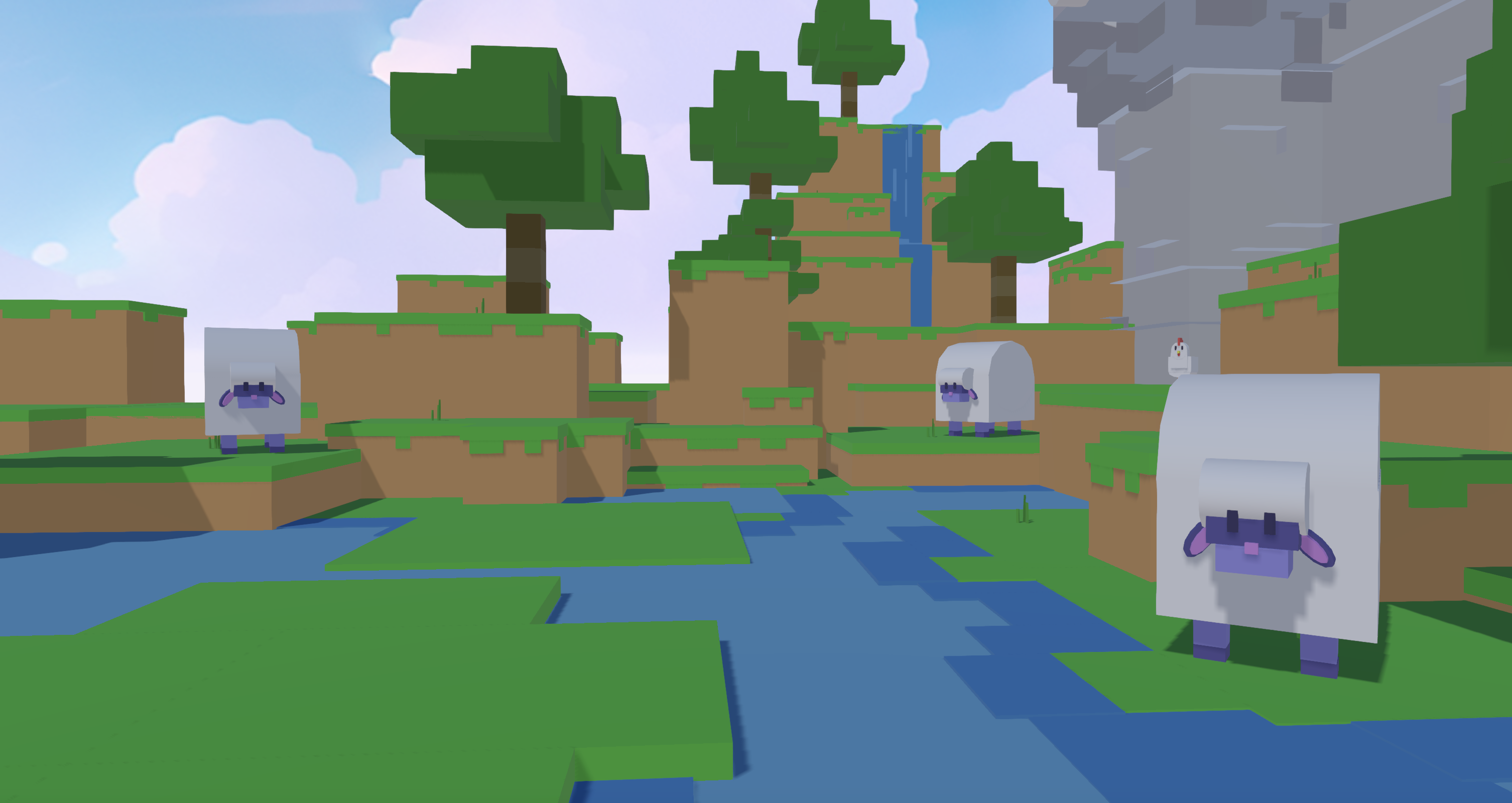
- PointLight. This light emits in every direction from a single point, like a lamp or glowing orb. Use it for lanterns, campfires, or soft fill inside rooms. PointLight is ideal for lamps and ambient fill.
- SpotLight. This light emits a cone, like a flashlight or stage spotlight. Use it for dramatic accents, doorway highlights, or to pull attention to a specific prop. SpotLight is suitable for flashlights and dramatic accents.
- Area Light. This light emits from a flat surface, like a window or glowing screen. Use it for interiors where you want soft, even light from one side.
- Ambient Light. This setting controls the base brightness of your whole scene. Raise it for a bright daytime world. Lower it for a dark dungeon or horror map where only your PointLights and SpotLights create visible glow.
For mobile Roblox games, keep Bloom Intensity between 0.5 and 1.5 for a cinematic look, and limit how many lights cast shadows so frame rates stay stable on phones.
Toggle Lights with Simple Vibe Coding
Nilo includes a built-in code editor that accepts natural language prompts. You describe what you want in plain text, and Nilo generates working code instantly. This is vibe coding, so you do not need scripting knowledge, and you see the result live in your 3D world.
To add a light toggle, open the code editor and type a prompt like:
“When the player touches this part, turn the PointLight on or off.”
Nilo generates the script and attaches it to your selected object. You can tap variable values directly in the editor, such as changing brightness = 1 to brightness = 5, and watch the light update in real time. This approach helps you learn how light properties behave without digging through documentation.
You can also use voice input and speak your prompt instead of typing it. Voice input feels especially helpful on mobile, where long text can slow you down.
Once the toggle behaves the way you want, the script exports with your scene as part of the Roblox-ready file. You do not need extra scripting steps in Roblox Studio after import.
Export Your Lit Scene into Roblox Studio
When your lighting feels ready, exporting from Nilo to Roblox Studio takes a single click. Follow this checklist and confirm each step after import.
- Run a final playtest. Walk through your world in Nilo and confirm that lights look correct and the scene feels smooth.
- Check the triangle count. Open the LOD panel and confirm your scene stays under 20,000 triangles. Roblox enforces strict polygon limits, and Nilo’s LOD system helps you stay under that cap, but a quick check before export keeps you safe.
- Tap Export. Select FBX or GLB format. Both formats work with Roblox Studio.
- Import into Roblox Studio. Open Roblox Studio on desktop, go to Asset Manager, and import the downloaded file. Geometry, textures, and light placement data come in together.
- Verify lighting in Studio. Confirm that PointLights and SpotLights stay attached to the correct parts. Check that the lighting technology matches your goal, such as ShadowMap for mobile-friendly performance or Future for higher visual quality.
Nilo exports to standard 3D formats such as FBX, OBJ, STL, and glTF. The same file can move into Unity, Blender, Unreal Engine, and VRChat if you decide to build for more platforms later.
Choosing Between Nilo and Studio Lite for Lighting
This comparison table helps you decide which tool fits how you want to build and light your worlds.
| Criteria | Roblox Studio | Studio Lite | Unity | Blender | Nilo |
|---|---|---|---|---|---|
| Device Requirements | Windows or macOS desktop only | Browser (limited features) | Windows, macOS, Linux desktop | Windows, macOS, Linux desktop | Any browser, desktop or mobile |
| Light Types Supported | PointLight, SpotLight, SurfaceLight, Ambient, full lighting tech modes | Basic only, no full lighting tech access | Point, Spot, Area, Directional | Point, Spot, Area, Sun, World | PointLight, SpotLight, Area Light, Ambient |
| Real-Time Preview | Yes (desktop only) | No | Yes (desktop only) | Yes (desktop only) | Yes (browser, desktop and mobile) |
| Export Path to Roblox | Direct (native) | Requires desktop Studio to finalize | Manual FBX export, manual import | Manual FBX export, manual import | One-click FBX/GLB, Roblox-ready |
Studio Lite works if you only need small edits to an existing build and do not care about detailed lighting control. Nilo fits better when you want to build or light a scene from scratch on mobile, see a real-time preview, and export a clean file into Roblox Studio.
Measuring Whether Your Scene Is Ready
Before you export your lit scene to Roblox Studio, run through these checkpoints and confirm that your build is ready.
- Triangle count under 20,000. Roblox enforces strict polygon limits, and exceeding them can cause import errors or performance problems. To stay under this threshold, use Nilo’s LOD slider to reduce your polygon count before export, and watch the triangle count update in real time.
- 60 FPS on your phone. Playtest in Nilo on the same device you used to build. If the frame rate drops, reduce the number of shadow-casting lights, using the optimization mentioned earlier for mid-range devices.
- Clean import without retopology. After importing into Roblox Studio, verify that geometry, textures, and light objects stay intact. Nilo’s automatic optimization means you should not need manual mesh cleanup in Blender before the import works correctly.
Ready to test these checkpoints yourself? Start a free Nilo project and see how your lit scenes perform on your own phone.
Frequently Asked Questions
Can I really add lights to a Roblox world on my phone without a desktop?
Yes. Nilo runs in any mobile browser and supports PointLight, SpotLight, Area Light, and Ambient Light with real-time preview. You build, adjust, and export entirely from your phone. The exported file imports directly into Roblox Studio on a desktop when you want to publish.
Does Nilo cost anything to use?
Nilo is free to use. You receive 1,000 Nilo Bits per month, which are credits that power AI generation, export, and creation features. Many core building tools use no Bits at all, and the open beta is live now.
What light types does Nilo support, and are they compatible with Roblox?
Nilo supports PointLight, SpotLight, Area Light, and Ambient Light. These map directly to the light types used in Roblox Studio. When you export and import your scene, light placement and properties carry over so you can finalize settings in Roblox Studio without rebuilding your lighting.
How does Nilo handle Roblox’s polygon limits?
Nilo includes a real-time LOD (level of detail) system, which automatically reduces polygon counts as you adjust a slider. This keeps your scene under Roblox’s 10,000–20,000 triangle cap without manual mesh cleanup in Blender. You can see the triangle count update live as you drag the slider.
Do I need to know how to code to add interactive lights in Nilo?
No. Nilo’s built-in code editor accepts natural language prompts, so you describe what you want in plain text or by speaking, and it generates working code instantly. For example, you can type “toggle this light when the player touches the switch” and Nilo creates and attaches the script automatically. You can then adjust variable values directly in the editor to understand how the code behaves.
Conclusion: Build Real Lighting Skills on Mobile
Roblox Studio lighting stays locked to desktop, and Studio Lite does not fully cover what you need for real-time preview, full light type support, and a clean Roblox export. If you are building on a phone or tablet today, a browser-based engine gives you a practical way to keep creating.
Nilo runs in any mobile browser, supports PointLight, SpotLight, Area Light, and Ambient Light with live preview, manages polygon counts automatically through its LOD system, and exports Roblox-ready files in one click. The global game engine market is moving toward mobile and browser-based creation, and cloud-based platforms for game engine development allow real-time collaboration, scalability, and remote development without desktop infrastructure, so you no longer need to wait for a desktop to do serious lighting work.
The skills you build in Nilo, such as placing and configuring lights, managing polygon counts, and exporting clean files, transfer directly to Roblox Studio when you eventually work on desktop. You are not learning a workaround. You are learning real game development concepts in a tool that meets you where you are.
Start building those skills today by opening Nilo in your mobile browser and lighting your first scene in minutes.