Written by: Nuno Leiria, Founder & CEO @ Nilo
Key Takeaways for Smoother FBX Imports
- Apply all transforms in Blender (Ctrl+A → All Transforms) and set Apply Scalings to FBX Unit Scale before exporting. This keeps scale and rotation correct in Roblox Studio.
- Enable Embed Textures with Path Mode set to Copy during FBX export. This makes textures travel with your model so you avoid gray or missing surfaces.
- Use Roblox Studio’s 3D Importer instead of Asset Manager for rigged or animated FBX files. After the June 2026 unit conversion update, toggle Rescale to Fit or Anchored as needed.
- Manually triangulate meshes, set origins to Center of Mass (Volume), and use a 1×1×1 Part as a scale reference in Blender. These steps remove many of the most common import failures.
- For a faster workflow without FBX troubleshooting, try Nilo’s browser-based builder so export settings are handled for you.
The Problem: FBX Import Headaches Kill Your Momentum
You spend hours building a model, finally export it, drag it into Roblox Studio, and it arrives 100 times too large, rotated sideways, or completely gray because the textures did not travel with it. That FBX import wall stops a lot of builders cold.
The frustration is not just technical. Every failed import breaks your creative momentum. You switch from building mode to debugging mode, and suddenly you spend more time reading forum posts than actually making something. If you want to design worlds, not fight polycounts (the total number of triangles in a 3D mesh), that context switch feels exhausting.
Most FBX failures come from a small set of fixable settings. If you would rather skip the whole pipeline entirely, a modern browser-based path now exists that handles all of this for you automatically, and you will see that option after you walk through the technical fix.
The Solution: A 2026 FBX Import Workflow That Actually Works
Follow these steps in order. Skipping any one of them usually causes the problem you see in Studio.
Step 1: Pre-Export Checks in Blender
- Select your model in Object Mode and press Ctrl+A → All Transforms to reset Location, Rotation, and Scale to their defaults. Unapplied transforms are the single most common cause of wrong orientation and scale after import.
- Set your model’s origin to Center of Mass (Volume). Roblox Studio ignores Origin and Transform data saved in FBX files and resets the origin based on the object’s bounding box, which causes awkward offsets if you do not set this first.
- Manually triangulate your mesh: go to Face → Triangulate Faces. Relying on Roblox Studio’s automatic triangulation during FBX import can cause random flipping or collapsing of curved surfaces.
- Use a Roblox avatar or a 1×1×1 Part exported from Studio as a scale reference in Blender. Both programs use meters, so matching dimensions in Blender means matching dimensions in Studio.
Step 2: Exact FBX Export Settings in Blender
Use these settings, which are verified against official Roblox documentation as of July 14, 2026:
| Setting | Recommended Value | What It Fixes |
|---|---|---|
| Path Mode | Copy | Missing textures after import |
| Embed Textures | Enabled | Missing textures after import |
| Apply Scalings | FBX Unit Scale | Wrong scale on import |
| Add Leaf Bones | Disabled | Rig errors on rigged assets |
| Bake Animation | Disabled (unless animated) | Unnecessary data bloat |
Roblox staff have confirmed that older guides recommending a scene scale of 0.01 are no longer required when you use the FBX Unit Scale export option. If you follow an older tutorial that tells you to set Scale to 0.01, you can skip that step.
Step 3: Roblox Studio 3D Importer Toggles
- Open the 3D Importer from the Home or Avatar tab, not Asset Manager. Asset Manager does not support every case involving rigged, skinned, or animated meshes.
- Select your FBX file and check the preview. The importer flags errors before upload so you can fix them early.
- Toggle Rescale to Fit if the model arrives at an unexpected size.
- Toggle Anchored if you need the model to stay fixed in place on import.
- Remember the June 16, 2026 unit conversion update. The 3D Importer now uses a 25:7 Studs-per-meter ratio, replacing the old 20:1 ratio. A 1.76-meter character now imports at the correct size using the Meter unit setting.
- For rigged FBX assets, use the Imported Rig (Zeroed Rotations) option under Animation General to zero all bone rotations before capturing the rest pose, or Imported Rig to preserve the file’s original rest pose. Roblox’s August 2026 Animation Import Improvements update also added Rig Scale support in the Animation Clip Editor Importer, so you can set a custom scale factor and match your model’s studs without manual correction.
Source-Specific Fixes for Common Tools
Blender: As noted in Step 1, always run Ctrl+A → All Transforms before export to avoid the most common import failures. Wrong orientation on imported models typically comes from axis setup, object rotation, or rig configuration in Blender, and manually rotating copies in Studio hides the real source problem instead of fixing it.
Maya: Maya exports FBX with Y-up by default, which matches Roblox’s coordinate system. Confirm your export uses FBX 2020 or later and that you delete all construction history before export to avoid transform inheritance issues.
AI-generated meshes (from tools like Meshy): AI-generated meshes often arrive with non-standard pivot points, high triangle counts, and complex node-based textures that cannot be exported as images via FBX, which makes all imported parts appear gray in Roblox Studio. You need to bake textures to images in Blender before export, which becomes impractical for models with dozens of parts.
Capability Tradeoffs Roblox Builders Should Consider
3D Asset Generation and Cleanup Time
Generating a 3D asset is only the first step. The real challenge is getting it Roblox-ready with clean topology (the structure of a mesh’s polygons), correct scale, and textures that survive the export pipeline. AI tools like Meshy generate fast but often produce meshes with geometry defects, asymmetry, or unpredictable textures that need manual cleanup in Blender.
That cleanup, called retopology (rebuilding a mesh’s polygon structure to be cleaner and more efficient), can take 30 minutes or more per asset. Those minutes add up fast when you want to ship a full experience.
Optimization for Triangle Counts
Triangle count per MeshPart is an important optimization factor because Roblox enforces a 20,000-triangle limit per mesh. LOD (Level of Detail) systems automatically reduce polygon counts at distance, which is critical for keeping games running smoothly.
Without LOD, you manually count triangles and decimate meshes, which becomes another time sink that pulls you away from building.
World Building and Real-Time Collaboration
Building a world in Roblox Studio means working in a desktop application, alone, with no real-time co-creation. If you want a friend to help, they need their own Studio setup and you need to share files back and forth.
That friction compounds quickly and often stops you from inviting friends into the creative process.
Picking Between FBX, OBJ, and glTF for Roblox
FBX is usually the safer default for textured Roblox assets because OBJ stores only static mesh geometry and cannot transport skeletons, skin weights, or animation clips. For rigged or animated models, you need FBX.
For simple static props, OBJ works fine and avoids some of the scaling headaches. Roblox also recommends trying glTF export as an alternative to FBX so you can avoid some scaling issues while keeping similar functionality.
Skip the Hassle: One-Click Roblox-Ready Export
The workflow above works, but it takes effort at every step. Every checkbox is a place where something can go wrong, and each failure costs you time and momentum. Nilo stands out as a browser-based alternative that removes the FBX pipeline entirely for most Roblox asset workflows.

Instead of Blender → FBX export → Studio 3D Importer → troubleshoot → repeat, Nilo keeps polycount in a range that works directly in Roblox Studio and other platforms without extra steps. You generate or import your asset in Nilo’s browser-based environment, then export directly to Roblox in RBXMX format (Roblox’s native format, which packs textures and attachments into a single file) or connect your Roblox account with an API key to send creations straight into your Roblox experience.

When evaluating any tool for your Roblox workflow, consider these five criteria:
- Onboarding ease: Can you start creating without a long installation, account setup, or complex interface to learn first?
- Output quality: Does the exported asset arrive in Roblox Studio at the correct scale, with textures intact, and without manual cleanup?
- Export compatibility: Does it support RBXMX, FBX, glTF, and direct API export to Roblox?
- Performance limits: Does it automatically keep triangle counts under Roblox’s limits, or do you manage that manually?
- Collaboration: Can you build with friends in real time, or do you always work alone?
Nilo addresses each of these without requiring you to open Blender. Because it includes a real-time LOD system, you never manually count triangles, since polygon counts adjust automatically to stay under Roblox’s limits. And because its model-agnostic AI layer abstracts providers including Meshy, Tripo, Nano Banana, Cartwheel, and Uthana, you get strong generation results without switching tools or managing multiple accounts.

Nilo runs entirely in the browser, with no downloads and no installation. You can start creating, then share a link with a friend so you both build together instantly.
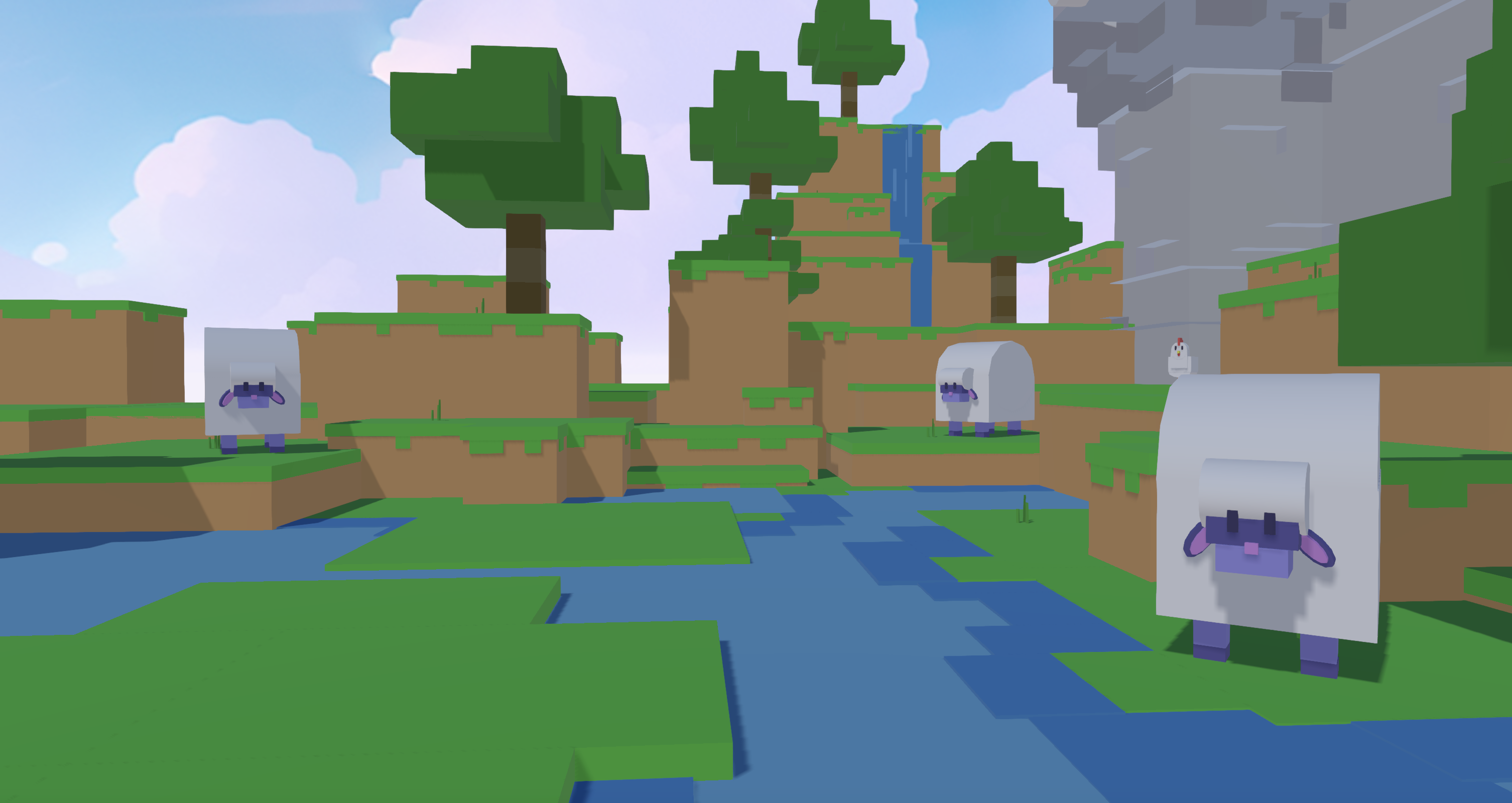
For first-time creators: If you have never exported an FBX before, the Blender workflow has a steep learning curve. Nilo’s browser-based environment lets you generate a 3D asset, keep it performant, and export it to Roblox without touching a single export setting. As one builder put it in Nilo’s February 2026 survey: “I do not have to spend hours on 3D modeling the simplest things, now I can use Nilo and do it in 15 seconds.”
For Roblox-focused builders: If you already feel comfortable in Blender but feel tired of the daisy-chain (Meshy → Blender → Roblox Studio), Nilo’s end-to-end workflow keeps everything in one place. You generate, refine, rig, and export while staying in creative flow. Another builder noted in the same survey: “I like how it feels like a good game engine rather than a vibe coding tool, with easy building and a good focus on being able to export and import content.”
For collaborative teams: Roblox Studio does not support real-time co-creation. Nilo does. You share a URL and start building together on desktop or mobile, with no file-sharing and no version conflicts.
Conclusion: Keep Your Focus on Creative Flow
FBX import failures in Roblox Studio almost always come from the same small set of problems: unapplied transforms, the wrong Apply Scalings setting, missing embedded textures, or the June 2026 unit conversion change catching you off guard. The workflow above fixes all of them. If your main goal is to spend time designing objects instead of debugging export settings, a tool that handles all of this automatically gives you a faster path.
Nilo stands out for Roblox builders who want to stay in creative flow. You generate assets in the browser, keep them performant automatically, and export directly to Roblox Studio or straight into your experience via API key, all without opening Blender once. The survey results mentioned earlier reflect this shift, since builders who want to stay in creative flow are choosing tools that remove technical friction.
Frequently Asked Questions
What is an FBX file and why does Roblox use it?
FBX (Filmbox) is a 3D file format developed by Autodesk that stores mesh geometry, textures, rigging (the internal skeleton that makes a character move), skin weights (data that tells the skeleton how to deform the mesh), and animation data all in one file. Roblox Studio supports FBX, glTF, and OBJ imports, but FBX is the required format for any asset that includes a rig or animation, since OBJ only stores static mesh geometry and cannot carry skeleton or animation data. If you work with characters, accessories, or animated props, you usually export FBX from Blender or Maya.
What changed with Roblox’s unit conversion in June 2026, and does it affect my existing assets?
On June 16, 2026, Roblox updated the 3D Importer to use a 25:7 Studs-per-meter ratio, replacing the old 20:1 ratio. A 1.76-meter-tall character authored in Blender now imports at the correct human scale in Roblox Studio using the Meter unit setting, while the old ratio made the same character import larger than intended. The change applies to FBX, glTF, and OBJ imports.
The 3D Importer also now includes a custom scale factor field under File Geometry settings that saves with your import presets, so you can set it once and reuse it.
Why do my textures disappear after FBX import into Roblox Studio?
Missing textures after FBX import almost always come from one of four causes. Path Mode was not set to Copy during Blender export, Embed Textures was not enabled, the material uses complex node-based shaders that cannot be exported as images via FBX, or the texture files are referenced externally and do not travel with the FBX.
The fix for most cases is to set Path Mode to Copy and enable Embed Textures in Blender’s FBX export settings before exporting. If your model uses complex Blender shader nodes, you need to bake those textures to image files first, which becomes time-consuming for models with many parts. One additional caution: Roblox Studio’s 3D Importer can automatically resolve and upload local image files that share a filename with missing external texture references, even if those files are unrelated to your model. Always use embedded textures to avoid this.
What is the difference between using Roblox Studio’s 3D Importer and Asset Manager for FBX files?
The 3D Importer is the correct tool for any FBX that includes rigging, skinning, or animation data. It previews and evaluates texture, rigging, and animation data before the asset enters your workspace, and it flags errors so you can fix them at the source in Blender before completing the import.
Asset Manager’s Bulk Import does not support every case involving rigged or animated meshes, and it has a known issue where it ignores FBX forward and up axis settings set during Blender export, which breaks orientation consistency in roundtrip workflows. For simple static props with no rig, Asset Manager works fine. For anything with a skeleton or animation, you should always use the dedicated 3D Importer.
Can I skip the FBX workflow entirely and still get Roblox-ready assets?
Yes. Browser-based platforms like Nilo handle the entire asset pipeline, including generation, performance tuning, rigging, and export, without asking you to configure FBX settings or open Blender. Nilo exports in RBXMX format (Roblox’s native format, which packs textures and attachments into a single file) or lets you connect your Roblox account with an API key to export straight into your Roblox experience.
Its real-time LOD system automatically keeps polygon counts in a range that works for Roblox. This path makes the most sense if you want to spend your time designing objects instead of troubleshooting export pipelines, and it is available free in open beta.