Written by: Nuno Leiria, Founder & CEO @ Nilo | Last updated: July 3, 2026
What You Will Learn About Roblox Outfit Design
-
The traditional 2D template workflow for Roblox outfits feels slow and clunky, and often creates flat designs that struggle with performance checks.
-
Catalog mixing gives you quick layered looks, but you stay limited to existing items instead of building your own 3D outfits.
-
Nilo’s browser-based platform lets you turn text prompts, sketches, or reference images into 3D models without Blender or downloads.
-
One-click tools in Nilo handle optimization, rigging, and animation so your models meet Roblox’s triangle limit and export straight to Roblox Studio.
-
You can speed up your creative process and start monetizing sooner with Nilo’s streamlined workflow — try it free.
Step 1: Use Catalog Mixing as Your Moodboard
If you want something on your avatar fast, catalog mixing still works as a starting point. Open the Roblox Avatar Editor, browse existing items, and layer accessories, shirts, and pants to build a look. This takes minutes and often costs nothing if you stick to free items.
The limit is obvious: you are working with what already exists. Because you stay locked to catalog items, you cannot create something truly original, so you often end up looking like thousands of other players using the same combos. That is why catalog mixing works best as a starting point for gathering aesthetic references like Preppy, Y2K, Low Poly, or Sci-Fi instead of as your final creation method.
Use catalog mixing to gather visual references. Screenshot combinations you like. Those screenshots become prompt material for the next steps.
Step 2: See Why 2D Templates and Manual Uploads Slow You Down
The classic Roblox clothing workflow goes like this: download a shirt or pants template, open it in an image editor, paint your design onto the flat UV map, save it, upload it to Roblox, and hope it looks right on the avatar. Most of the time, it does not look right on the first try.
Problems stack up fast. Seams do not line up. Colors look different in-game than in your editor. The design wraps awkwardly around arms and legs. If you want a fully custom 3D avatar instead of a texture on a default body, you face learning Blender, doing manual retopology, and exporting in the correct format with the correct settings.
That process can take 30 minutes or more per asset, even for experienced builders. For you as an aspiring builder or already a builder, it can take days and sometimes pushes you to drop the project completely.
The bottleneck is not your creativity. The real problem is the technical steps between your idea and a finished asset. AI-native 3D creation changes that equation.
Step 3: Generate Your 3D Avatar with Craft Your Model
The new workflow starts inside your browser. Nilo is a browser-based 3D creation platform, so you skip downloads, installs, and high-end hardware. Open it in any desktop or mobile browser and you are ready to build.
Inside Nilo, the Craft Your Model feature lets you create a 3D character from a text prompt, a sketch, a reference image, or a mix of all three. Type something like “Y2K-style avatar with butterfly clips, low-rise jeans, and a cropped hoodie” and Nilo generates a 3D model in seconds. If you have a sketch or a screenshot from your catalog mixing session, upload that instead so the AI can read your input and build the mesh around it.
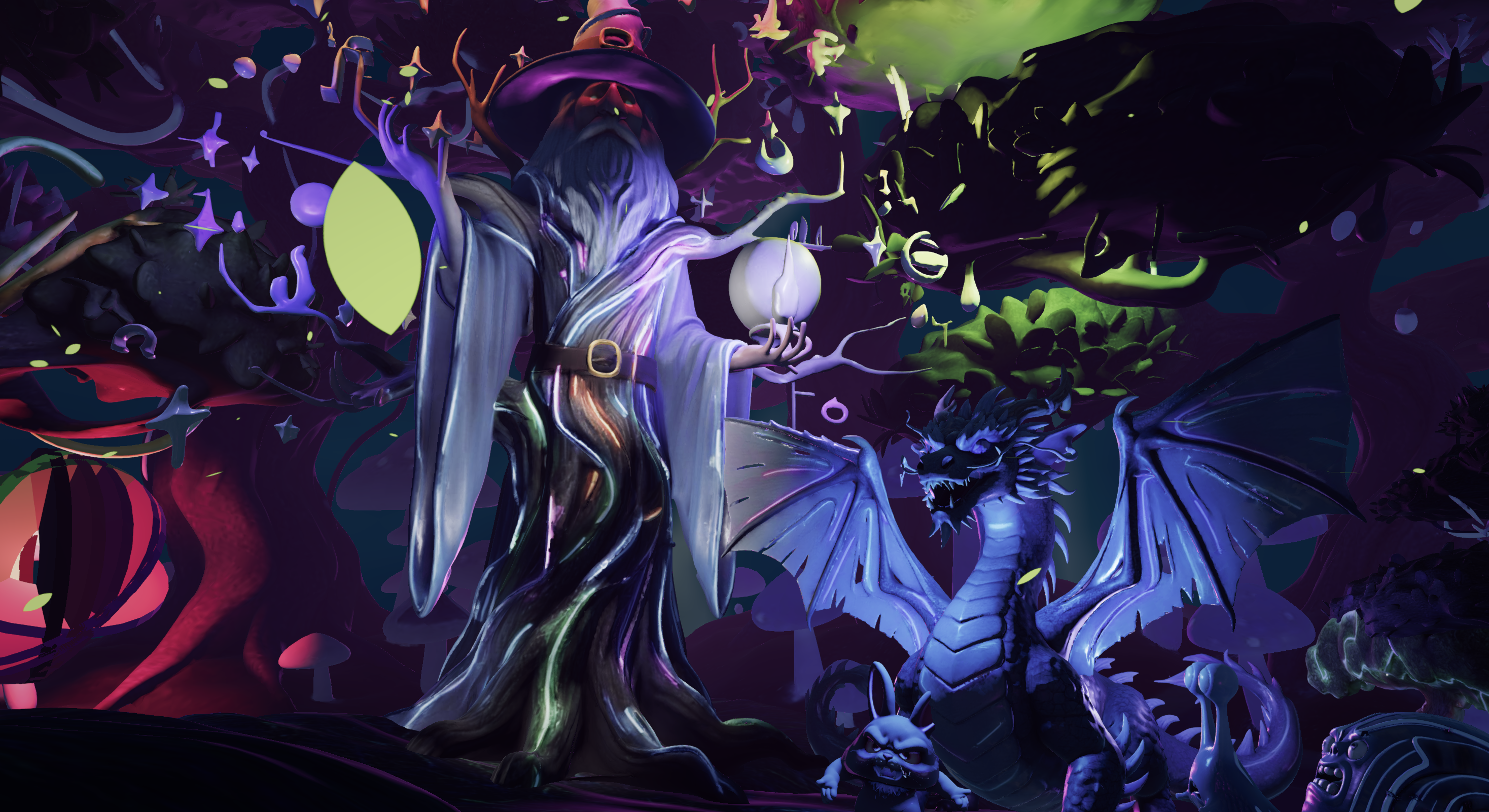
Nilo’s model-agnostic AI layer connects to several generation providers, including Meshy and Tripo, behind one interface. You stay focused on your idea while the platform picks the right generator in the background.
Many builders report that they no longer spend hours on simple 3D shapes because generation now takes seconds. You can feel that same jump in speed on your first outfit.
Ready to generate your first model? Open play.nilo.io in your browser and start creating.
Step 4: Rig, Animate, and Optimize in One Flow
Every model needs a skeleton before it can move inside Roblox. Traditional rigging in Blender often turns into a multi-hour process that involves placing bones, weighting vertices, and testing deformation. In Nilo, you handle these steps in a single flow.
The Optimize, Rig, & Animate feature runs three key steps in sequence. First, the LOD slider lets you adjust the polygon count of your mesh in real time. Drag the slider until your triangle count fits Roblox’s 10,000–20,000 triangle limit. You watch the mesh simplify live, which removes guesswork and avoids manual retopology. Nilo keeps polycount in the right range so models work directly in Roblox Studio without extra cleanup.
Next, you rig with one click. Nilo adds a skeleton to your character automatically. After that, you type a short text prompt such as “idle breathing,” “victory dance,” or “walking cycle,” and the AI generates the animation. You finish this step with a rigged, animated, Roblox-ready character that stays within the triangle limit.
Step 5: Export and Upload to Roblox Studio
When your avatar feels ready, click Export and Upload. Nilo exports your model as an .fbx or .glb file, which Roblox Studio accepts natively. Download the file, open Roblox Studio, and import it. Because Nilo already optimized your model to meet Roblox’s triangle limit, the import stays clean and avoids performance warnings.
From there, you can place the avatar in your game, attach accessories, assign animations, and publish. This export and import flow usually takes minutes instead of the long Blender pipeline.
Nilo also exports to OBJ, STL, and glTF, so your assets work in Unity, Unreal Engine, VRChat, Blender, and other tools if you want to keep refining. You keep full control of what you create, and you can move your models wherever you like.
Want to see your first design inside Roblox Studio? Export a model from play.nilo.io and import it with no extra plugins.
Step 6: Refine Your Style Before Rigging
After your initial model generates in Step 3, you can use Nilo’s inspector panel to refine colors, textures, materials, and proportions before you move fully into optimization and rigging. Adjusting style at this stage saves you from regenerating the entire model later.
For a Preppy look, focus on polo shirts, plaid patterns, pastel colors, and clean silhouettes. Use the inspector to tweak fabric colors, add layering details, and refine collar shapes. For Y2K, push metallics, butterfly motifs, low-rise proportions, and bold color blocking. The inspector lets you tune each element individually instead of starting over every time.
If the first generation misses your vision, refine your prompt and regenerate specific parts. You stay free to iterate until the outfit matches what you see in your head. Many builders describe this as finally being able to let their imagination loose instead of planning every detail in a complex 3D tool.
Other aesthetics that work well in Nilo’s pipeline include Low Poly, Sci-Fi, Horror, Cartoon or Cozy, and Classic or Retro, which all show up often in Roblox experiences right now.
Step 7: Playtest with Friends and Sell for Robux
Before you commit to export, use Playtest with Friends inside Nilo. Share a link to your Nilo world and invite friends to join and see the avatar in motion. This helps you catch proportion issues, animation glitches, or styling problems while changes still feel quick.
Once you feel happy with the result and you have it live in Roblox, you can submit it to the Roblox UGC Marketplace. Any models, skins, or accessories you create in Nilo belong to you, so you can publish and monetize them. Roblox already pays creators through its creator economy, which distributes over $1 billion each year and keeps growing.
A faster creation workflow means you can ship more designs and give yourself more chances to earn.
Compare Old and New Roblox Outfit Workflows
The old workflow looks like this: ideate, find a template, paint in an image editor, upload, fail performance check, fix, re-upload, and repeat. Every step happens in a different tool, and your momentum breaks between each one.
The new workflow with Nilo goes like this: ideate, generate in Craft Your Model, refine in the inspector, optimize and rig with one click, then export. Everything happens in one browser tab, so you avoid tool-switching and Blender detours.
When you choose a workflow, start with your time budget. If you have less than an hour per design, the classic template path will feel painful. Next, decide whether you need full 3D avatars or only 2D texture overlays, since templates only cover textures. If you care about a specific aesthetic with precise control over proportions and materials, you will want full 3D modeling. Finally, think about animation: static avatars can use simpler tools, while animated characters need rigging. Nilo’s workflow covers all of these needs, and knowing your priorities helps you use it more effectively.
Common Challenges and Quick Fixes
Poor mesh quality after generation: If your model looks melted or asymmetrical, the prompt was probably too vague. Add clear details about body proportions, clothing layers, and material types. Combine a reference image with your text prompt to guide the AI more precisely.
Export errors in Roblox Studio: Check that your polygon count stays within the triangle range from Step 4 using the LOD slider before exporting. Also confirm that the rig applied correctly. If a rigged model bends in strange ways in Roblox Studio, re-rig inside Nilo and export again.
Animation issues: If your animation prompt gives you something random, describe the motion more clearly. Instead of “dance,” try “slow hip-hop sway with arms relaxed at sides.” Text-to-motion tools respond better to physical descriptions than broad genre labels.
Texture or color loss on export: Export as .glb instead of .fbx if colors vanish after import into Roblox Studio. The .glb format keeps texture data inside the file.
Check If Your Outfit Is Ready to Publish
Use this checklist to decide when your outfit is ready to ship:
-
Creation time matches the quick workflow you expect from prompt to export.
-
Polygon count sits inside Roblox’s triangle limit from Step 4.
-
Topology looks clean in the inspector with no visible artifacts or strange bends.
-
Import into Roblox Studio completes without performance warnings.
-
At least one friend has playtested and given positive feedback.
-
Animations play smoothly on the avatar without unintended body movement.
If any item on this list fails, jump back to the matching step. The workflow runs fast enough that another iteration usually costs minutes instead of hours.
Scale Up with Collections and Collaboration
Once you ship your first outfit and want to scale up, you can move from single pieces to themed collections. Nilo’s Create Asset Packs feature generates a full set of coordinated items from one reference image, so you can release a complete aesthetic, like a full Y2K outfit set, in one workflow instead of building each piece separately.
Real-time collaboration inside Nilo lets you build with friends directly. Share your world link, and another builder can join your session to help refine proportions and styling while you both see changes live. This makes feedback feel more like hanging out than waiting on screenshots.
As Nilo grows toward full game creation and publishing, the characters, outfits, and accessories you build now will carry forward into that ecosystem. Building your asset library today gives you a head start when those features arrive.
Want to grow from a single outfit to a full collection? Experiment with asset packs and collabs at play.nilo.io.
Ready to Move from Player to Creator?
The 2D template grind feels optional now. In 2026, you can go from a text prompt or a sketch to a rigged, animated, Roblox-ready 3D outfit in a single browser session, without Blender or template wrestling.
Nilo’s workflow of Craft Your Model, Optimize, Rig & Animate, and Export and Upload fits aspiring builders or already builders like you who have ideas and want to ship them fast. Thousands of builders already hang out in the Discord community and share what they make.
The tools are free, the open beta is live, and your first outfit is waiting.
Jump into play.nilo.io and build your first Roblox-ready outfit today.