Natural Language Game Coding: Build 3D Worlds in 2026
Content
Written by: Nuno Leiria, Founder & CEO @ Nilo | Last updated: July 26, 2026
Key Takeaways
Natural language game coding lets you describe game ideas in plain English and instantly generate playable 3D worlds without writing Lua or using Blender.
This six-step workflow walks you through describing your world, adding mechanics with vibe coding, iterating safely, rigging characters, multiplayer playtesting, and exporting Roblox-ready assets.
Nilo automatically handles Roblox polygon limits through its LOD system, so exports stay within the typical 10,000–20,000 triangle range.
Real-time multiplayer collaboration and browser-based access remove desktop installs and complex setup from your process.
Natural language game coding means you describe what you want in plain English, or any language, and a game engine generates, updates, and improves the result in real time. You skip Lua scripts and Blender vertices, type or speak your intent, and see 3D output appear instantly.
Now that you know what natural language coding means, you can see how it works in practice. The six-step workflow below takes you from a blank browser tab to a Roblox-ready export and shows how plain-English descriptions turn into playable 3D worlds.
Describe your world, type a plain-English scene description, and get a 3D environment instantly.
Add playable mechanics with vibe coding, use natural language prompts to add movement, jumping, and collectibles.
Iterate without breaking the game, refine with follow-up prompts and real-time multiplayer playtesting.
Rig and animate characters, click once to rig your model, then use a text prompt to generate the animation.
Invite friends for multiplayer playtesting, share a link and build together in real time.
Export Roblox-ready assets, download optimized files and upload directly to Roblox Studio.
Step 1: Describe Your First 3D World
Open Nilo in your browser, with no download and no install. In the world-building panel, type a starter prompt like:
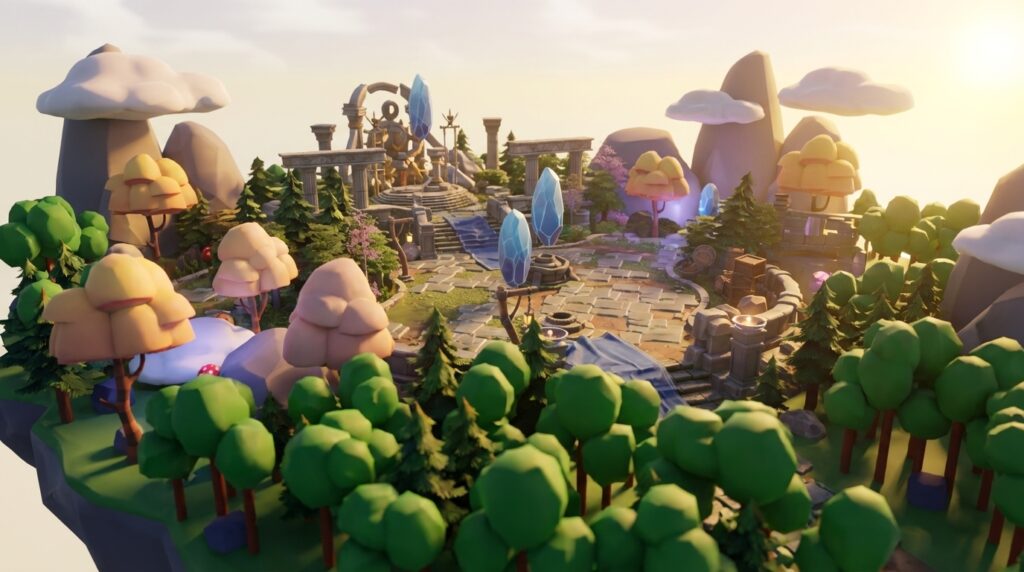
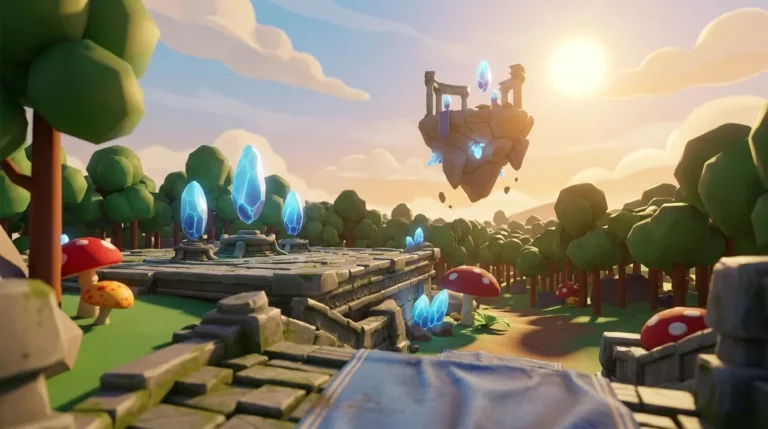
“A floating island with grassy terrain, stone ruins, and a glowing crystal at the center.”
Nilo’s engine generates the scene in real time so you see the terrain, the ruins, and the crystal placed in 3D space. Everything starts interactive, with physics and collisions already active. Your next micro-action: walk around the world in play mode and check scale and layout before you move on to mechanics.
World generated through Nilo, a browser-based 3D creation platform built for Roblox creators and game developers
As one builder put it in Nilo’s February 2026 survey: “It helps me physically visualize any images I may have drawn and helps make my ideas actually come to life.”
Vibe coding in Nilo works like a natural language code editor where you describe the mechanic and see working code appear in your world. You do not need Lua knowledge. You can also view and tweak the actual variables, like changing “speed = 2” to “speed = 20,” so you learn real programming concepts while you build.
Use this prompt template for basic movement and collectibles:
“Add a player character that can walk, run, and double-jump. Place ten glowing orbs around the island that disappear when touched and add to a score counter.”
Nilo generates the movement controller and collectible logic, then updates the 3D world immediately. You press play and test the mechanic in the same tab. Your next micro-action: collect all ten orbs and confirm that the score counter updates correctly.
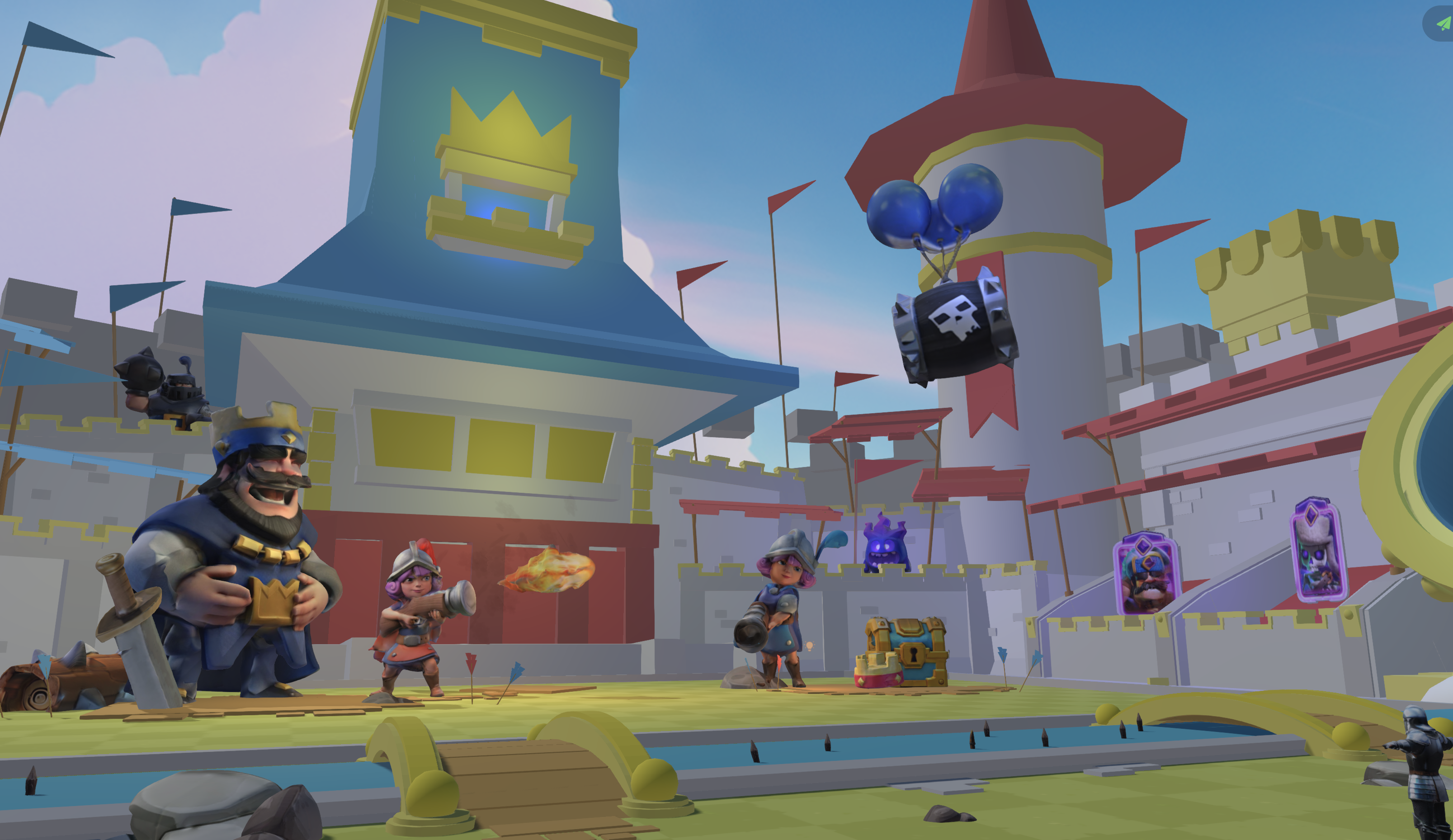
Obby course generated through Nilo, a browser-based 3D creation platform built for Roblox creators and game developers
This flow shows how reliable prompt-driven iteration now feels for real-time game mechanics, but the way you phrase prompts matters a lot.
Prompt Templates That Consistently Work Well
Prompt quality directly affects output quality. Vague prompts create generic results, while specific prompts create usable ones. These three templates work consistently in Nilo:
Environment prompt: “A dark forest at night with fog, glowing mushrooms every five meters, and a dirt path leading to a wooden cabin.” Specifics about lighting, density, and layout give the engine clear targets.
Mechanic prompt: “When the player steps on a red tile, they lose ten health points and the tile turns grey. When health reaches zero, show a ‘Game Over’ screen with a restart button.” This describes the trigger, the effect, and the condition.
Character prompt: “A small robot with round eyes, metal arms, and a glowing chest panel. Cartoon style, low poly, blue and silver colors.” Style, shape, and color in one sentence produce consistent results.
Troubleshooting prompt drift: If follow-up prompts start changing things you did not mean to touch, spell out what should stay. Add “keep the existing terrain and lighting unchanged” to any refinement prompt. Vague prompts reduce accuracy and completeness of AI-generated output, so specific instructions give you more predictable results.
Step 3: Iterate Without Breaking the Game
Iteration often kills momentum in traditional tools, but in Nilo you refine specific elements with follow-up prompts while the rest of the world stays intact. Try:
“Make the stone ruins taller and add vines on the walls. Keep everything else the same.”
Nilo’s LOD (level of detail) slider, a tool that automatically adjusts how many polygons your models use based on distance, keeps performance stable as you add complexity. This matters because Roblox caps assets at roughly 10,000 to 20,000 polygons, and going over that range can break your export. Nilo’s LOD system handles this constraint automatically so you keep iterating without counting triangles by hand.
Share your world link with a friend and playtest together in real time. Multiplayer collaboration in Nilo works across desktop and mobile with no extra setup. Your next micro-action: ask your friend to try the double-jump mechanic while you watch from a different angle and note what needs adjusting.
Staying Under Roblox Performance Limits
Roblox enforces strict polygon limits, typically 10,000 to 20,000 triangles per mesh, where a mesh is the 3D geometry that makes up a model. These limits keep games running smoothly on mobile devices and lower-end hardware. If you exceed them, you hit import errors or performance drops in Roblox Studio, which means your asset will not work well in the final game.
Nilo’s LOD system adjusts polygon counts on the fly while you build. A polycount indicator shows your current triangle count. If a generated model is too dense, you drag the LOD slider down and Nilo simplifies the mesh topology automatically, preserving the visual shape while staying inside Roblox’s limits.
Polycount warning sidebar: If your export fails in Roblox Studio with a “mesh too complex” error, return to Nilo, select the asset, and reduce the LOD slider by 20 to 30 percent. Then re-export and re-import. Most assets pass on the second attempt.
Another builder from the same survey noted: “I like how it feels like a good game engine rather than a vibe coding tool, with easy building and a good focus on being able to export and import content.”
Step 4: Rig and Animate Characters Fast
Rigging means adding a skeleton to a 3D model so it can move. In professional tools like Blender, rigging a single character can take hours. In Nilo, you click once and the platform applies a rig automatically.
After rigging, type an animation prompt:
“The robot walks with a slight bounce, waves its arm when idle, and does a spin when it collects an orb.”
Nilo generates the animation and applies it to the rigged model so you can preview the result immediately in the 3D world. Animations work with Mixamo retargeting and export in FBX format for direct use in Roblox Studio. Your next micro-action: press play and watch the robot walk through your world to confirm the animation loops cleanly.
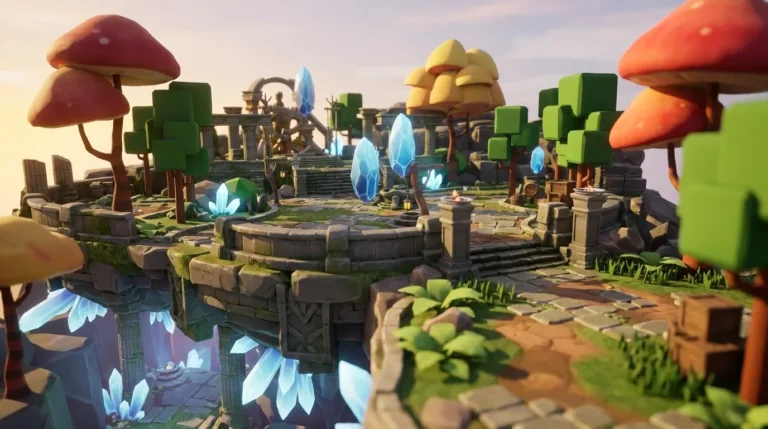
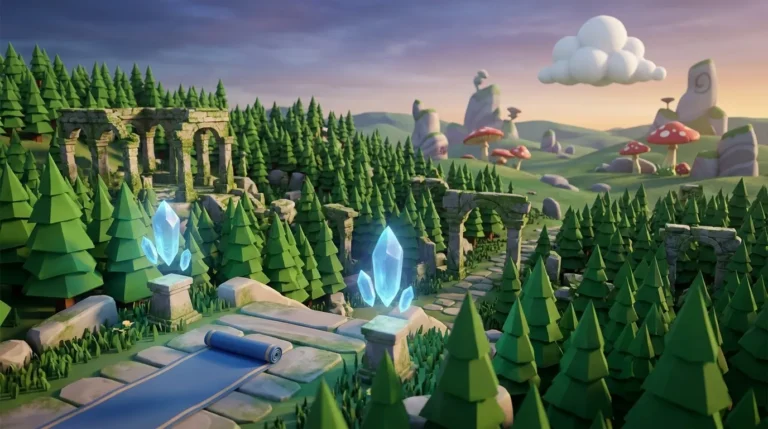
Characters and world generated through Nilo, a browser-based 3D creation platform built for Roblox creators and game developers
Builders in the survey also reported: “I do not have to spend hours on 3D modeling the simplest things. Now I can use Nilo and do it in 15 seconds.”
Step 5: Playtest With Friends in Real Time
Copy your world link from the Nilo toolbar and send it to a friend. They click the link, open the world in their browser, and start building or playing alongside you right away, with no account required to join a session.
Real-time collaboration in Nilo works across desktop and mobile, while you chat on Discord or Telegram. Use this shared session to gather feedback on mechanics, pacing, and layout before you export. Your next micro-action: ask your friend to reach the crystal at the center of the island and time how long it takes, which tells you whether the world scale feels right.
Characters and world generated through Nilo, a browser-based 3D creation platform built for Roblox creators and game developers
When your world and assets feel ready, click Export in the Nilo toolbar and pick a file format:
FBX for rigged characters and animated models in Roblox Studio.
GLB/glTF for static props and environment assets.
OBJ or STL for simple geometry or use in other tools like Blender or Unity.
Download the file, open Roblox Studio, and use the Asset Manager to import. Nilo’s LOD system keeps polygon counts within Roblox’s limits before export. If you see a rig component error in Roblox Studio, check that the model’s pivot point is centered, then use Nilo’s “reset pivot” export option, which fixes most position issues.
Export mismatch troubleshooting: If colors or collision masks go missing after import, re-export from Nilo with “include material data” and “preserve collision geometry” both checked. These settings stay on by default but can be turned off by mistake.
Comparing Natural Language Game Coding Tools
You should look at four things when you compare tools: real-time 3D feedback, multiplayer collaboration, Roblox export, and whether the tool runs in the browser without installation. Here is how the main options stack up:
Tool
Real-Time 3D Feedback
Multiplayer Collaboration
Roblox Export
No Install Required
Nilo
Yes, custom game engine with WebGPU
Yes, share a link and build together
Yes, LOD-optimized FBX/GLB
Yes, browser-based
Roblox Studio
Yes, within Studio environment
Team Create, desktop only
Native, no export needed
No, desktop install required
Unity
Yes, editor play mode
Through third-party packages
Manual FBX pipeline
No, desktop install required
Blender
Viewport only, no play mode
No built-in collaboration
Manual FBX export, no LOD automation
No, desktop install required
Rosebud AI
2D browser prototypes
No real-time co-building
No Roblox export pipeline
Yes, browser-based
Roblox Studio gives you a builder-focused ecosystem but still needs a desktop install, Lua scripting for interactivity, and manual work to stay under polygon limits. Replit’s browser-based AI game builder supports natural language iteration and real-time collaboration, yet it focuses on general software projects instead of 3D game creation or Roblox export. Rosebud AI combines code generation for browser prototypes with practical creation features but does not include a full 3D game engine or a Roblox export path. Nilo stands out by combining a custom 3D game engine, vibe coding editor, multiplayer collaboration, and LOD-aware Roblox export in a single browser tab.
Troubleshooting Common Issues
Prompt drift happens when follow-up prompts change parts of your world you did not plan to modify. Fix this by being explicit and starting every refinement prompt with “keep [specific element] unchanged” before you describe the change.
Export mismatches, such as missing colors, broken collision masks, or pivot errors, usually disappear after you check three export settings: “include material data,” “preserve collision geometry,” and “reset pivot to center.” Make sure all three stay enabled before you download your file.
Animation issues in Roblox Studio, like unintended full-body deformation when you animate a rigged model, often mean the rig hierarchy does not match Roblox’s expected bone structure. In Nilo, pick the “Roblox rig preset” option in the rigging panel before exporting to keep rigs compatible.
Frequently Asked Questions
Do I need to know how to code to use natural language game coding in Nilo?
No. Nilo’s vibe coding editor accepts plain-English descriptions in any language and generates working game logic instantly. You describe what you want, such as “when the player touches the red tile, subtract ten health points,” and Nilo writes the code and applies it to your world in real time. You can also see the actual code variables and change them directly, which helps you learn programming concepts without writing everything from scratch.
How is Nilo different from prompt-to-game tools like Rosebud AI?
Prompt-to-game tools generate a full game from a single text description, but iteration often feels limited because changing one thing can break something else and force a full regeneration. Nilo works as a game engine first, where you stand inside a 3D world, build, tweak, and playtest in real time. AI acts as your co-pilot instead of replacing you. You refine specific elements with follow-up prompts, keep the rest of your world stable, invite friends to build alongside you, and export Roblox-ready assets with automatic LOD handling, which prompt-to-game wrappers do not currently match.
Can I export what I build in Nilo directly to Roblox Studio?
Yes. Nilo exports to the formats described in Step 6, and the LOD system automatically adjusts polygon counts to meet Roblox’s triangle limits before export. You download the file, open Roblox Studio, and import through the Asset Manager. Rigged and animated characters export in FBX with Roblox-compatible bone structures. Nilo runs as a standalone browser-based platform, so you do not need a Roblox plugin to use the export pipeline.
Is Nilo free to use?
Yes. Nilo is currently in open beta and free to use. The Starter tier includes 1,000 Nilo Bits per month, which are credits that power AI generation, export, and creation features. Many core building tools use no Bits at all. You can also earn more Bits through Nilo Rewards by referring friends and building within the community. In the February 2026 survey, 93 percent of builders said they would recommend Nilo to a friend.
Start Building Your First World Right Now
You now have a complete six-step workflow: describe your world, add mechanics with vibe coding, iterate safely, rig and animate your characters, playtest with friends, and export Roblox-ready assets, all in one browser tab with no Blender, no Lua, and no installs.
The gap between your game idea and a playable world has never felt smaller. As one builder put it in the February 2026 survey: “There are no limits on what you can create — just type, draw or add in an image and you can generate, rig, customise and place a fully 3D model within minutes.”
Nilo is backed by Supercell, built on a custom game engine with C++ physics and WebGPU, and trusted by a community of more than 9,000 builders on Discord. The open beta is live now.