Written by: Nuno Leiria, Founder & CEO @ Nilo | Last updated: July 19, 2026
Key Takeaways
- AI-generated meshes often blow past Roblox’s triangle limits, trigger import errors, and push you into long Blender repair sessions.
- Broken collision, wrong scale, messy topology, and missing materials can each eat 30–60 minutes per asset.
- Prevention beats repair. Tools that respect Roblox limits, handle LOD, and keep scale correct during generation remove most cleanup work.
- Browser-based platforms with built-in retopology, natural-language scripting, and instant playtesting keep you building instead of juggling desktop apps.
- Skip the retopology headaches and generate Roblox-ready assets with Nilo’s built-in LOD controls.
The Problem: Messy AI Roblox Assets Keep Stealing Your Time
You generate a prop or character in an AI tool, download it, drag it into Roblox Studio, and immediately hit a wall. The importer throws a “Mesh too dense” error, the collision is broken, or the model is 100× the right size. You end up in Blender instead of building your world.
Roblox caps individual meshes at roughly 10,000 triangles for batch import and 21,000 triangles for single import. Many AI generators ignore those limits. AI-generated meshes frequently contain dense triangle clusters with poor edge flow, irregular triangles, and non-manifold edges. The model can look fine in a preview but break inside a game engine. If you just want to design objects instead of debugging polycounts, this kills your creative momentum fast.
How to Clean Up a Messy AI Roblox Asset
If you already have a messy AI asset sitting in Roblox Studio, you can follow this standard repair sequence:
- Decimate the mesh. Open the model in Blender and use the Decimate modifier to reduce triangle count to levels that meet Roblox’s limits mentioned above. Export as FBX with Unit Scale applied. Scale issues affect 90% of first-time Roblox creators because 1 Blender unit equals 100 Roblox studs by default.
- Set CollisionFidelity to Box or Hull. In Roblox Studio, select the MeshPart and change its CollisionFidelity property. Choosing the wrong CollisionFidelity setting causes players to fall through floors or get stuck on invisible walls. Box and Hull are much cheaper for the physics engine than the default visual mesh.
- Fix rigs and materials. Roblox restricts rigged meshes to a maximum of 4 bones per vertex, and each mesh can only carry a single material. Combine textures into an atlas if your AI model used multiple surface types. Add a SurfaceAppearance object if PBR textures are missing after import.
- Re-import and test. Drag the cleaned FBX back into Roblox Studio, check scale in studs, and playtest collision and animation. Re-importing after adjusting settings is a normal part of the Roblox workflow. Expect at least one or two rounds.
This process works, but it often costs 30–60 minutes per asset. When you repeat it across a full prop library, you spend more time fixing than building.
Why Your Roblox Avatar Looks Broken After Import
These are the most common reasons an AI-generated Roblox avatar looks broken or distorted after import:
- Triangle count over the limit. Humanoid character models need to stay within Roblox’s recommended triangle budgets. Going over those limits can cause import failures or heavy visual glitches.
- Missing or broken materials. Textures can appear missing after import if a SurfaceAppearance child object is not added. The base MeshPart Color property does not display PBR textures on its own.
- Wrong scale. Models often import 100× too large because of the unit mismatch described in the repair section above. If Unit Scale is not applied on export, your avatar will not match Roblox’s stud scale.
- Bad topology. Poor edge flow causes bad deformations during animation. Limbs twist or collapse in ways that look broken in-game even when the static model looks fine.
All these problems come from tools that generate first and only fix things later. You avoid most of this pain when your tools respect Roblox rules while you create.
The Solution Category: Browser Tools That Prevent the Mess
The repair workflow above exists because many AI tools generate first and never optimize. A newer group of browser-based creation platforms builds retopology and Roblox-specific limits directly into the generation step. Nilo stands out in this group. Here is what you should look for in each capability area:
3D Asset Generation with Built-In LOD Control
Challenge: AI generators often produce dense meshes that exceed Roblox’s triangle caps. Common approach: Generate in Meshy or Tripo, then manually decimate in Blender. Trade-off: Fast generation, slow cleanup. Nilo uses a model-agnostic layer that connects to providers like Meshy and Tripo behind one interface. You get a real-time LOD slider that keeps polygon counts inside Roblox’s limits before export. One builder in Nilo’s February 2026 survey said, “You can work 20 times faster than you usually work on models.”
Natural-Language Code Editing for Interactivity
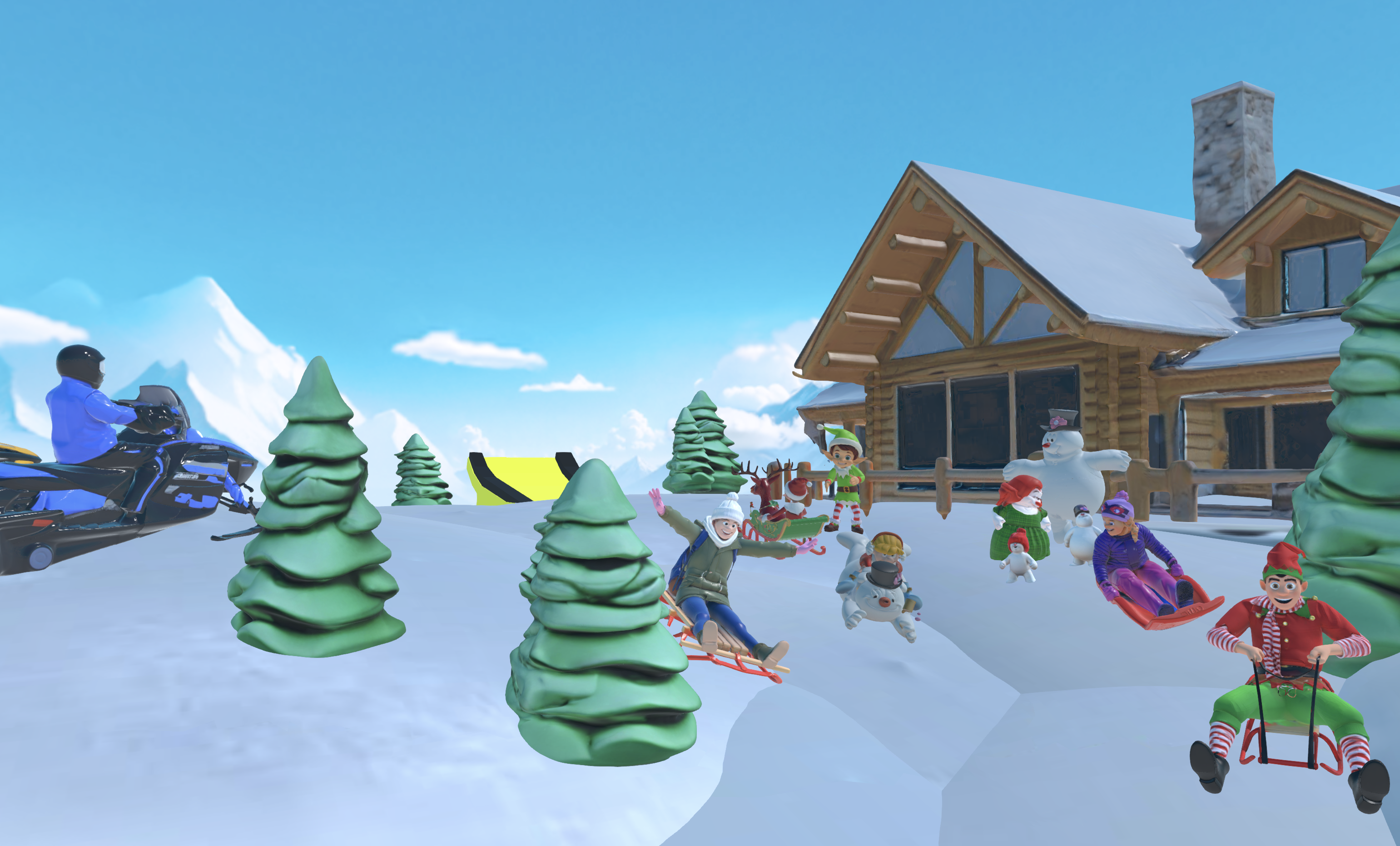
Challenge: Making assets interactive usually means writing Lua, which stops many aspiring builders and already builders like you. Common approach: Find a scripter or spend weeks learning Lua. Trade-off: Slow, isolating, and blocks iteration. Nilo’s code editor accepts natural language prompts. You type, talk, or send an image to describe what you want, and the AI writes working code with real-time feedback in the 3D world. You do not need scripting knowledge to start.
World Building and Instant Playtesting in One Place
Challenge: Checking if an asset works in-game usually means switching to Roblox Studio. Common approach: Export, import, playtest, and repeat. Trade-off: Every round trip costs time and breaks your flow. Nilo lets you drop assets straight into a live 3D world and playtest with friends by sharing a link. You keep the whole iteration loop in one place.

Automatic Optimization for Roblox Limits
Challenge: Mobile players make up a huge portion of Roblox’s audience, so keeping triangle counts low is critical. Common approach: Manual decimation and CollisionFidelity tweaks for every asset. Trade-off: Tedious and easy to forget. Nilo’s LOD system adjusts polygon counts on the fly and exports assets that meet Roblox’s caps without extra steps from you.
Real-Time Collaboration for You and Your Friends
Challenge: Building alone can feel slow and demotivating. Common approach: Share files back and forth or rely on Roblox Studio’s collaboration tools. Trade-off: Asynchronous and full of friction. Nilo supports real-time multiplayer creation. You share a URL and build together on desktop or mobile right away.
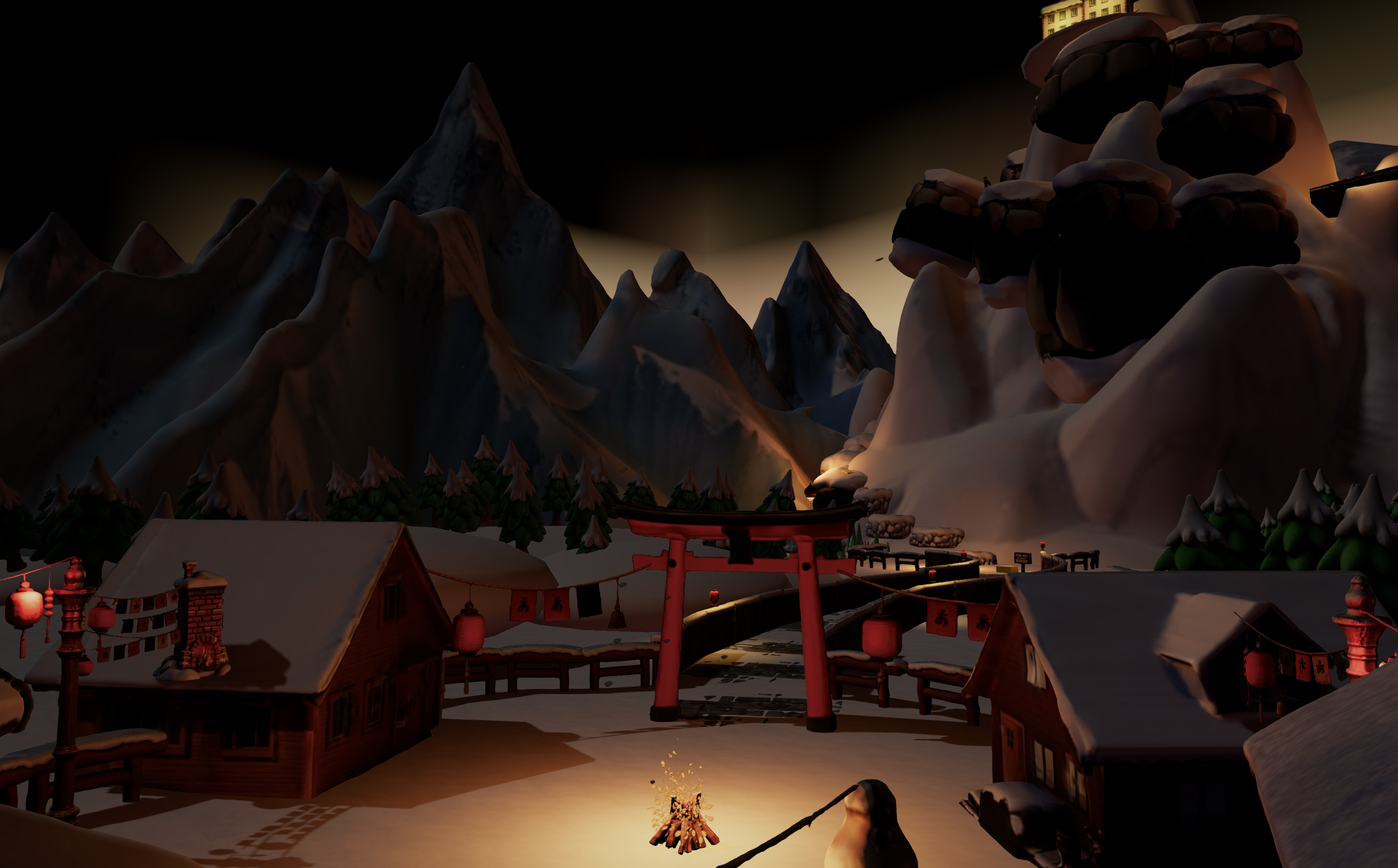
FBX and glTF Export That Just Works
Challenge: Assets need to move from your creation tool to Roblox Studio without breaking. Common approach: Export from Blender, fix scale, and re-import. Trade-off: Many chances for things to fail. Nilo keeps triangle counts under control so models work directly in Roblox Studio and other platforms. You export clean FBX, OBJ, STL, and glTF files.
Repair Steps vs Prevention Steps
The table below shows how much time you save when your tool prevents common issues during generation instead of forcing you to fix them afterward.
| Step | Typical Repair Time | Prevention with Real-Time Retopology | Time Saved |
|---|---|---|---|
| Reduce triangle count | 15–30 min in Blender | LOD slider applied before export | ~25 min |
| Fix CollisionFidelity | 5–10 min per MeshPart | Set automatically on export | ~8 min |
| Correct scale and orientation | 10–20 min trial-and-error | Roblox stud scale applied at generation | ~15 min |
| Repair materials and textures | 10–15 min | Single-material, 1024×1024 output by default | ~12 min |
How to Choose the Right Roblox-Friendly AI Tool
When you evaluate any AI asset tool for Roblox work, start with basics that decide if you can actually use it. Then look at quality factors that control how much cleanup you will do:
- Onboarding speed. You should be able to generate and export a clean asset in under five minutes on your first session without tutorials. If the tool has a steep learning curve, you waste time before you even start building.
- Output quality. Check whether the tool produces clean topology or sends every model through a Blender detour. AI-generated meshes frequently contain poor edge flow and non-manifold edges. If retopology is not built in, you stay stuck in repair mode.
- Export compatibility. Make sure the tool exports FBX or glTF with correct scale, a single material per mesh, and textures at or under 1024×1024. These are Roblox’s hard requirements, so nothing else matters if exports fail here.
- Performance limits. Look for triangle counts displayed or enforced against Roblox’s caps during generation, not after. Catching triangle overruns early prevents the entire repair cycle.
- Learning value. A good tool teaches you what retopology, LOD, and CollisionFidelity mean through its interface. When you understand these ideas, you make better choices even when the tool does not automate everything.
Three Real-World Builder Scenarios
Scenario 1: You hit the triangle limit on your first prop. You generate a crate in Meshy, try to import it into Roblox Studio, and get a “Mesh too dense” error. The crate has 40,000 triangles. Props in Roblox should target under 5,000 triangles. With a browser tool that enforces limits at generation time, you set the LOD slider to your target count, export, and import. You skip Blender entirely.
Scenario 2: You fix avatar meshes every week. Every new character from an AI generator needs decimation, scale correction, and CollisionFidelity fixes before it works in Studio. That is 30–60 minutes per character, every week. A platform with built-in retopology and Roblox-specific export settings removes that recurring cost and keeps you in creative flow.
Scenario 3: Your small team needs same-day iteration on environment assets. Your team generates a set of environment props in the morning and needs them playable by afternoon. With a daisy-chain of Meshy → Blender → Roblox Studio, each round of feedback triggers another full repair cycle. A browser-based tool with real-time collaboration and one-click export compresses that loop from hours to minutes.
Compress your iteration loop and start building with your team in Nilo’s open beta today.
Frequently Asked Questions
What is retopology?
Retopology means rebuilding a 3D mesh’s surface with cleaner, fewer polygons. AI generators often create meshes with millions of triangles arranged chaotically. That level of detail looks nice in a render but works badly in game engines. Retopology reorganizes the geometry into structured edge loops that deform correctly during animation and stay inside platform triangle limits. For Roblox, retopology is what turns a 40,000-triangle AI prop into a 3,000-triangle game-ready asset.
Browser vs desktop: what actually changes?
Desktop tools like Blender and Roblox Studio need installation, specific hardware, and separate software for each pipeline step. A browser-based tool runs on any device with no downloads. You open a link and start building. In practice, browser tools collapse the generate → optimize → export → playtest loop into one session. Desktop pipelines spread that work across multiple apps and many save-export-import cycles. If you want to stay in creative flow, that difference feels huge.
Can AI ever be perfect for Roblox?
AI is not perfect for Roblox yet. Off-the-shelf AI systems are not tightly integrated with Roblox and often do not produce Roblox-ready output without extra work. The gap is closing as newer tools ship cleaner topology, but triangle limits, CollisionFidelity settings, scale rules, and single-material requirements still need to be enforced by the tool or by you. Your best move today is using a tool that respects Roblox’s constraints during generation instead of leaving cleanup for later.
What happens to my exported files?
When you export from a browser-based creation tool, you download a standard 3D file such as FBX, OBJ, STL, or glTF to your device. That file belongs to you. You can import it into Roblox Studio, Unity, Unreal Engine, Blender, or any other 3D software. Nilo is not a walled garden. Assets you create export in open formats that work on almost any platform. Builders already use Nilo to create rigged, animated characters and export them to Roblox and beyond.
Who owns the assets I create?
Any models, skins, or UGC items you create in Nilo are yours. You can use them, publish them, and monetize them on the Roblox Marketplace or anywhere else. Nilo does not claim ownership over what you build. The Roblox creator economy pays out over $1 billion annually to creators and keeps growing. The assets you generate and export can become part of that opportunity.
Conclusion: Stay in Flow Instead of Fixing AI Mistakes
Fixing messy AI Roblox assets is a solvable problem, but solving it after generation is always slower than preventing it at the source. The repair workflow of decimate, set CollisionFidelity, fix rigs, and re-import works, and knowing it genuinely helps. The faster path is using a tool that respects Roblox’s triangle caps, scale rules, and material requirements before the file ever leaves the generator.
In Nilo’s February 2026 survey, 93% of builders said they would recommend Nilo to a friend, and 82% rated their experience as “Awesome” or “Good.” One builder summed it up: “I do not have to spend hours on 3D modeling the simplest things. Now I can use Nilo and do it in 15 seconds.” That is the difference between retopology hell and staying in creative flow.
Build and play in your browser with Nilo’s open beta without spending a bunch of time on cleanup.