
Written by: Nuno Leiria, Founder & CEO @ Nilo
Key Takeaways Before You Pick a Prop Tool
- Most AI prop generators skip retopology and spit out meshes with 50k–200k triangles. These blow past Roblox’s 10k–20k limits and force you into hours of Blender cleanup.
- Any Roblox prop tool you use should pass three checks: respect triangle caps, export clean FBX or glTF without fixes, and keep your whole workflow in one browser tab.
- Nilo stands out because it meets all three checks with real-time LOD adjustment, one-click rigging, and Roblox-ready exports.
- Free options like Blockbench, Meshy, and Sloyd each miss something. You either lose AI speed, Roblox-focused controls, or a full browser workflow.
- Ready to skip retopology hell and stay in flow? Join Nilo’s open beta and try building and playing for free.
How To Evaluate Any Roblox Prop Tool Before You Commit
You can save yourself a lot of frustration by running every tool through three simple questions. If a tool fails even one, you will pay for it later with extra work.
1. Does it respect Roblox’s triangle limits? Roblox enforces strict polygon caps on imported meshes. A tool that generates a 100,000 triangle sword is creating a problem, not a prop. Look for a clear LOD slider or automatic mesh simplification that targets Roblox’s limits instead of a vague “optimize” button.
2. Can you export clean FBX or glTF without manual cleanup? FBX and glTF are the formats Roblox Studio accepts most reliably. A clean file has correct normals, no overlapping geometry, no broken UV maps, and a triangle count that passes Roblox’s import check on the first try. If you always end up detouring through Blender to fix these issues, that tool fails this test.
3. Does your whole workflow stay in one browser tab? Every time you jump from a generator to Blender to Studio, you lose momentum and introduce new errors. A single browser-based workflow means no installs, fewer file conversion headaches, and fewer crashes breaking your creative flow.
See how Nilo answers all three questions directly in your browser.
Nilo: A Roblox-Focused Browser Workflow For Props
Nilo is a browser-based 3D creation platform where you generate, clean up, rig, and export game-ready props without leaving your tab. It lines up with the three evaluation questions you just saw.
The LOD slider adjusts polygon count in real time. You drag it toward Roblox’s limits and the mesh simplifies instantly. You do not need Blender or manual retopology. Nilo keeps polycount in a range that works directly in Roblox Studio and other engines.

One-click export gives you FBX, glTF, OBJ, or STL. The file is Roblox-ready when it hits your downloads folder. You can also rig with one click, so characters and weapons come out with a working skeleton and are ready to animate.
Builders in Nilo’s February 2026 survey described the speed jump clearly. One said, “I do not have to spend hours on 3D modeling the simplest things. Now I can use Nilo and do it in 15 seconds.” Another said, “You can work 20 times faster than you usually work on models.” A third summed up the old way: “Picture yourself, frustrated because you spent the last 5 hours 3D modeling a shipping container. All I have to do is open Nilo and do it in 20 seconds.”
Nilo’s AI layer is model-agnostic. It pulls from multiple generation providers, including Meshy, Tripo, and others, behind one interface. You stay in a single tab while Nilo routes to the strongest model in the background and improves automatically as those models get better.
Blockbench: Free Manual Control For Low-Poly Props
Blockbench gives you a free, open-source 3D modeling tool focused on blocky, low-poly assets. You can run it in your browser or as a desktop app. If you want full manual control over every vertex, Blockbench delivers clean exports and has strong Roblox community support.
The tradeoff is speed. Blockbench expects you to model everything by hand. You do not get AI generation, automatic retopology, or an LOD system. For simple cube-based props, it works well as a free option. For complex organic shapes like dragons, detailed weapons, or stylized trees, the manual workflow turns into a serious time sink.
Meshy and Sloyd: Fast Generators With Extra Cleanup
Meshy lets you turn text prompts or images into 3D models quickly. Output quality has improved a lot, but the models often blow past Roblox’s triangle limits and need retopology before import. Many builders end up in Blender fixing geometry before the asset works in Studio.
Sloyd uses procedural generation with sliders and parameters to build props from templates. The results are usually cleaner than raw AI output, and everything runs in the browser. Sloyd focuses on model creation only though. You do not get rigging, animation tools, a Roblox-tuned LOD system, or a direct Roblox export path. You still need extra tools in your pipeline.
Quick Comparison: Nilo vs Blockbench vs Meshy vs Sloyd
| Tool | Ease of Use | Roblox Optimization | Export Quality | Cost |
|---|---|---|---|---|
| Nilo | Browser-based, no install, AI generation plus LOD slider | Real-time retopology, LOD targets Roblox’s triangle caps | Clean FBX or glTF, one-click export, rig included | Free tier with 1,000 Nilo Bits per month |
| Blockbench | Browser or desktop, manual modeling, no AI | Manual control, you manage polycount yourself | Clean exports, no automation | Free |
| Meshy | Simple prompt input, fast generation | Often above Roblox limits, usually needs Blender cleanup | Variable, geometry errors are common | Free tier, paid plans for higher quality |
| Sloyd | Browser-based, parameter sliders, no text prompts | Cleaner than raw AI, but no Roblox-specific LOD | Decent, but no rigging or direct Roblox export | Free tier available |
Roblox Export Checklist Before You Import Anything
Once you choose a tool, you still need to make sure your exports match Roblox’s technical rules. Before you import any prop into Roblox Studio, run through these four checks in order.
Triangle count: Start here, because this is the most common reason imports fail. Keep static props under 10,000 triangles. Character meshes and complex props can sometimes go up to 20,000, but lower counts are safer for performance. Use your tool’s LOD or simplification feature to hit this target before export.
Texture size: Roblox recommends textures at 1024×1024 pixels or smaller. Larger textures slow down load times and can cause rendering issues on mobile devices.
Rig compatibility: Any prop that needs to move or animate needs a rig, which is a skeleton of bones that drives the mesh. Roblox expects a specific bone hierarchy. Confirm that your export includes a compatible rig before you import, or you will spend extra time fixing it inside Studio.
Collision settings: Roblox generates collision boxes automatically, but complex meshes can produce strange collision shapes. After import, check that your prop’s collision shape matches what you see on screen, especially for weapons and interactive objects.
Step-by-Step: Make a Sword or Crate in Nilo
This is how your workflow can look in Nilo from idea to Roblox Studio.
Step 1 – Describe or sketch your prop. Type something like “medieval iron sword with worn leather grip” or draw a rough outline using the sketch input. Nilo accepts text prompts, sketches, and reference images in the same interface. Generation takes seconds, not hours.
Step 2 – Adjust the LOD slider. After the model appears, drag the LOD slider until the triangle count fits Roblox’s limits. The mesh simplifies in real time, so you always see exactly what you are about to export.
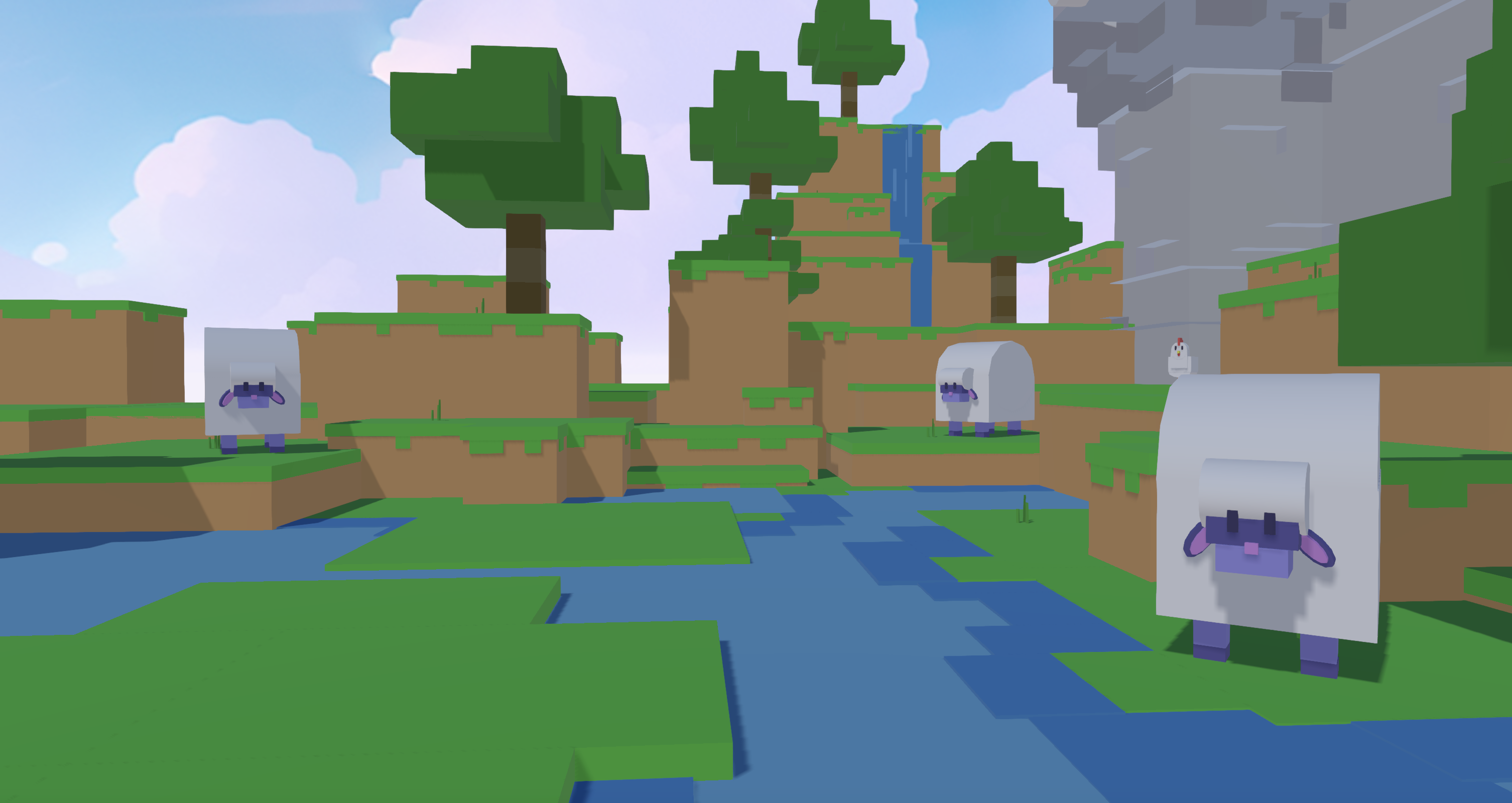
Step 3 – Rig with one click. If your prop needs animation, like a swinging sword or a crate lid that opens, click Rig. Nilo adds a compatible bone structure automatically. You skip manual weight painting and you skip Blender.
Step 4 – Export and import. Click Export, choose FBX or glTF, and download your file. Open Roblox Studio, import the file, and start using the prop. You avoid cleanup, retopology, and broken normals.

This workflow removes the hours you usually lose rebuilding bad geometry that other AI generators create. It cuts out the “retopology hell” mentioned earlier. As one Nilo Creator said in the February 2026 survey, “There are no limits on what you can create, just type, draw or add in an image and you can generate, rig, customise and place a fully 3D model within minutes.”
Start creating Roblox-ready props in seconds, no install required.
Frequently Asked Questions About Roblox Prop Tools
Are there free options for Roblox prop design software?
Yes. Blockbench is completely free and produces clean exports, but you model everything by hand. Meshy and Sloyd both offer free tiers with generation limits. Nilo’s free tier includes 1,000 Nilo Bits per month, which you use for AI generation, export, and creation, and many core building features do not use Bits at all. You still get the LOD slider, one-click rigging, and direct Roblox export on the free tier.
Do you need modeling experience to use these tools?
You do not need modeling experience for Nilo or Meshy, because both accept text prompts and generate models for you. Sloyd uses sliders and parameters, so you can work without 3D knowledge there too. Blockbench is different. It is a manual modeling tool, so some comfort with 3D shapes and vertices helps. If you are starting from zero, browser-based AI tools give you the lowest barrier to entry. Nilo is set up so that if you can describe what you want in text, a sketch, or a reference image, you can build it.
Do you need to know how to code to export props to Roblox?
You do not need any coding to generate, clean up, and export a prop. The export flow is visual. You generate, adjust LOD, rig, export, then import to Studio. Coding only matters when you want your prop to react inside Roblox, like a chest that opens when a player touches it. Nilo includes a built-in code editor that accepts natural language. You describe what you want the prop to do and it generates working code in real time, so you can ship behavior without learning Lua.
Why do AI-generated props keep failing Roblox’s import check?
Triangle count causes most failures. Many AI generators produce meshes far above Roblox’s cap, often in the 50,000–200,000 triangle range mentioned earlier. Broken geometry comes next, including overlapping faces, inverted normals, or non-manifold edges that Roblox rejects. Tools with real-time retopology and LOD systems, like Nilo, handle both problems before export. If your tool does not have these features, you will need Blender to repair the mesh before it imports cleanly.
Can you use these tools for more than weapons and crates?
Yes. The same workflow works for furniture, vehicles, environment pieces, accessories, UI elements, and full worlds. Nilo supports characters, weapons, props, and environments from the same interface. Creators in the Nilo community build everything from custom avatars and legendary weapons to floating-island worlds using the same generate, adjust, and export pipeline you saw in this guide.
Choose How Much Time You Spend On Technical Fixes
The three-question framework keeps your choice simple. You check whether a tool respects Roblox’s triangle limits, exports clean files without manual fixes, and keeps your workflow inside one browser tab. Nilo stands out because it answers yes to all three with real-time retopology, a Roblox-tuned LOD slider, one-click rigging, and direct FBX or glTF export in your browser.
Blockbench gives you a strong free baseline if you enjoy manual modeling. Meshy and Sloyd generate fast but leave more cleanup work on your plate. Your decision comes down to how much time you want to spend on technical problems instead of actually building.
If your answer is “as little time as possible on technical problems,” this workflow is ready for you.
Join Nilo’s open beta and try building and playing for free.