Written by: Nuno Leiria, Founder & CEO @ Nilo
Key Takeaways
-
Roblox Studio unions and negates help you build simple geometric props fast, but they hit limits on detail and triangle count.
-
Standalone AI tools like Meshy or Sloyd generate meshes quickly, yet you still handle cleanup, retopology, and Roblox-specific limits yourself.
-
Nilo is a browser-based AI platform that generates, retopologizes, rigs, and exports game-ready props in one workflow with no manual cleanup.
-
Key technical concepts such as mesh topology, polycount limits, and automatic LOD are handled inside Nilo so you stay focused on ideas instead of fixes.
-
Browser-based workflows like Nilo remove most of the Blender learning curve by handling generation, retopology, rigging, and export in one place.
Three Ways You Can Make Custom Props Without Blender
You have three realistic paths to create custom props for Roblox without opening Blender. First, Roblox Studio’s built-in union and negate tools let you combine basic shapes into more complex forms. Second, standalone AI generators like Meshy or Sloyd can produce 3D models from text prompts, but they usually hand you a raw mesh that still needs cleanup before it works in Roblox. Third, Nilo is a browser-based AI creation platform built for Roblox builders like you. It generates, cleans up, rigs, and exports game-ready props in one place, with no manual retopology and no tool-switching.
Each path has clear trade-offs in speed, complexity, and how much technical work you handle yourself. Studio unions feel fast for simple shapes but hit hard limits on complexity. AI generators give you quick results but leave you with cleanup. Nilo stands out by taking care of the technical steps automatically so you stay in creative flow from idea to export.

Explore Nilo’s open beta and see how it fits your own workflow for free.
Core 3D Terms You’ll See in Every Workflow
You make better choices between tools when you understand a few core 3D concepts you will see everywhere.
A mesh is the 3D structure of your prop, a collection of vertices, edges, and faces that define its shape. Topology describes how those faces are arranged. Clean topology means the faces flow logically and the model deforms or renders correctly. Bad topology causes visual glitches and performance problems.
That is where retopology comes in. Retopology is the process of rebuilding a mesh with cleaner, more efficient geometry to fix those issues. Artists usually do it manually in Blender. The work is time-consuming and technical, and this step often stops aspiring builders or already builders like you from shipping ideas.
Polycount (or triangle count) measures how many triangles make up your mesh, and this number matters because Roblox enforces strict limits: meshes are capped at around 20,000–21,000 triangles per MeshPart. If you go over that limit, your import can fail or your game can lag, which is why every workflow in this guide includes a way to control triangle count.
LOD stands for Level of Detail. LOD systems swap in lower-polygon versions of a mesh when it is far from the camera. This keeps your game running smoothly without you creating multiple versions of every prop by hand.
Step 1: Build Quick Props with Roblox Studio Unions and Negates
Studio’s union and negate tools give you the fastest starting point for simple props. Here is the basic workflow you can follow:
-
Open Roblox Studio and insert the base Part shapes you need, such as blocks, cylinders, spheres, or wedges.
-
Position and resize the parts to rough out your prop’s overall shape.
-
To carve out a section, insert a negate part, overlap it with your base shape, select both, and click Negate under the Model tab.
-
Select all parts you want to merge and click Union. Studio combines them into a single mesh.
-
Check your triangle count in the Properties panel and keep meshes under Roblox’s triangle limit described earlier.
That workflow covers the basics and works well for geometric props such as crates, walls, and simple furniture. It breaks down fast when you want organic shapes, curved surfaces, or fine detail. The triangle limit also means you cannot keep adding complexity forever. For anything beyond basic geometry, you need a different approach.
Step 2: Generate Roblox Props in Nilo from Text, Sketch, or Image
Nilo is a browser-based 3D creation platform that lets you generate props from a text prompt, a sketch, or a reference image, then handles optimization, rigging, and export automatically. You can follow this workflow:
-
Open Nilo in your browser. You do not need to download or install anything.
-
Choose your input. You can type a description such as “medieval wooden barrel with iron bands,” upload a reference image, or draw a quick 2D sketch and let Nilo refine it with AI.
-
Wait a few seconds while Nilo generates a 3D model. Use the real-time retopology slider to adjust the polycount and drag it down until your triangle count sits comfortably within Roblox’s limits.
-
Click Rig to rig and prepare your prop with one click if it needs to attach or move, which helps a lot for accessories or wearables.
-
Let Nilo’s LOD system handle automatic level-of-detail optimization so you do not create extra versions yourself.
-
Click Export and download your prop as FBX or GLB, then import it directly into Roblox Studio.
Nilo lets you create 3D characters, weapons, and pro-level props in seconds from sketches or prompts, while keeping polycount ready for Roblox Studio without extra steps. As one builder put it in Nilo’s February 2026 survey, “I do not have to spend hours on 3D modeling the simplest things. Now I can use Nilo and do it in 15 seconds.”
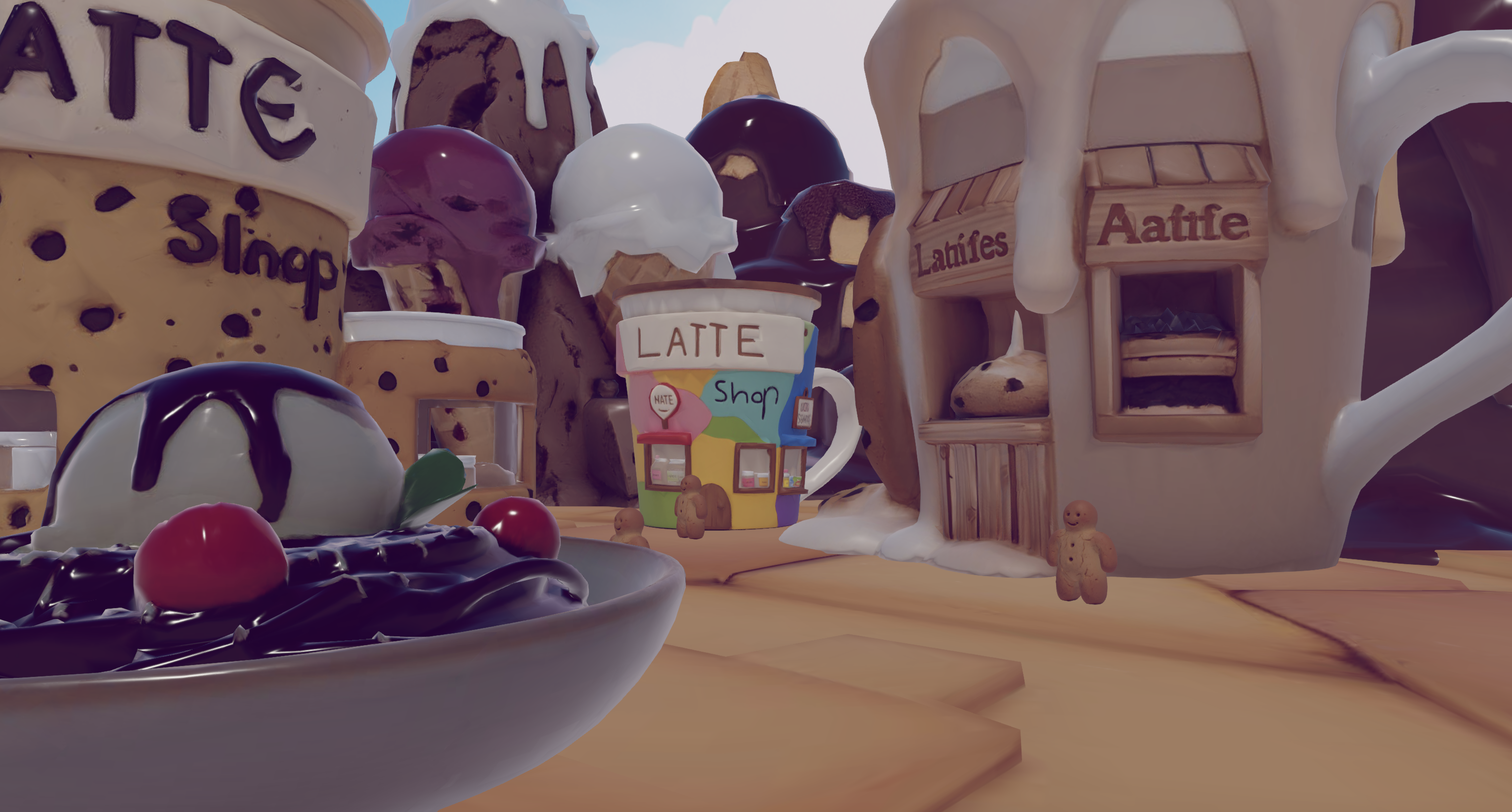
Try this full workflow yourself by joining Nilo’s open beta for free.
Step 3: Use Standalone AI Tools like Meshy or Sloyd
Standalone AI tools give you another path if you are comfortable doing some cleanup yourself. Meshy and Sloyd both run in the browser and focus on fast generation.
With Meshy, you type a text prompt or upload an image, then download the generated model. The mesh often has messy topology, so you usually bring it into Blender, clean up geometry, reduce triangles, and then export again for Roblox Studio.
With Sloyd, you start from procedural templates for specific prop types, tweak sliders, and export a model that often has cleaner geometry than many AI tools. You still handle rigging, animation, and Roblox-specific checks yourself.
This path works well if you already know Blender or another 3D app and want AI to handle only the first draft of your prop.
Compare Roblox Prop Workflows Without Blender
You choose between these workflows by thinking about how much time you can spend learning tools, how complex your props need to be, and how much cleanup you are willing to do after generation. Here is how the main options trade off against each other.
Roblox Studio is free and already open on your screen, which makes it the fastest starting point for simple geometric props. The trade-off is a hard ceiling on complexity, because organic shapes and detailed props are difficult or impossible to build with unions alone.
Blender is the most powerful free option and handles any level of complexity, but that power comes at a steep cost: learning Blender well enough to produce clean, Roblox-ready props takes months. Manual retopology alone can add 30 minutes or more per asset.
Meshy generates 3D models from text or images quickly, but the output often has messy topology that needs manual cleanup in Blender before it respects Roblox’s polygon cap. You trade the modeling bottleneck for a cleanup bottleneck.
Sloyd focuses on procedural 3D model generation and produces cleaner geometry than many AI tools. It runs in your browser and feels fast for specific prop categories, but it does not bundle rigging, animation, and direct Roblox export checks into one flow.
Lemonade.gg is an AI assistant that plugs into Roblox Studio to help you create assets directly inside the Studio environment. It stays tightly integrated with Roblox but keeps you inside Studio’s own constraints.
Nilo stands out by combining generation, real-time retopology, one-click rigging, automatic LOD, and FBX or GLB export into a single browser-based workflow. You avoid tool-switching, manual cleanup, and long Blender detours. When you evaluate Nilo, check whether the exported file imports into Roblox Studio without errors, whether triangle counts stay within limits automatically, and whether you can go from prompt to export inside one focused session.
See how Nilo compares in your own projects by starting to build for free today.
Troubleshooting Common Prop Problems
Poor topology after AI generation: If your imported prop shows visual artifacts or deforms in strange ways, the mesh topology is likely irregular. In Nilo, you can use the retopology slider to regenerate a cleaner version before exporting. In Blender, you can use the Remesh modifier to rebuild topology, but it needs careful manual tuning.
Triangle count too high: Roblox struggles with meshes that go past its triangle limit. In Nilo, drag the LOD slider down until the count sits inside that range, and watch the real-time preview so you know exactly what you export. In Blender, the Decimate modifier reduces polycount but can introduce new topology problems if you push it too far.
Export errors on import to Roblox Studio: The most common causes are unsupported file formats, missing textures, or scale mismatches. Roblox Studio accepts FBX and OBJ. Export from Nilo as FBX or GLB, then import through Studio’s Asset Manager. If the scale feels off, adjust the import scale setting in Studio’s import dialog. If textures are missing, embed them in the file or upload them separately to the asset library.
Frequently Asked Questions
How long does it take to create a Roblox prop without Blender?
Your total time depends on the method you choose. A simple union prop in Roblox Studio can take 10 to 20 minutes once you know the tools. Using an AI generator like Meshy can produce a model in under a minute, but cleanup and optimization often add 30 minutes or more. With Nilo, the full workflow from prompt or sketch to an exported, Roblox-ready file usually takes a few minutes. Builders in Nilo’s February 2026 survey reported generating and exporting props in about 15 to 20 seconds for straightforward assets.
Do you need 3D modeling experience to use Nilo?
You do not need prior 3D modeling experience. Nilo accepts text descriptions, reference images, and hand-drawn sketches as inputs, so if you can describe or draw what you want, Nilo can help you build it. The platform teaches concepts like mesh topology, polycount, and rigging through the interface itself, so you learn while you create instead of studying everything first.
What file formats does Nilo export, and are they compatible with Roblox?
Nilo exports FBX, GLB (glTF), OBJ, and STL. FBX and GLB are common choices for Roblox Studio imports, and Studio’s Asset Manager accepts both. Nilo’s LOD system keeps the exported mesh within Roblox’s polygon cap, so you avoid extra optimization steps after export.
Can you create Roblox accessories and wearables in Nilo, not just props?
Yes. Nilo supports one-click rigging, which you need for accessories and wearable items that attach to a Roblox avatar. You can generate a custom hat, sword, or accessory, rig it, and export it as a Roblox-ready file. Any models, skins, or UGC items you create in Nilo are yours to publish and monetize on the Roblox Marketplace.
Start Building Roblox Props Today
Studio unions help you get started quickly, but they hit a ceiling fast. Blender removes that ceiling but adds months of learning. The fastest path from idea to Roblox-ready prop in 2026 comes from a browser-based workflow that handles generation, retopology, rigging, and export in one place, without the tool-switching that kills your momentum.
Nilo stands out as that kind of workflow. It runs in your browser, needs no installation, and produces clean, Roblox-compatible props from a text prompt, sketch, or image. As one builder described it in Nilo’s February 2026 survey, “There are no limits on what you can create, just type, draw or add in an image and you can generate, rig, customise and place a fully 3D model within minutes.”
Join Nilo’s open beta and try building and playing for free.