Written by: Nuno Leiria, Founder & CEO @ Nilo | Last updated: June 29, 2026
Build Roblox Assets on Your Phone: Key Takeaways
- Roblox Studio still runs on desktop, but you can now generate, clean up, rig, and animate 3D assets directly on your phone.
- Nilo runs in your mobile browser, so you avoid installs, downloads, and jumping between different desktop tools.
- The pipeline covers text-to-3D, real-time polygon control, one-click rigging, text-prompt animation, and export of Roblox-ready FBX files.
- You handle almost all the heavy work on your phone and only need quick desktop access for the final Roblox Studio import.
- Start creating Roblox assets on your phone with Nilo’s mobile-first workflow, without buying a PC.
What You Need Before You Start Building
You can follow this guide if you already play Roblox on your phone and want to start building your own assets and worlds without a desktop.
Here are a few terms that will show up as you build:
- Mesh, the 3D shape of an object, built from connected triangles called polygons.
- Topology, the way those triangles are arranged. Clean topology reduces errors and keeps performance stable.
- Retopology, the process of fixing a messy mesh so it behaves correctly in a game engine. Blender usually handles this step, but Nilo automates it.
- LOD (Level of Detail), a system that lowers polygon count at a distance so games run smoothly. Roblox usually expects assets to stay under roughly 10K–20K polygons.
- Rigging, adding a skeleton to a 3D model so you can animate it.
- FBX / glTF / OBJ, common 3D file formats that Roblox Studio can read.
Most creation tools feel fragmented, which forces you to chain together Meshy for generation, Blender for cleanup, and Roblox Studio for import. Each step usually happens on a desktop with manual file transfers. Nilo collapses that whole multi-tool workflow into a single browser tab on your phone.
Step 1: Open Nilo in Your Mobile Browser
Open Chrome or Safari on your phone and go to nilo.io. Sign up for a free account. Nilo runs fully in the browser using modern web tech, so you skip app downloads and installs.
After sign-up, you land inside a 3D world. Tap and hold on the canvas to open the radial menu and reach creation tools. Use the inspector panel on the side to edit object properties. Physics, collisions, and movement react in real time, so you see changes as you build.
Step 2: Generate Your First 3D Asset
Tap the asset generation tool to start your first model. On mobile, you can choose from three input types:
- Text prompt, where you type something like “medieval wooden shield with iron trim.”
- Sketch, where you draw a rough 2D shape on your screen, let AI refine it, then pull it into 3D.
- Image, where you upload a photo or screenshot from your camera roll as a reference.
Nilo can turn sketches or prompts into 3D characters, weapons, and detailed props in seconds. The platform connects to several AI providers, including Meshy, Tripo, and Nano Banana, behind one interface. You stay in a single browser tab while Nilo handles which model to use.

If the first result feels off, tweak your prompt. Add clear details about style, like “low poly,” “cartoon,” or “sci-fi.” Mention materials such as “metal,” “wood,” or “glass,” and describe scale, like “small handheld” or “large environment prop.” Generation usually finishes in a few seconds, so you can iterate quickly.
Step 3: Clean Topology and Control Polycount
After your asset appears, you see Nilo’s LOD slider in the inspector panel. Drag this slider to lower polygon count until you sit inside Roblox’s usual 10K–20K triangle range. The mesh simplifies in real time, and you watch the shape update as you move the control.
Nilo optimizes polycount so models drop into Roblox Studio and other platforms without extra steps, which means you avoid manual retopology and skip a Blender cleanup pass. The topology comes out clean on the first export.
Check the polygon counter in the panel. Once it reads under 20K, you can move on to rigging and animation.
Try Nilo’s real-time LOD and topology cleanup in your browser and see how far you can push detail while staying Roblox-friendly.
Step 4: Rig and Animate with Simple Text Prompts
If your asset needs movement, tap the Rig button. Nilo adds a skeleton to your model with one tap, a step that usually takes hours in tools like Blender.
To animate, type what you want the character to do, such as “walk cycle,” “idle breathing,” or “sword swing.” Nilo uses its Uthana text-to-motion integration to turn that description into animation. You can preview the motion right in your phone browser before you export anything.

For Roblox avatars, Nilo supports Mixamo-style animation retargeting, so your motions line up with Roblox’s character system without weird bends or broken joints.
Step 5: Export a Roblox-Ready File
Tap Export when you like how the asset looks and moves. Pick a format. FBX works best for Roblox Studio, but you can also choose glTF or OBJ. The file saves straight to your phone’s storage.
Nilo exports rigged and animated models with the optimization already applied. Colors, collision data, and rig parts stay attached in the file. You end up with a Roblox-ready asset as soon as the download finishes.
Step 6: Move Your Asset into Roblox Studio
This step is where the mobile-only flow hits its one limit. Roblox Studio still runs on desktop. You can handle this by uploading your FBX file from your phone to cloud storage like Google Drive, iCloud, or Dropbox. Then you open Roblox Studio on any available computer, such as a school machine, a friend’s laptop, or a library PC, and import from there.
If you have quick access to a desktop, the import itself takes under a minute. In Roblox Studio, open the Model tab, click Import 3D, and select your exported file. Nilo’s earlier LOD work keeps the asset inside Roblox’s performance expectations, so you avoid extra cleanup.
The full pipeline of generation, cleanup, rigging, and animation already happened on your phone. The desktop step only covers that final Studio import.
Export your first Roblox-ready asset from Nilo and bring it into Studio the next time you reach a desktop.
Repeatable Workflow for Phone-Based Roblox Assets
You can think about your phone-based workflow as a simple loop:
Ideate → Generate → Refine → Test → Export
- Ideate: Decide what you want, such as a prop, a character, or an environment piece. Sketch it or write a short prompt.
- Generate: Use Nilo’s text, sketch, or image input to create the first 3D version.
- Refine: Adjust the LOD slider, tweak colors, and re-prompt when needed so the asset matches your idea.
- Test: Drop the asset into your Nilo world and run around it. Share a link with a friend so you can playtest together in real time.
- Export: Download the optimized FBX and import it into Roblox Studio when you reach a desktop.
This pattern works for props like weapons and furniture, for characters such as avatars and NPCs, and for environment pieces like buildings and platforms. When you want a full set, use a single reference image with Nilo’s Create Asset Packs feature to generate multiple related objects at once.

Fixing Common Problems While You Build
Poor output quality: Short or vague prompts usually create generic models. Add style, material, and scale details. If one AI provider feels off, switch to another inside Nilo and compare results without leaving your session.
Polycount warnings: When the polygon counter goes above Roblox’s comfort zone, pull the LOD slider lower. For very large environment pieces, split the design into several smaller assets.
Export errors: Make sure rigging finished before you export. If bones or joints look wrong, run the one-click rig again and then export in FBX format for Roblox.
Mobile performance: Nilo’s engine targets a wide range of phones. If your browser slows down, close other tabs and clear your cache before starting a new building session.
How to Tell If Your Asset Is Ready
A strong phone-based Roblox asset hits both technical and visual goals. Aim for these results:
- A polygon count under 20K that passes Roblox Studio’s performance check when you import.
- Clean topology without obvious artifacts or “melted” geometry on edges and joints.
- An import into Roblox Studio that does not require extra cleanup or re-rigging.
- Stable animation playback in Roblox, without full-body distortion or broken limbs.
- Preserved colors and collision data so the asset behaves as expected in-game.
If your asset clears all five points, your phone-first workflow is working. Builders in Nilo’s February 2026 survey shared that they went from spending hours on simple 3D tasks to finishing the same work in seconds.
Scaling Up: Asset Packs, Worlds, and Collaboration
Once you finish your first export, you can reuse the same process for bigger projects. Clone base meshes inside Nilo and change prompts to create variations. A wooden sword can turn into a stone or crystal sword with a single prompt edit. You can also build entire asset packs from one reference image.
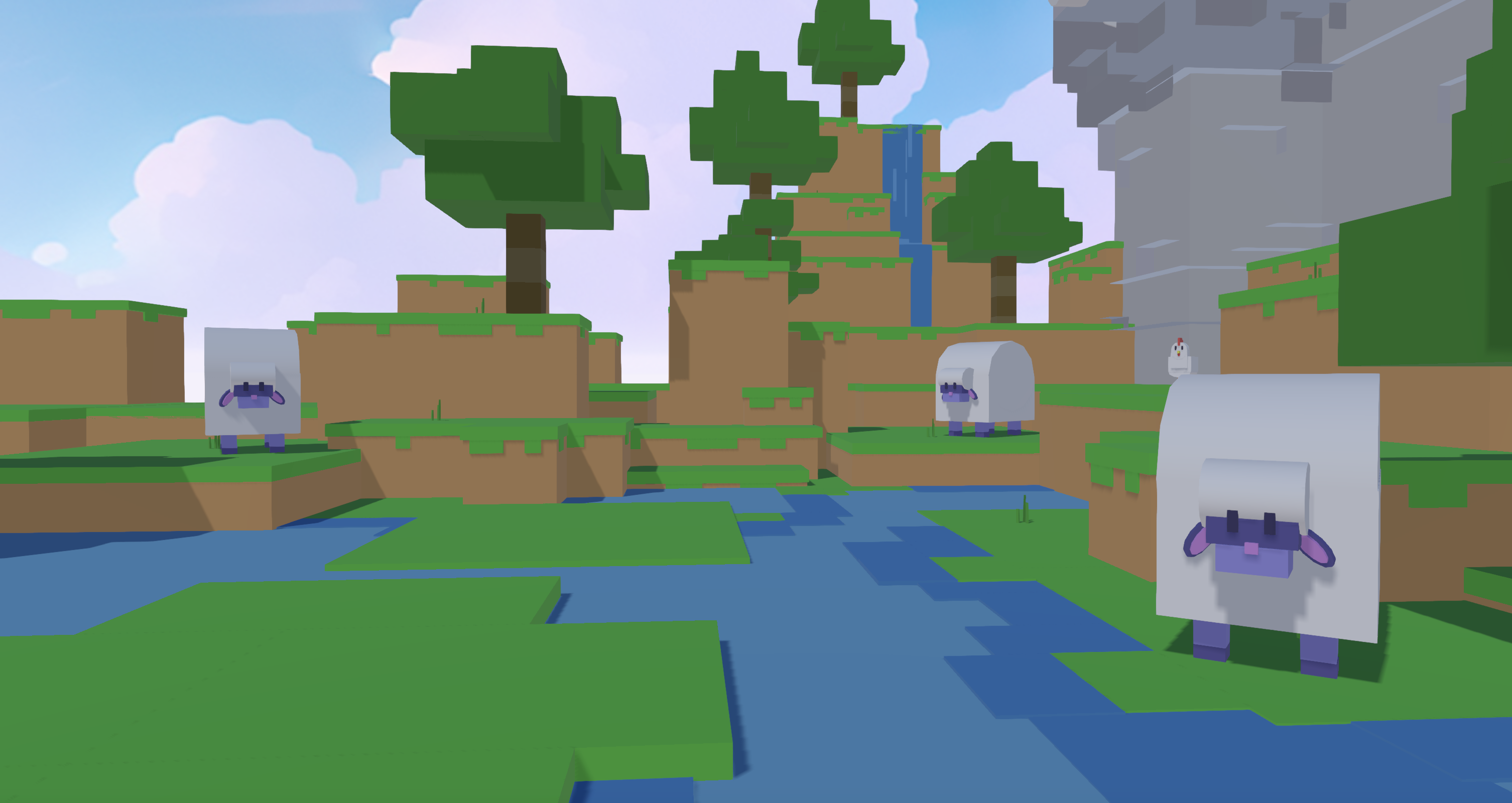
Collaboration fits into this flow on mobile. Share your Nilo world link with a friend so you can build together in real time. They can join and play without creating an account, which makes quick playtests easy before you commit anything to Roblox.
For large worlds, generate environment pieces in batches, test them together inside your Nilo world, then export only the assets that meet your quality bar. This keeps your Roblox project lighter and easier to manage.

Survey feedback from February 2026 shows that most builders using this phone-first pipeline would recommend Nilo to a friend. Many describe the feeling of typing, drawing, or dropping in an image and seeing a rigged, customizable 3D model appear within minutes.
Frequently Asked Questions
Can you build Roblox games entirely on a phone?
You can handle the time-consuming parts of building, such as generating, cleaning, rigging, and animating 3D assets, entirely on your phone with Nilo’s browser-based tools. Roblox Studio still needs a desktop for the final import, but that step stays short once your asset is ready.
Is Nilo free to use on mobile?
Yes. Nilo’s free tier gives you 1,000 Nilo Bits each month for AI generation, rigging, and export. Many building tools do not use Bits at all, so you can start creating without spending a bunch of money. Paid tiers add more Bits and unlock the newest generation models.
What phones and browsers work with Nilo?
Nilo runs in modern mobile browsers on Android and iOS. You do not need to install an app. The platform supports a wide range of devices, including older phones, so you can create without upgrading your hardware.
How is Nilo different from using Meshy or another AI 3D tool on your phone?
Tools like Meshy focus on generating a 3D model, but the result often needs manual cleanup, such as topology fixes, polygon reduction, and rigging, before it works well in Roblox. That cleanup usually happens in Blender on a desktop. Nilo handles all that technical processing, including topology cleanup, polygon control, and skeleton setup, inside the same browser session where you generated the asset. You move from prompt to Roblox-ready file without switching tools.
What file formats does Nilo export, and do they work in Roblox Studio?
Nilo exports FBX, OBJ, STL, and glTF. FBX works best for Roblox Studio. Exported files include rig data, animation, and polygon counts tuned for Roblox’s performance rules. Colors and collision data stay intact, so the file imports cleanly into Studio.
Start Building Roblox Assets on Your Phone Today
You can start creating Roblox assets without owning a PC. Open your mobile browser, head to Nilo, and run through the ideate → generate → refine → test → export loop with a single asset. You can move from a blank canvas to an optimized, rigged, exportable 3D model in minutes.
Creation does not need to wait for desktop time. You can build on the device you already carry every day.
Open Nilo in your mobile browser and generate your first Roblox asset now.