Written by: Nuno Leiria, Founder & CEO @ Nilo | Last updated: July 28, 2026
Key Takeaways for Your First 3D World
- Vibe coding lets you describe game ideas in plain language and have AI generate working code and 3D assets instantly, so you do not need Lua scripting or Blender skills.
- A solid free vibe coding platform should run a real 3D engine in the browser, support natural language prompts, handle automatic performance tuning, export Roblox-ready formats, and give you a usable free tier.
- You can generate, refine, and place 3D objects like floating platforms in seconds using text prompts, sketches, or reference images, then add game logic through the same conversational interface.
- Instant browser-based playtesting and real-time multiplayer collaboration let you and your friends tweak physics, collisions, and logic without leaving the platform or sharing files.
- Nilo combines these capabilities in one browser-based platform, so start building your first world in Nilo’s free open beta.
Quick Primer: Terms You Will See While Building
This guide speaks to aspiring builders or already builders like you who know Roblox but have not learned scripting yet. Before you jump in, get familiar with a few key terms:
- Mesh – the 3D shape of an object, made from connected triangles or polygons.
- Topology – how those polygons are arranged; clean topology means fewer glitches and smoother performance.
- Rigging – adding a skeleton to a 3D model so it can move and animate.
- Export format – the file type used to move a 3D model between tools, like FBX, glTF, or OBJ.
- Playtesting – running your game to check whether the logic and physics behave the way you expect.
- Optimization – reducing polygon counts and file sizes so your game runs smoothly on phones, tablets, and PCs.
- Scripting – writing code, like Lua in Roblox, to control game behavior.
- Browser-based workflow – creating everything inside a web browser with no downloads or installs.
- Natural language prompts – creating 3D games by talking, typing, or sending images to the AI.
Step 1: Pick a Vibe Coding Platform That Feels Like a Real 3D Engine
You need a platform that behaves like a full 3D engine, not a simple 2D toy. Real-time 3D rendering in a browser tab is heavy work, so many free browser tools only output 2D or fake 3D.
When you compare platforms, check for these points:
- It runs a genuine 3D engine in the browser instead of only generating flat HTML5 output.
- You can describe objects and logic in plain text, voice, or images, and see changes instantly in 3D.
- It handles performance work like polygon counts and level of detail automatically, instead of pushing that work to you.
- It exports to formats Roblox Studio accepts, such as FBX, OBJ, or GLB.
- The free tier lets you actually build worlds, instead of hiding core features behind a paywall.
Nilo stands out on all five criteria. It runs a full 3D engine directly in your browser, so you get the same physics and rendering quality you expect from desktop engines without downloading anything. Under the hood, it uses C++ physics compiled to WebAssembly and WebGPU rendering, but you never have to think about that. You just open a browser tab and start building.
That engine power matters because you generate assets by typing, sketching, or uploading an image, and the platform needs to show those 3D models instantly. To keep those models Roblox-ready, a built-in level of detail system automatically simplifies mesh topology on the fly and respects Roblox’s strict polygon caps without manual cleanup. All of this sits inside the free tier, which includes 1,000 Nilo Bits per month for AI generation.
Other platforms give you useful pieces of the workflow. Rosebud AI focuses on prompt-to-game generation with browser hosting, but it leans on 2D and light pseudo-3D instead of a full 3D engine. Replit supports vibe coding for software projects, yet it does not target 3D game creation. Sloyd helps you generate clean 3D assets and export FBX, GLB, or OBJ files that work with Roblox Studio, but it does not include a game engine, rigging, animation, or playtesting.
Step 2: Create a New World and Describe Your First Platform
Open Nilo in your browser at play.nilo.io. You can jump in without a long account setup or any download. Create a new world and use the radial menu to start generating objects.
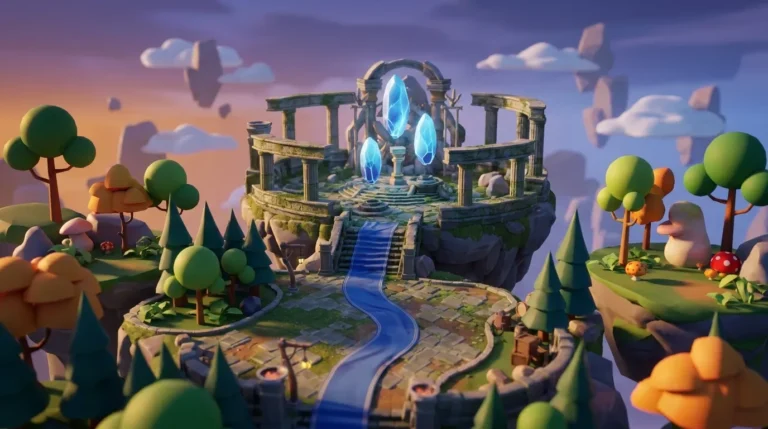
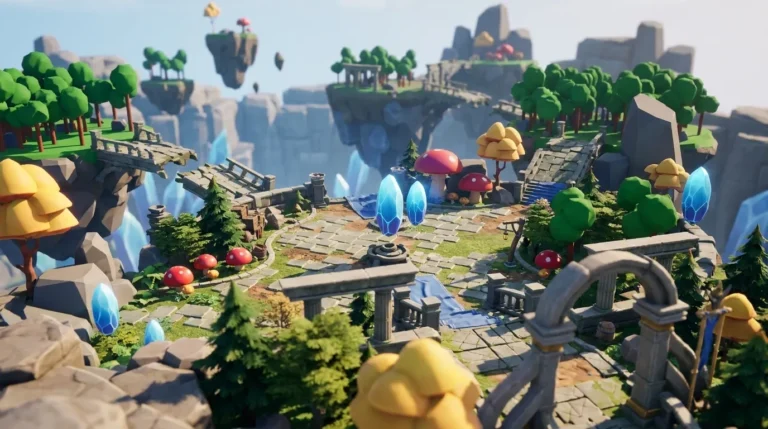
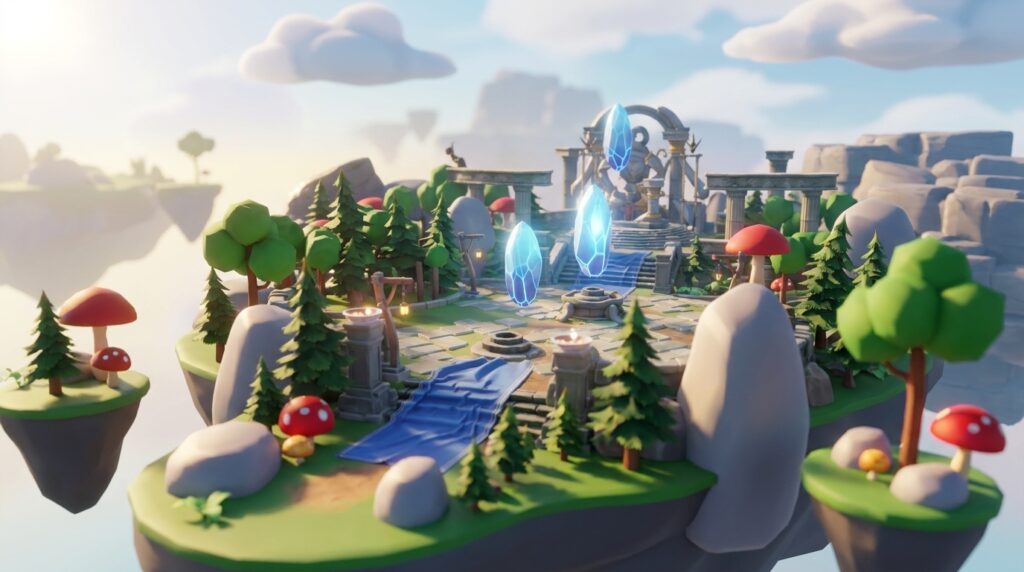
For an obby, type something like “a floating stone platform with mossy edges.” Nilo sends that prompt through its model-agnostic AI layer, which connects to providers like Meshy and Tripo behind one interface, and returns a 3D mesh in seconds. If the result feels off, refine it with a direct follow-up such as “make the edges sharper and add cracks.” You can also draw a rough 2D sketch and let AI turn it into 3D, or upload a reference image.
This ideate, generate, and refine loop replaces hours of Blender work. One builder in Nilo’s February 2026 survey said, “I do not have to spend hours on 3D modeling the simplest things. Now I can use Nilo and do it in 15 seconds.”
AI output quality depends heavily on how clearly you describe what you want. Vague prompts produce generic results. Specific prompts that describe shape, style, material, and scale produce stronger geometry and reduce the number of times you regenerate.
Step 3: Add Simple Game Logic with Nilo’s Code Editor
Now that you have platforms in your world, you need to make them react to players. Once your platforms are placed, open Nilo’s built-in code editor. This is where vibe coding helps most if you have not learned scripting yet.
Type or speak what you want to happen, for example, “when the player touches this platform, it disappears after two seconds.” The AI generates working code and applies it to your world in real time. You see the result immediately in 3D without leaving the browser.
You can also read and tweak the generated code directly. Change a variable like “speed = 2” to “speed = 20” and watch the effect right away. It feels like viewing the source of a webpage, but for your game, so you learn real programming concepts while you build instead of before you build.
Scripting often becomes the biggest blocker for Roblox builders. Nilo’s natural language code editor removes that blocker while still letting you stay in control of how your game behaves.
Try vibe coding your first game logic in Nilo.
Step 4: Playtest in the Browser Until Your World Feels Right
Hit play inside Nilo and run through your obby. Physics and collisions stay active by default, so platforms move, objects react, and your character interacts with everything in real time. You do not need to wire up basic physics.
If you want feedback, share a link so a friend can join your world on desktop or mobile. You can build and playtest together in real-time multiplayer, which feels similar to playing Roblox with friends, but now you are creating together. When a platform disappears too fast or a jump feels wrong, go back to the code editor, describe the fix, and test again in seconds.
AI game generators can create a working game loop from a text prompt in about 10 minutes, yet the biggest time savings come from fast iteration. Instant playtesting inside the same place where you build closes that loop and keeps you in flow.
Step 5: Export Your World to Roblox Studio or Keep Building in Nilo
Once you have playtested your world and the logic behaves the way you want, you can keep expanding it in Nilo or move it to another engine. When your asset or world feels ready to travel, click Export. Nilo supports FBX, OBJ, STL, and glTF, which work with Roblox Studio, Unity, Unreal Engine, Blender, and VRChat.
For Roblox, Roblox supports OBJ, FBX, and GLTF file formats. Before importing, verify triangle counts against Roblox’s limits. As mentioned earlier, Nilo’s level of detail system manages this automatically, so your exported file arrives Roblox-ready without manual retopology in Blender.
In Roblox Studio, open the Home tab, select Import 3D, and choose your file. Preview the model, confirm its scale against the baseplate, and finish the import. The same exported file also works in Unity, where you drag it into the Project window, or in Unreal Engine without extra conversion.
Export your first Roblox-ready asset from Nilo’s open beta.
Common Challenges and How You Can Fix Them
Even with a strong platform, you will hit some bumps. Watch for these signs and use the fixes that follow:
- Poor output quality – Early sign: the generated mesh looks melted, asymmetrical, or generic. This usually happens because the prompt was too vague and gave the AI too much room to guess. To fix it, add clear details about shape, style, material, and scale, or try a different AI model provider inside Nilo if one style does not match your vision.
- Optimization problems – Early sign: the world feels laggy during playtesting. High polygon counts often cause this slowdown. To fix it, use Nilo’s level of detail slider to reduce mesh complexity before export, so Roblox does not struggle with heavy meshes.
- Export errors – Early sign: the model imports into Roblox Studio with missing textures or the wrong scale. This often happens because textures were not bundled with the file or scale was not applied. To fix it, use GLB format, which packages geometry and textures together, and confirm your model uses real-world scale, since Roblox treats one meter as one stud.
- Unclear prompts – Early sign: the AI generates something that does not match your idea. This usually means the prompt described a mood instead of a shape. To fix it, describe the object’s function, dimensions, and visual style in one sentence. “A 2-meter-wide stone bridge with rope railings, low-poly style” beats “a cool bridge.”
- Iteration bottlenecks – Early sign: you regenerate the same asset many times without progress. This often happens when you rewrite the whole prompt each time. To fix it, keep the core description stable and change one variable at a time, such as color, then texture, then shape.
See how Nilo handles these challenges automatically in the free beta.
How to Tell When Your Vibe Coding Skills Are Growing
You can track your progress with a few simple checks. Use these as a quick scoreboard for your sessions:
- Asset generation time – Time how long it takes from prompt to a usable 3D object. Hitting under two minutes per simple prop shows that your prompts and workflow are working.
- Polygon count on export – Check triangle counts before importing to Roblox. If you stay under 10,000 triangles without manual cleanup, your performance habits look solid.
- Multiplayer playtest pass – Invite a friend and run through the obby together. If physics, collisions, and logic behave correctly with two players, your game logic holds up.
- Prompt-to-result accuracy – Notice how often your first or second prompt gives you a usable asset. Fewer regenerations mean your prompt precision is improving.
- Time from idea to shareable link – Aim to share a simple world with five to ten objects and basic logic in a single session. When that feels normal, you know your flow is strong.
Advanced Moves: From Single Assets to Full Worlds
Once you can generate and export individual assets reliably, you can start thinking about full-world consistency. Objects created in separate sessions can drift in style, scale, and polygon density. To keep things aligned, build asset packs by generating a set of related objects in one session with a shared style prompt as your base.
Nilo supports real-time multiplayer creation, so you and your friends can split the work. One person shapes terrain, another generates props, and a third focuses on game logic, all inside the same browser session without passing files around.
When you feel ready to go beyond Roblox, Nilo’s FBX and glTF exports work with Unity and Unreal Engine. Rigged and animated characters export with their rigs intact, so you can refine them further in those engines. Once your worlds pass Roblox’s performance checks consistently and you ship complete experiences instead of single assets, you can start exploring paid tiers or more advanced engines with confidence.
The key habit at this stage is controlled experimentation. Change one system at a time, such as geometry, then logic, then multiplayer, so you can see what breaks and fix it quickly. One builder in Nilo’s February 2026 survey said, “There are no limits on what you can create, just type, draw or add in an image and you can generate, rig, customise and place a fully 3D model within minutes.”
Frequently Asked Questions
How long does it take to build a first playable world?
A simple playable world with five to ten objects and basic game logic usually fits into a single browser session of one to two hours in Nilo. Your first session runs slower because you are still learning prompt patterns. By your second or third session, asset generation and logic setup move faster. The biggest time factor is prompt precision, since detailed prompts often work on the first or second try.
Do I need any coding or 3D modeling skills to start?
You can start without any scripting or modeling background. Nilo’s natural language code editor accepts plain text, voice, or images, so you describe what you want to happen and the AI writes working code. 3D assets come from text prompts or sketches. You will pick up concepts like polygon counts, rigging, and mesh topology as you build, not before you build.
What export formats does Nilo support, and which should I use for Roblox?
Nilo exports FBX, OBJ, STL, and glTF (GLB) files. For Roblox Studio, GLB works well because it bundles geometry, materials, and textures into one file, which reduces import issues. FBX often fits rigged or animated characters better. In Roblox Studio, use the Import 3D option on the Home tab and select your exported file. Nilo’s level of detail system keeps polygon counts within Roblox’s limits automatically.
Can I use Nilo with engines other than Roblox?
Yes. Nilo’s export formats work with Unity, Unreal Engine, Blender, VRChat, and any other tool that accepts FBX, OBJ, or glTF files. Rigged and animated models keep their rigs on export. You can use Nilo as your full creation pipeline or as an asset generator that feeds into another engine, so you are not locked into one ecosystem.
When should I consider moving to a paid plan?
The free tier with 1,000 Nilo Bits per month covers regular building and experimentation. You will feel limits when you generate many complex assets in one session, want access to the highest-quality AI model providers, or build a commercial Roblox project with tight deadlines. A clear signal that you are ready for a paid tier appears when you run out of Bits before finishing a world or need faster generation for time-sensitive work.
Start Building Your First Playable World Today
You do not need to learn Lua, spend hours in Blender, or hunt for a scripting partner. With a free vibe coding platform, you describe what you want, watch it appear in 3D, playtest it with friends, and export it to Roblox Studio, all inside your browser in a single session.
Nilo stands out because it pairs natural language code editing with a real game engine, automatic Roblox-friendly performance, and multiplayer creation, so building feels as fun as playing. In Nilo’s February 2026 survey, 93% of builders said they would recommend it to a friend.
Your first playable world sits one prompt away.
Join Nilo’s open beta and try building and playing for free.